



Cameras in Fleet Chaser just got a major upgrade.
If you rely on cameras for safety, incident reviews, or day-to-day operational visibility, you usually need two things: a fast way to find the moment, and a reliable way to save and download the proof.
This release brings a refreshed Playback, clearer camera statuses, and a streamlined Request Video → Saved media workflow.
What’s new
1) Updated Playback
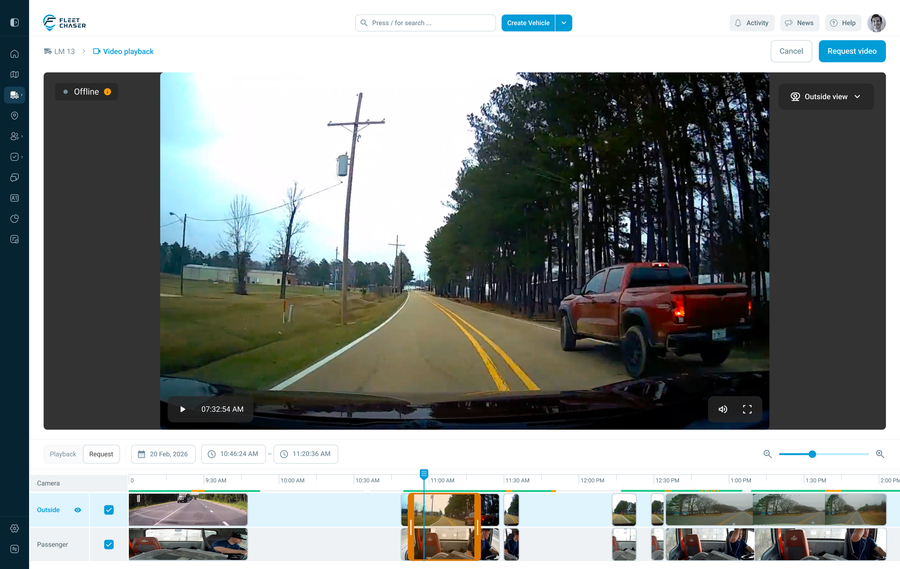
Playback is now simpler and more predictable.
You can immediately see:
- whether the camera is recording right now
- The last snapshot time captured by that camera
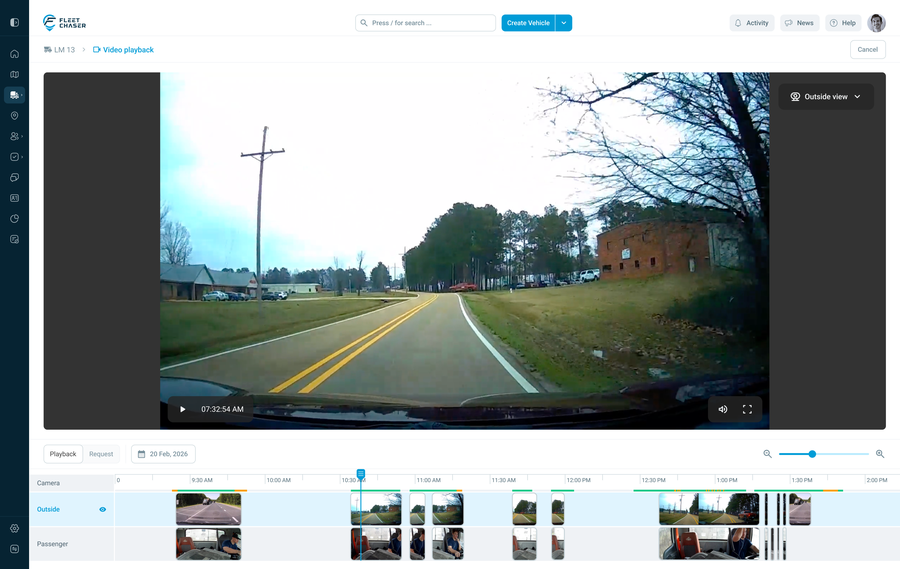
The player flow is now simpler: access the playback screen, select a camera view (Outside / Passenger / etc.), and navigate the timeline to review the moment you need.
2) Recording history by day (retention is now obvious)
Under the playback timeline, you can see:
- Which days have recordings
- The count of saved segments per day
Retention is also much clearer:
- The latest retained day is highlighted.
- You can understand which day is the “last kept” before older footage is removed from the camera storage.
(Older footage is shown on the left in yellow, newer retained footage is on the right.)
This lets you easily confirm if a video remains on the camera or is close to deletion.
3) Video Requests + Saved media (save clips permanently)
Need to keep a clip and download it? Use Request.
How it works:
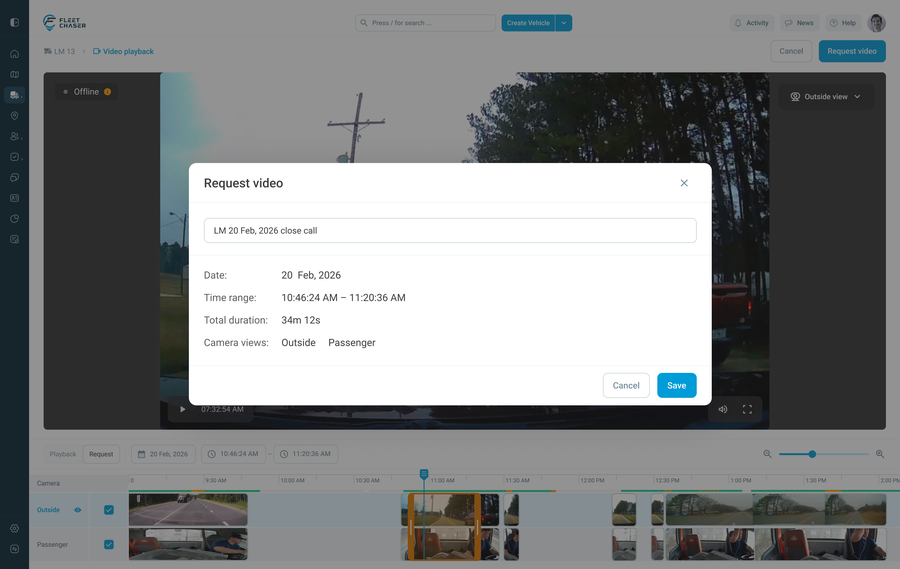
- Switch from Playback → Request (or click Request video)
- Select the camera(s) you want (one camera or multiple channels)
- Choose a time range (up to 5 minutes)
- Add a Title
- Submit the request — it will appear in Saved media.
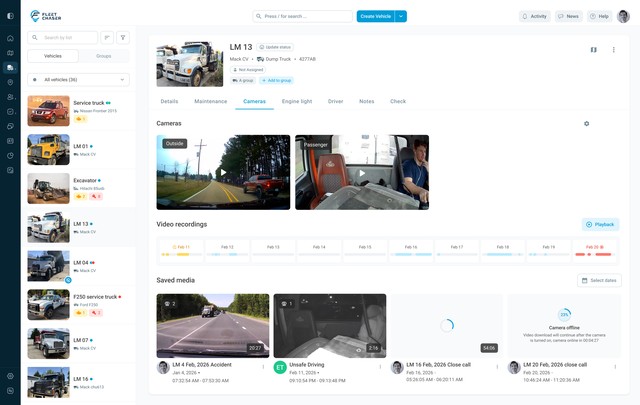
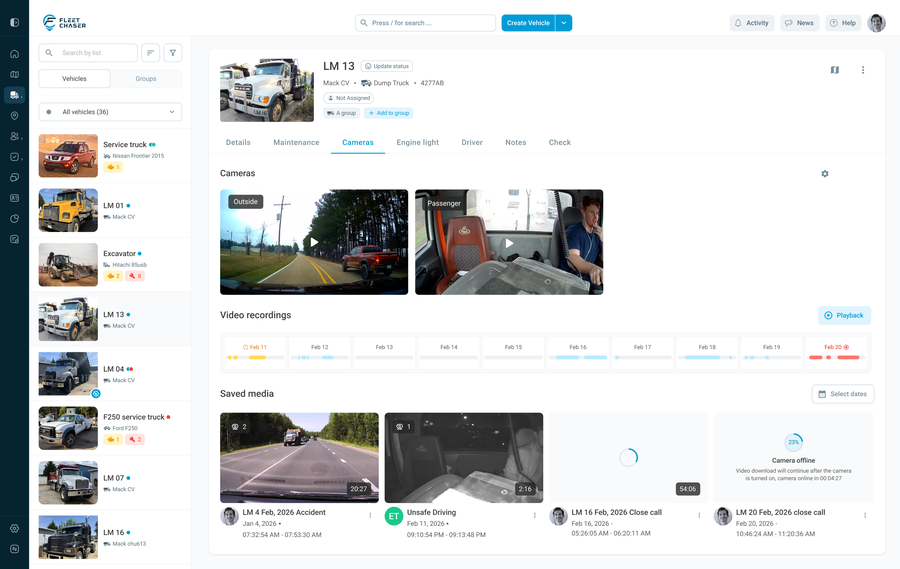
Saved media shows:
- download progress (camera → platform)
- clip cards you can open and review
- a clear state even when the camera/vehicle goes offline
After a clip finishes downloading, it’s stored permanently on Fleet Chaser—even if the original footage later disappears from camera storage. You can then download to your computer anytime.
Offline-safe downloads (important)
If the vehicle turns off and the camera goes offline during download, your request will resume when the vehicle reconnects.
It will resume automatically once the vehicle is online again.
Multi-camera control (another important detail)
When requesting clips from a vehicle with multiple cameras, first select the specific channels you need, or choose several channels at once based on your requirements.
- Request multiple channels at once
You can download clips one by one or download all the requested channels at once.