


In most operations, the plan and the work live in different places. The plan's on a board, or in a dispatcher's head. The work's out on a site, in a truck, spread across locations. And whatever actually happened comes back later in pieces — a phone call, a half-remembered note, a photo that never got sent.
Tasks v2 closes that gap. You set up the work the way your business runs it, your crew does it from their phone, and when it's done you open the task and see exactly how it went — who did what, when, how much — without calling anyone to ask.
It doesn't much matter whether you dispatch field crews, haul materials between sites, run service calls, or coordinate office work across locations. The point of Tasks v2 is that it bends to your process instead of forcing you into someone else's.
Two surfaces, one system
Before the walkthrough, a quick map of where things live.
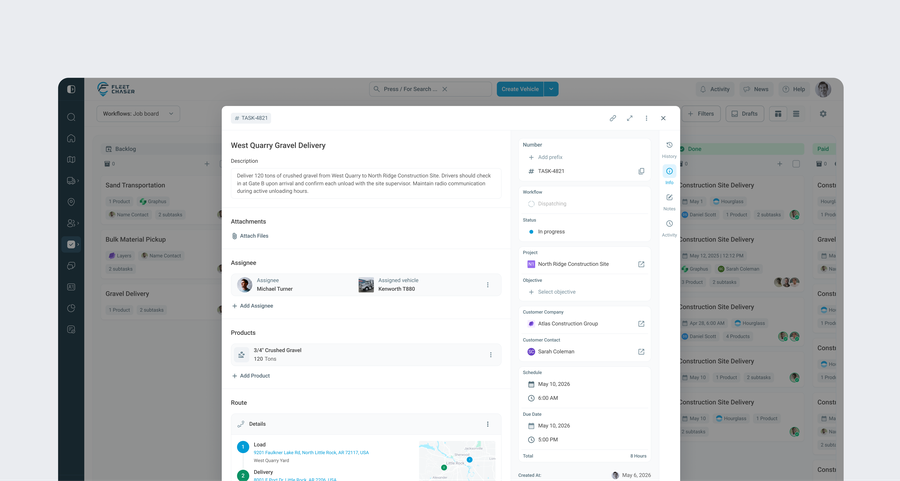
The Console is the desk side, and it has two parts. Task Settings is where you set the rules — your workflows, your statuses, what should happen automatically. The task itself is the job — you set up a piece of work there (who's on it, what's moving, where it goes, when), watch it move along the board, and see the full record once it's done.
The Employee App is the field side. It's where the worker picks up the task and actually does it.
So: you shape how tasks behave in Task Settings, you create and track individual jobs on the board, and your team runs them from the app. Here's each piece.
Task Settings — the board your business actually uses
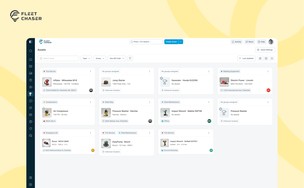
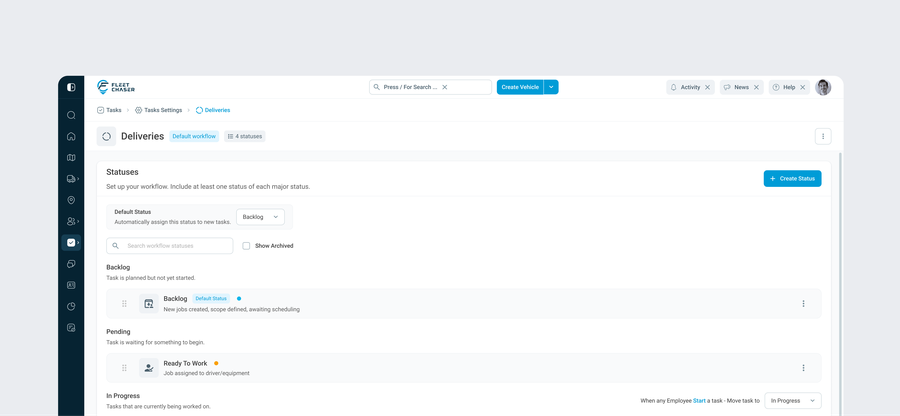
Most task tools hand you a fixed set of columns and expect you to live with them. Tasks v2 doesn't. In Task Settings (Console), you build your own workflows — a workflow is just a board — with the statuses you actually use, in the order you want, in colours that mean something to your team. If your process has an "Awaiting Materials" stage, add it. If a column stops earning its keep, set it aside; the work in it stays put. New to all this? Start from a ready-made template instead of a blank page.
Task Settings — tasks that move themselves, boards that hand off.
Two things in Settings turn a custom board into a working one.
Tasks can move themselves. Tell a status to pull in upcoming work on a schedule — a day before it's due, a few hours before, the moment the date arrives — and jobs go live on time without anyone shuffling cards every morning. If you'd rather not auto-launch tasks that don't have someone on them yet, you can hold those back.
Boards can hand off to each other. Mark a status as a hand-off point and a task that lands there moves straight into a different workflow — a finished job leaves your Dispatch board and shows up on your Billing board, ready to invoice. That's an actual pipeline, not a reminder taped to a monitor.
The task — the whole job on one screen
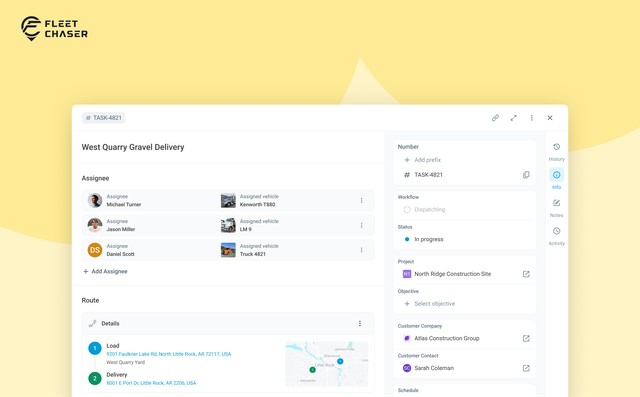
Now the job itself. When you create a task in the Console, you set the whole thing up in one place:
- Who's on it — one or more people, each with the vehicle they're taking.
- What they're moving — materials, with quantities and units, or an open-ended "all-day" haul.
- Where they're going — a route (more on that next).
- When it has to happen — a start date, a due date, an estimate.
After that, the task lives on the board. Open it any time and you've got the job's details, its notes, its full activity log, and — once work's underway — its Progress (more on that below too). The task only shows what the job needs: a quick reminder with no materials and no route is a small, plain card; a ten-stop materials run is the full picture, with addresses and load counters.
The task — routes, now with an on-site stop
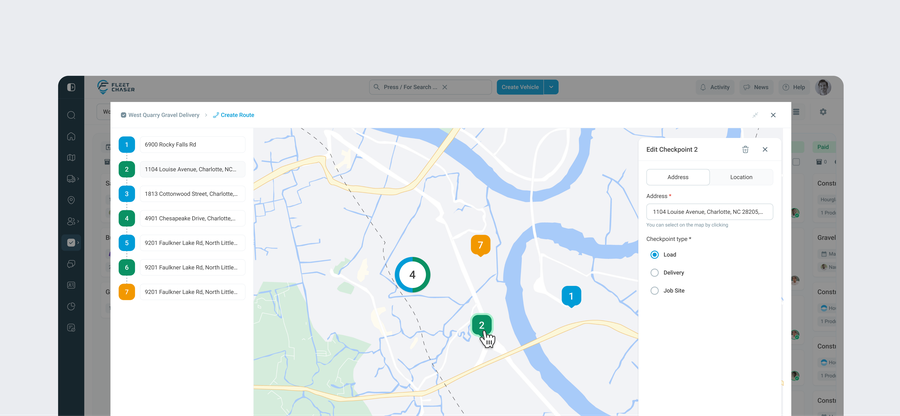
The route is part of the task, not a separate thing you build off to the side. In the Console you draw it on a map: pickup stops, drop-off stops, and a new one — Job Site, a stop where work has to happen on location. A Job Site holds the route there until that work is logged, so the route stays honest: it shows what's actually been done, not just what was planned.
The Employee App — where the work actually happens
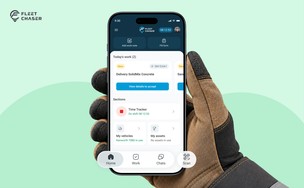
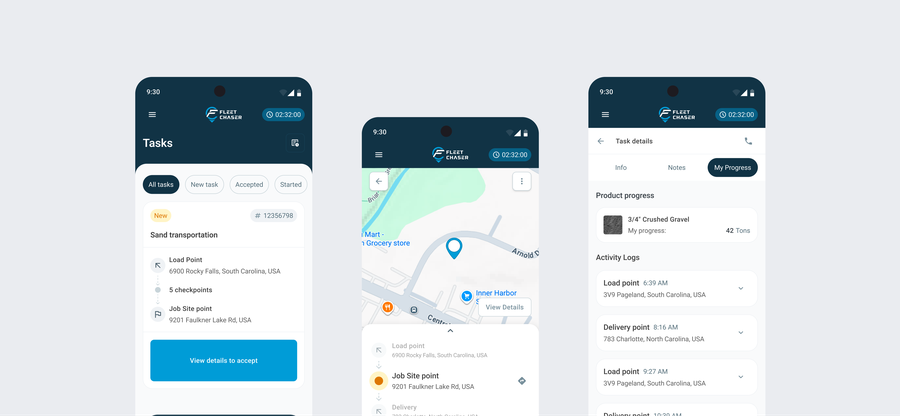
The people doing the work aren't sitting at a desk, so the Employee App is built around the job, not around forms. A task shows up on the worker's phone with the next thing to do at the top of the list. They accept it, start it, and the app walks them through it: get to the stop, log the load, on to the next, confirm the drop-off, and so on until it's done. The map keeps them oriented — where they are, where they're headed.
Multi-stop, multi-load jobs loop the way they actually go: pick up, drop off, pick up again. A simple job stays simple. Workers add notes and photos as they go, and they can reach the dispatcher in a tap when something's not right.
Notifications don't pile up, either. The worker and the manager get pinged about the things that matter — a task accepted, started, logged, finished, a route added, someone swapped on or off — and stay quiet about the rest.
The task — how the job went
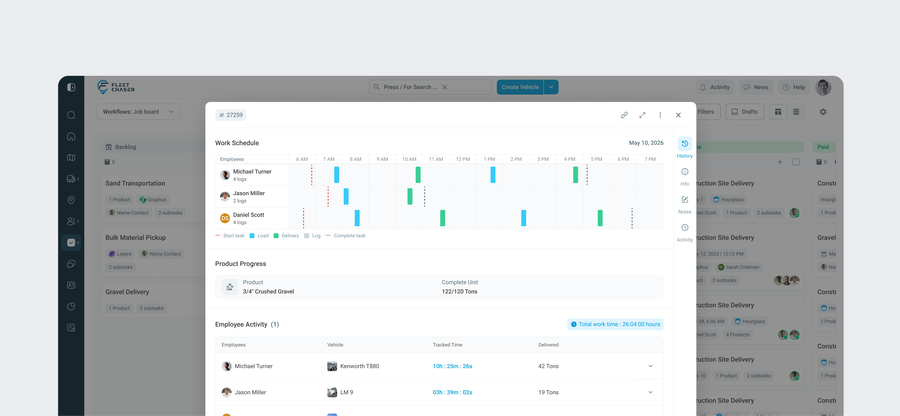
This is the part that ends the back-and-forth. Open a task in the Console and there's a Progress view: a timeline of everything that happened on the job, broken out by person — every pickup, every delivery, every log — alongside running totals on the materials ("8 of 10 loads delivered"), how much each person handled, how long they worked, which vehicle, and where they actually were.
Here's why it matters. When two or three people are on the same job, none of them used to see what the others had done. That's how the same load gets delivered twice, or how a dispatcher ends up adding it all up by hand from a thread of messages. Progress replaces that with a real record. And if something needs fixing, a manager can edit a log and leave a note saying why — the ticket photos and receipts sit right there on the record, not buried in a notes tab somewhere.
One guardrail: the assignee
Tasks v2 mostly stays out of your way. You can keep editing a task even after it's finished — name, materials, schedule, the lot. There's one guardrail, and it's there to protect the history.
Once a person has accepted a task, you can't swap them out — their work and their logs are tied to them. You can still change the vehicle, right up until work starts; after that, the assignee row is locked. And materials that already have work logged against them are kept on the record, not deleted out from under it. Everything else stays editable.
Tasks v2 is live now. Set up a workflow that matches how you actually run jobs, and put your next one through it. We're listening — tell us what's working and what isn't, through support or in the chat.