
A fleet is not only the things with number plates. It is the compactor that went out on Tuesday, the generator somebody swears is still at the Charlotte site, and the plate tamper nobody has seen since spring. Those have never had a place in Fleet Chaser. Now they do.
Assets is a new section in the Console for everything you own that is not a vehicle. Put a QR sticker on a tool — a smaller one than a truck wears — and the same scan your crew already uses will work on it.
Everything you own, with a type and a sticker
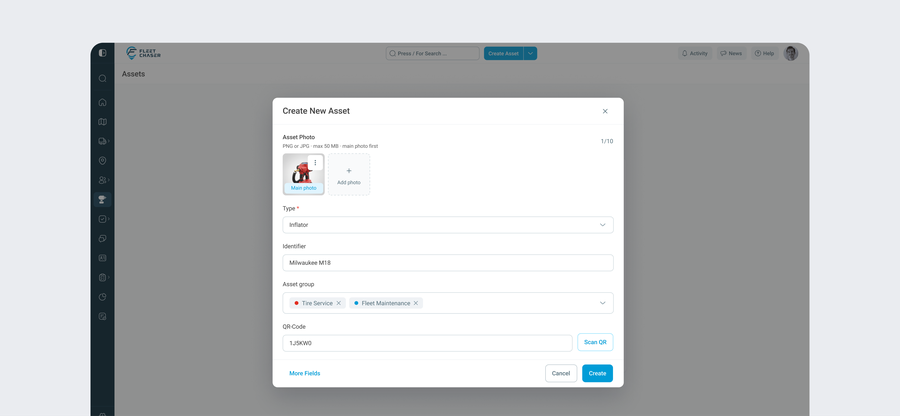
Adding a tool takes one dialog. Drop in photos, pick an asset type — the only field we insist on — put it in a group or two, give it an identifier, and enter the six-character code from its QR label. If you have the label in front of you, the Scan button reads it instead of you typing it. More fields opens serial number, brand and model when you want them.
Types and groups are yours to invent, and you can create either one without leaving the dialog: open the dropdown, and there is a Create type panel inside it. Types are how you say what a thing is — Generator, Compactor, Trailer. Groups are how you say where it belongs — Charlotte yard, Crew 4, Winter kit.
Three ways to look at the list
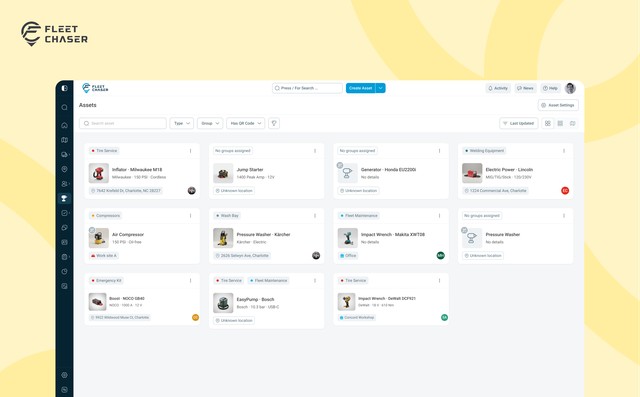
The same list renders three ways, and the Console remembers which one you left it on.
- Cards for the visual pass — photo, type and identifier, brand and model, group tags, where it was last seen, and the face of whoever last scanned it.
- Table for the inventory pass — Identifier, Type, Brand, Model, Serial number, Group. This one is desktop only; there is not a sensible way to read six columns on a phone.
- Map for the question you actually ask most: where is it.
Search covers identifier, serial number, model and brand. Sort runs four ways — last updated, recently created, and name in both directions. One filter, by type, which is the cut that answers "how many generators do we have and where are they".
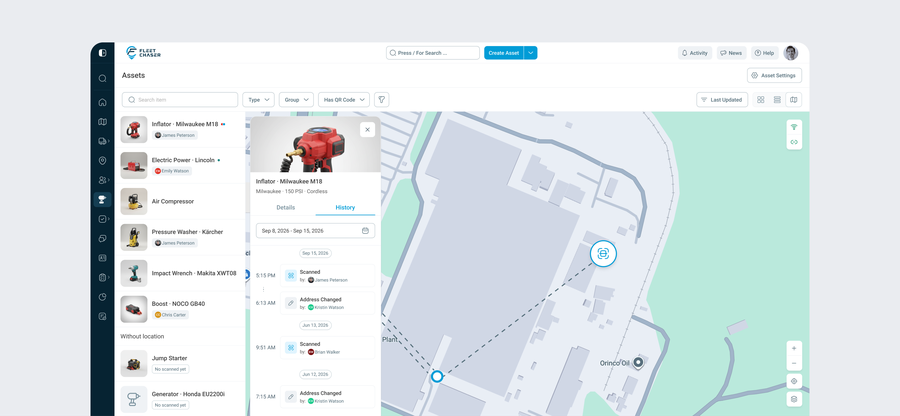
Where it is, and how it got there
An asset's location is not something anybody has to remember to report. Every scan writes it. A crew member points a phone at the sticker to fill in a form, and that scan quietly records where they were standing. The asset's Last Known Location updates itself as a by-product of work people were doing anyway.
When nobody has scanned it — the tamper that went out before the stickers arrived — you can place it by hand: type an address, or pick one of the Locations you have already saved.
Open an asset's History and you get the trail: who scanned it, where, when, which placements were typed in by hand, and which forms were filled at that scan. The scan and the paperwork are stitched together, so a history entry and its form are one event rather than two things you have to line up yourself.
Checking a tool out is a form, not a button
This is the part worth slowing down for, because it is not what you would guess.
There is no check-out button. A tool moves into somebody's hands when they fill in a Check Out form, and it comes back when somebody fills in a Check In. The form is the record and the handover at once — so the question "who signed for this, and what condition was it in" has one answer instead of two half-answers. Only one person can hold an asset at a time.
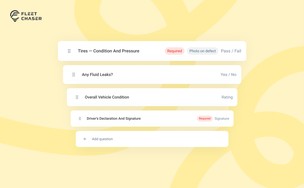
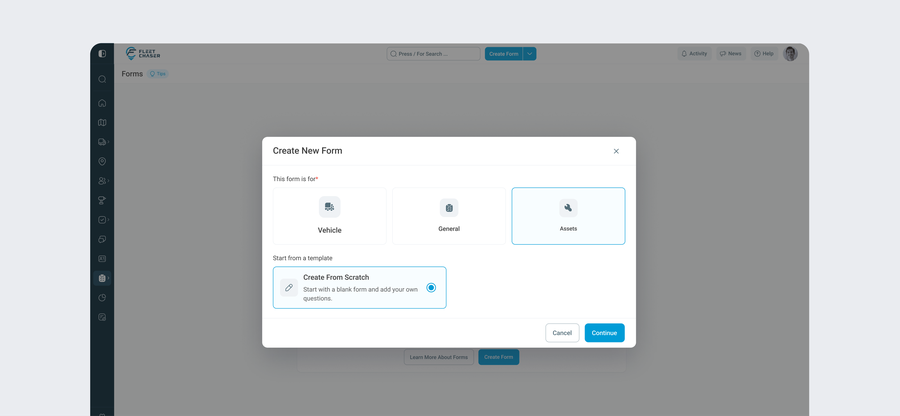
That means asset forms have their own types. In the builder, Create New Form now offers three cards — Vehicle, Assets, General — and picking Assets changes the Type list to Check In, Check Out, Report issue and Custom. Pre trip and post trip stay with vehicles, where they mean something.
Point an asset form at asset groups, or tick All assets. Everything else about building it is exactly as it is for a vehicle form — the same ten answer types including Scan code, the same rules about which answer counts as a defect and whether a photo is required. If you have built a vehicle form, you already know how.
What your crew does with a phone
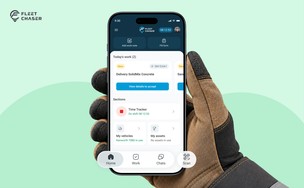
Almost nothing new to learn, which is the point. The app's new navigation already puts Scan on the bottom bar. Point it at an asset sticker instead of a truck and the app works out which it is.
The screen names the tool, shows its photo, and lists the forms your office published for it. Fill one in and it lands on that asset. On Home, a My assets card counts what that crew member currently holds; opening it lists those tools, and tapping one jumps straight back to its forms without walking back to the yard to re-scan. There is a history there too — their own past usage, with how long they had each thing.
What comes back to the office
Every form filed against a tool shows up on that tool's own Submissions tab, so an asset's page answers "what has been reported on this thing" without a search. In the company-wide Submissions list, the Target column names the asset the same way it names a vehicle, and a single submission shows which asset it belongs to.
One small thing worth knowing about the card: the face beside a tool is whoever last scanned it, which is usually but not always the person holding it.
Why we built it this way
We could have built a separate sign-out system with its own buttons and its own log. We did not, because you would then have had two places where the truth about a tool lives, and they would disagree by Thursday.
Instead the tool rides the rails your crew already uses: one sticker, one scanner, one kind of form, one place the answers land. A generator now behaves like a truck — it has a record, a location, a history and a set of questions somebody answers before it moves. That is the whole idea.
Assets is rolling out to companies one at a time while we learn how people actually use it. If you want it switched on for your account, message support and we will turn it on.
Not on Fleet Chaser yet? Start a free trial and we will walk your team through it.
Do I need different stickers for tools?
A different size, not a different system. The codes, the scanner and the flow are exactly what your crew already uses on vehicles — a hand tool just wants a smaller label than the side of a truck, so order the small ones for equipment. The app works out on its own whether a code belongs to a vehicle or an asset.
Can I put a pre-trip on a piece of equipment?
Not under that name, but yes in practice. Pre trip and Post trip are vehicle types. For a tool you build a Custom asset form and write the same questions into it — the same answer types, the same rules about what counts as a defect. Your crew gets it on the scan like any other form.
Can I assign a form to one specific tool?
Not to one. You point an asset form at asset groups, or at every asset. Groups are the level to plan at, so make one for the kit that needs the same questions.
Does somebody have to remember to report where a tool is?
No. Every scan updates its last known location. You only type a location in by hand for things nobody has scanned yet.
What happens if I delete an asset?
It comes off the list, but the record stays. Its scan history and the forms filled against it are kept.
Can somebody outside my company scan my sticker and see the tool?
No. A scan from another company gets nothing back.