Every part of the Employee App's navigation moved: the bar along the bottom, the menu behind the hamburger, and the first screen your crew sees. The old app was a filing cabinet with five drawers, and a driver had to know which drawer held the thing they wanted. The new one is built around the shift. What is running, what is next and what a driver logs all day are on Home; everything live sits in the menu; the scanner has its own button on the bar.
What the old shape made a driver do
Five tabs ran along the bottom: Home, Tasks, Timer, Chat and Inspection. Only the selected tab showed its name, and the bar had to shrink its icons and labels to fit five of them on a narrow phone. The hamburger held exactly two rows, Personal Data and Log out. Home said Welcome back over a list of today's tasks, with two chips above it that led to the Timer tab and the Tasks tab.
None of it was wrong, and we built it that way when the app had a handful of screens to hold. But it was filing. Someone holding a phone in one hand at the back of a truck had to know which of five tabs owned the thing they wanted, and nothing on the first screen told them a clock was already running.
Home is where the shift starts
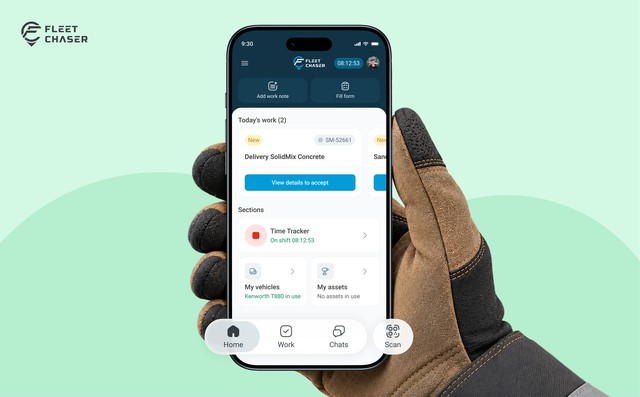
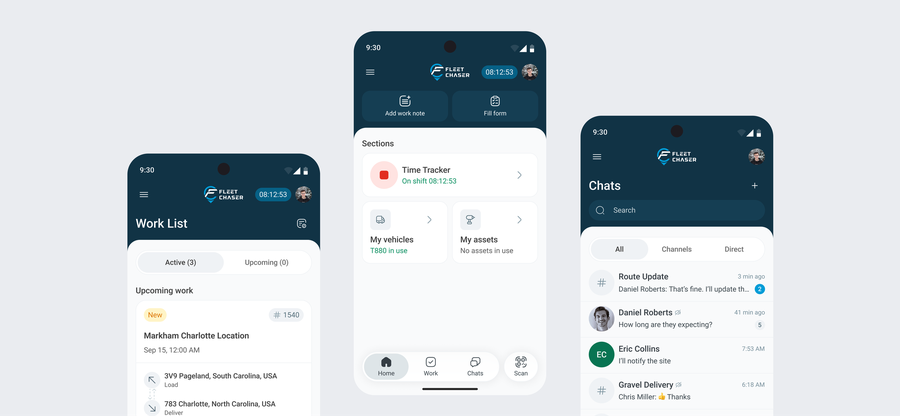
Two buttons sit across the top of Home: Add work note and Forms. The old chips in that spot only opened another tab. These start the work from where you are standing.
Add work note stays greyed out until the clock is running, and says so if you press it, because a note that belongs to no shift is a note nobody can place later — and the clock is right there on the Time Tracker card below. Forms opens the same screen the scanner ends on — the list your office has published, ready to fill in. Open it from the button and you get the forms that stand on their own; scan a sticker instead and the same list comes back narrowed to that truck.
Below the buttons, today's work is a row of cards that swipe sideways. If you have no tasks but a truck signed out, that row shows the truck instead. If there is neither, the card says so and points back at the buttons above, which is the honest answer for a driver whose day is deliveries rather than tickets.
Then Sections, cards that read out their own state instead of sitting there as links:
- Time Tracker carries the clock and the button that starts and stops it, so a shift begins from Home rather than two screens in. While it runs it reads On shift; when it is not, it tells you when you last worked.
- My vehicles names the truck you have out — or counts them, if you have more than one — and says so when there is none.
- My assets counts the equipment you have signed out, and says so when there is none.
Anything live turns green, so the state of your shift is legible before you tap anything. Glance, tap, log, back to the truck.
The menu keeps the same split for what you have out; equipment lives on Home, under My assets.
The menu holds what you have running
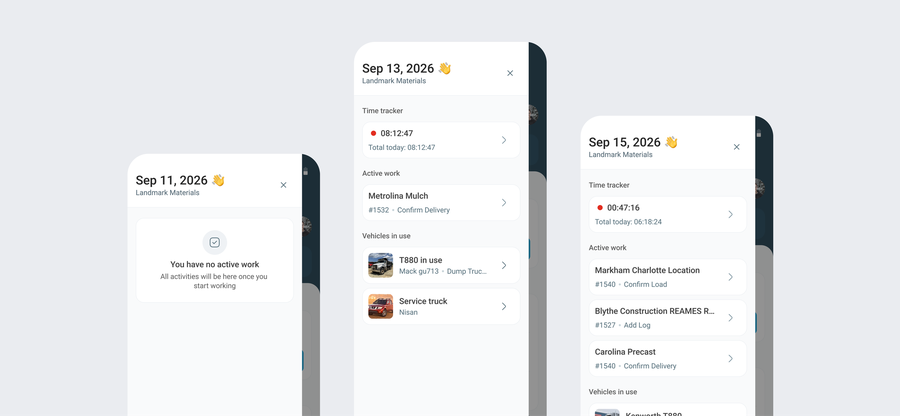
The hamburger is no longer a dead end. It opens on today's date and the name of the company you are working for, which matters for people who work for more than one. Under that is only live work:
- Time tracker carries the running clock and the day's total, and opens the timer.
- Active work lists the tasks you have taken on — accepted or started — not everything assigned.
- Vehicles lists the trucks you logged a pre-check on and have not handed back yet; tapping one opens that truck with its forms, and because you are the one holding it, the post-trip is there to close out.
When there is nothing running, the panel says you have no active work and that activities will appear once you start working. Nothing badges the hamburger in the meantime, so you do have to open it to look. The cards on Home turn green while work is live, which is usually enough to know.
Three tabs, and Scan beside them
The bottom bar is down to Home, Work and Chats, with Scan on its own button beside them. Every label is visible all the time now, and Chats carries the unread count. Tasks became Work because that is the word drivers use. The bar is built from what your company actually runs: no tasks, no Work tab; no chats, no Chats tab.
Go one level in, into a task, a chat, the timer or an inspection, and the bar steps out of the way. It is there for choosing what to do, and gone while you do it.
The top of the screen carries the rest. The hamburger sits on the left, the logo in the middle, and the driver's own photo on the right, which is where personal details went when the menu was cleared out for live work.
One sticker, whatever it is on
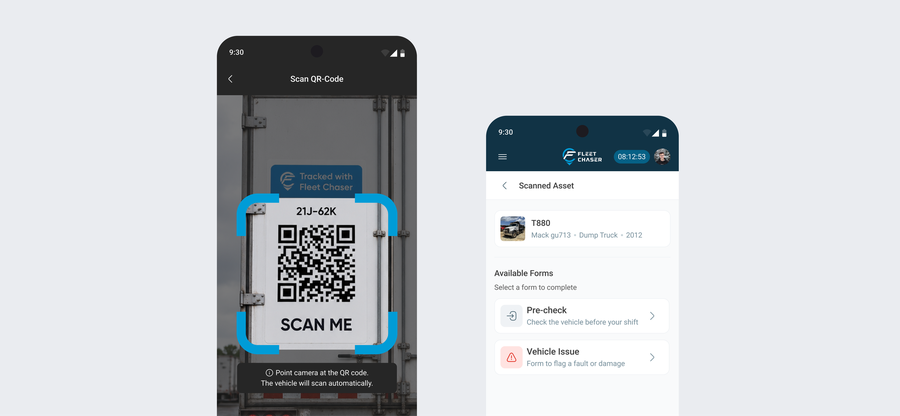
Scan sits on the bottom bar, so the camera is one tap away from Home, Work or Chats. Point it at a sticker and the app works out what it is on — a truck or a piece of equipment — then names it and lists the forms your office has published for that one thing. On a vehicle the post-trip only shows for whoever actually has it out, so nobody can close a trip somebody else is on; a pre-trip is never held back. If the code will not read, the app says so and lets you try again.
What this changes in the office
Nothing here notifies anyone, and none of it is a new report. What changes is how much gets written down at all.
A note and a form are each a tap or two from the first screen a driver opens, instead of a tab away. A work note can only exist inside a shift, so notes arrive with a time around them. And a form filled in off a scanned sticker lands against that truck or that tool without anyone typing a plate number, which is the difference between "something's wrong with the loader" at four o'clock and a record you can act on.
Why it matters
A fleet app competes with the simplest alternative there is: doing nothing and telling someone later. Every tap between a driver and the record loses ground to that. The old navigation asked people to learn the app's filing system before they could add one line about a cracked mirror, and the app was the thing on the screen.
Now the crew runs the day and the app follows it — what is running, what is next, what people log all shift — with the scanner on the bar beside them. The office ends up with what the driver does: a shift written down while it happens, instead of remembered on Friday.
The new navigation is rolling out to the Employee App now — crews pick it up automatically, with nothing to install from the store. If a walk-through of the new Home would help your team, drop us a note in chat.