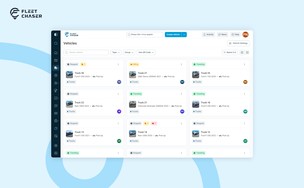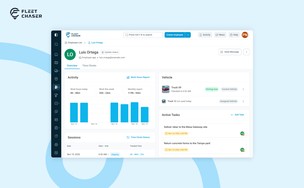

Until now, Time Approval showed when a shift started, a map of where and a selfie if you required one. Whether the shift started at a work site, or the selfie showed a face at all, you checked by hand, one session at a time.
This release adds clock-in checks. An admin can require a biometric check, an automatic shift photo or both, and choose where shifts should start; Time Approval then marks the shifts worth a second look. The location and face checks warn rather than block, so the decision stays with the office.
Choose what clocking in asks for
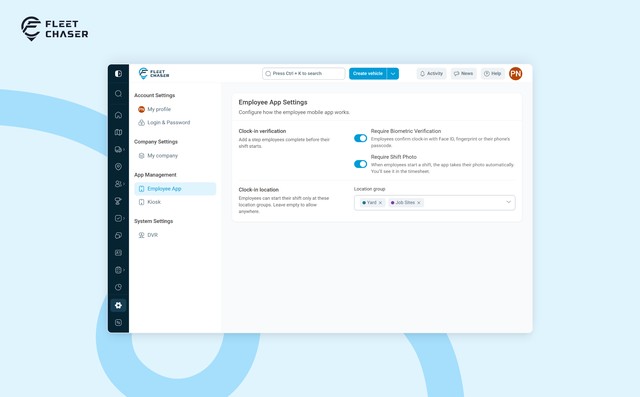
In Settings, App Management is now a group with two pages, Employee App and Kiosk. On Employee App, the Clock-in verification section has two switches:
- Require Biometric Verification: employees confirm clock-in with Face ID, a fingerprint or their phone's passcode.
- Require Shift Photo: the app takes the employee's photo by itself once it finds a face. If it can't, the employee can take the photo by hand, and the shift is marked.
Biometric verification starts off. Require Shift Photo keeps the photo setting your company already had, an option since Time Clock launched. The biometric step and the automatic, face-checked photo need the latest Employee App; older versions keep clocking in as before.
Pick where shifts should start
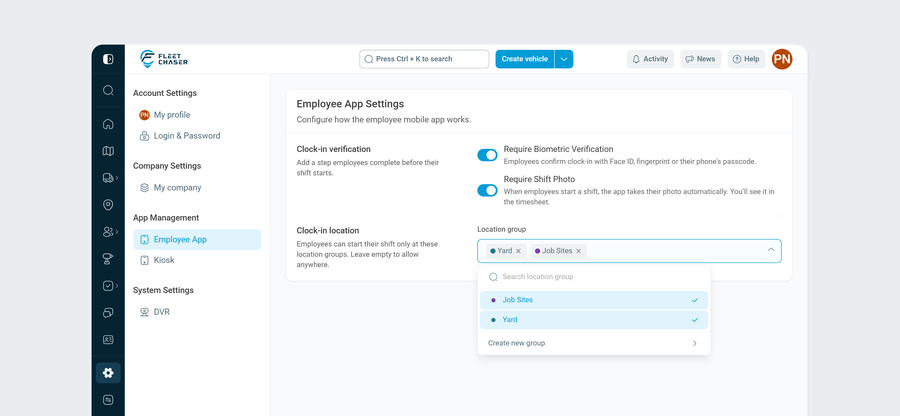
Under Clock-in location, pick one or more location groups in the Location group field. A shift counts as at work when it starts inside the boundary of any location in those groups. The groups apply to every employee, and with none picked, employees clock in from anywhere, as before. Picking groups doesn't stop anyone from clocking in: an employee outside them can start anyway, after a warning in the latest Employee App, and the shift is marked Not at a work location.
Create new group at the end of the list (Create location group while you have none) makes a group and picks it. Pick groups that already contain locations: a new group starts empty. While your picked groups have no locations, your crew sees no warning, but every new shift that shares the phone's location is marked Not at a work location.
To put locations in a group, open Settings on the Locations page and, on Groups, click the group, tick its locations and click Save. Editing a location also offers a Location group field, but it holds one group: picking another there moves the location out of the one shown.
Kiosk settings, and who can change them
The Kiosk page holds the kiosk's own Shift Photo switch, set as before (kiosk photos get no face check), the Company Token, and the kiosk's Greetings and Company phone number under Information about the company.
Only admins, the people marked Admin in Employees, can now change either page; until now, anyone signed in could flip the photo switches or edit the kiosk's greeting and phone number. Everyone else sees both pages read-only.
See what each check found
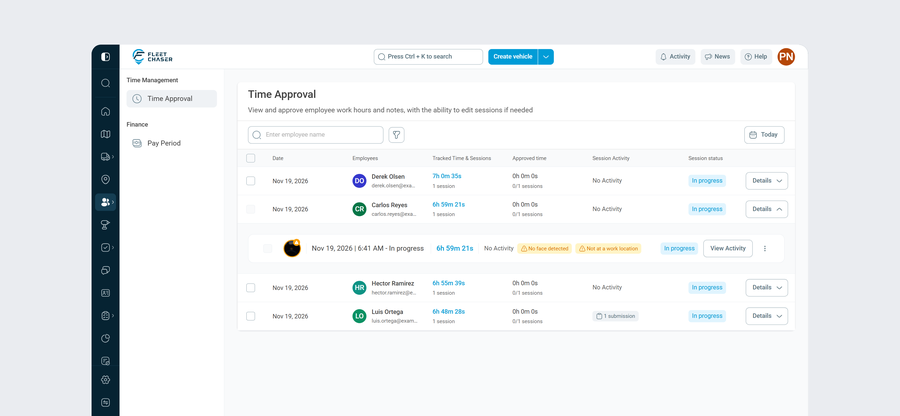
Open Employees → Time management in the side menu, and on Time Approval expand an employee's day to see its sessions. A shift started outside your clock-in locations carries a Not at a work location chip. A shift whose photo was taken by hand, because the app found no face, gets an orange ring on the photo and a No face detected chip.
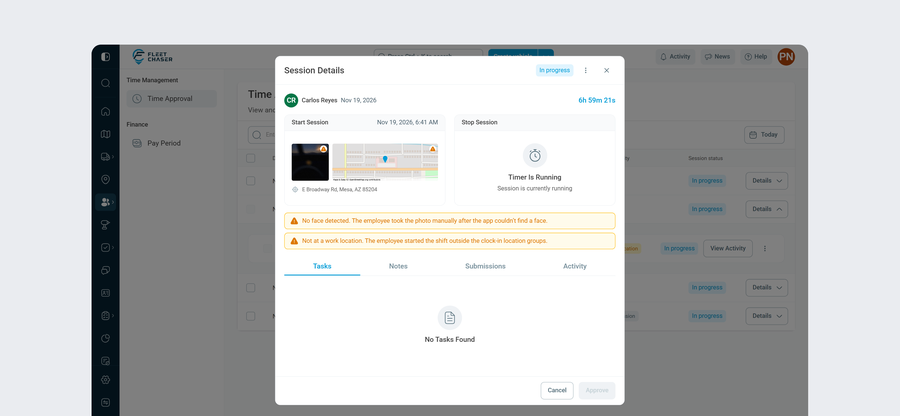
View Activity opens Session Details, where the start photo and the start map each carry a green check or an orange warning, and each failed one adds a yellow banner that explains it. When every check that ran passed, a green (validated) follows Start Session; a passed biometric check counts toward it without a mark of its own. Checks that didn't run show nothing, so older shifts carry no marks.
What the checks don't do
- The location and face checks never stop a clock-in. An employee outside your locations can still start, and the photo can be taken by hand when the app finds no face. Only the biometric step has to pass, and the phone's passcode works for it.
- (validated) counts only the checks that ran. A shift from an older app version can earn it on its location alone, while a phone with no screen lock skips the biometric step and never earns it.
- The location check needs the phone's location. If the phone isn't sharing it, the shift gets no location mark.
- The face check finds a face; it doesn't recognize whose face it is.
Your crew's side, from the biometric prompt to the warning that lists the nearest work locations, is under Employee App in the release notes for November 18; approving hours on a person's own page is in the updated Employees section.
Why it matters
You approve hours with the evidence in front of you: a photo the app took itself, a mark when it found no face, and a mark when a shift started away from your locations. The call stays yours.
Not on Fleet Chaser yet? Start a free trial and we will walk your team through it.
Will a check ever stop someone from clocking in?
Only biometric verification: if the employee cancels the Face ID, fingerprint or passcode prompt, or the phone can't confirm them, the shift doesn't start. The location and face checks never do; Time Approval marks the shift for you to review instead.
Do my employees need to update the app?
For biometric verification and the automatic, face-checked photo, yes: both run only in the latest Employee App, which on iPhone needs iOS 17 or later, and employees whose iPhones can't update keep clocking in without them. Location marks work with the app your crew has now.
What changes if I don't touch anything?
Biometric verification stays off, the shift photo keeps your current setting and, with no location groups picked, employees clock in anywhere. Two things change: only admins can now change these settings, and if you already require a photo, shifts from the latest Employee App start showing face marks.
Why is a shift marked Not at a work location when the employee was on site?
A shift counts as at work only when the location the phone reports at clock-in falls inside the boundary of a location in the groups you picked, so check that the site is in one of them and its boundary covers where your crew clocks in, such as the yard. The phone's reading can also be off or out of date: the start map in Session Details shows where it placed the clock-in, so give the boundary some room.
If I change the groups, do earlier shifts change?
No. Each shift is checked once, when it starts, against the groups and their locations at that moment, so a change applies from the next clock-in.