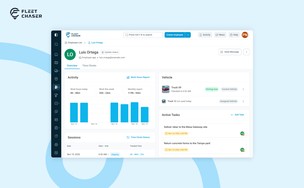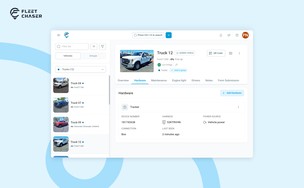

Until now, Vehicles opened as a split screen: a narrow list with the first vehicle already open beside it, and groups behind a Vehicles | Groups switch, with a page for each group.
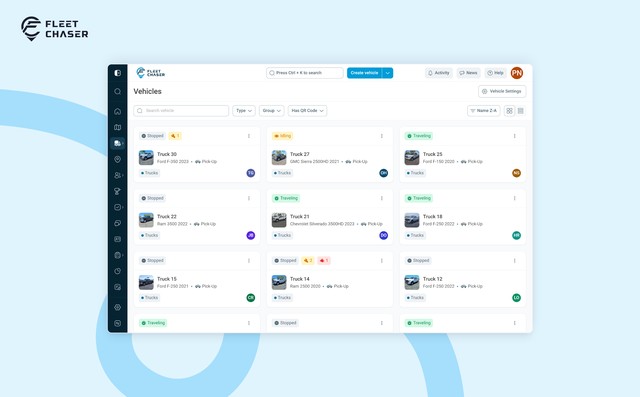
This release gives Vehicles, like Employees, the same layout as Forms, Documents and Events. The list fills the screen, every vehicle gets its own page, and groups move into one table.
Find any vehicle from one line
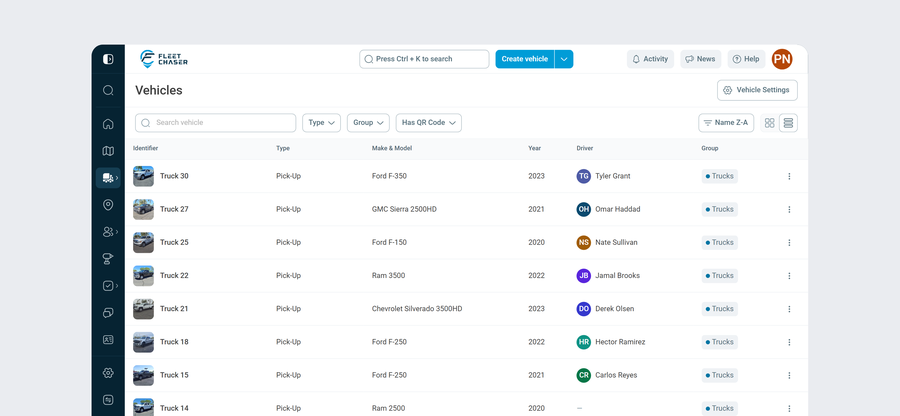
Open Vehicles → Vehicle list and the list takes the whole page; nothing opens until you click a vehicle. On a large screen, the toggle at the right end of the toolbar switches between cards and a table, and your browser remembers the choice.
Search vehicle finds a vehicle by its name, its make or model, its full type name or the name of the driver checked in to it. Next to it are three filters: Type narrows the list to one vehicle type, Group to a single group's vehicles, and Has QR Code, set to No, finds the vehicles with no QR code linked yet. In a smaller window the filters fold into one button; on a phone, search, filters and sort move to a bar at the bottom.
The sort button offers Name A-Z, Name Z-A, Recently created and Last reported. Last reported puts the vehicles that sent data most recently on top, so a tracker that has gone quiet sinks toward the bottom. Sorting by manufacturer or model is gone; type the make or model into search instead.
Come back from a vehicle with Vehicle List in the breadcrumbs and your search, filters and sort are as you left them.
What each card tells you
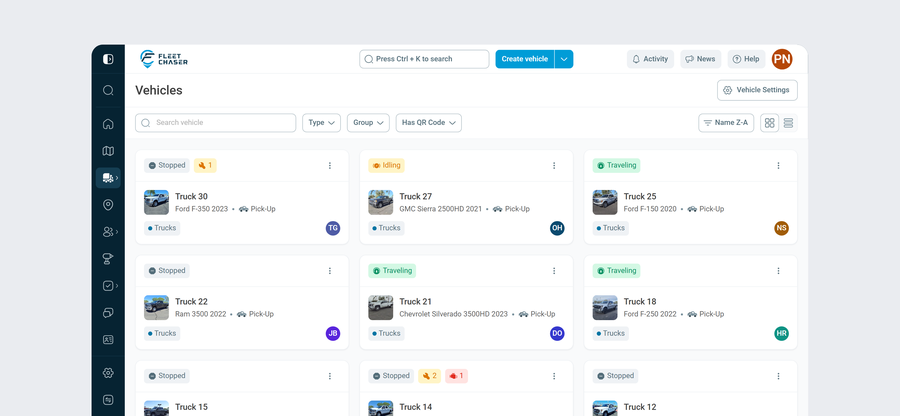
Each card leads with the vehicle's last reported state: Traveling, Idling, Stopped or Towed. Next to it, a wrench counts the maintenance that is due or nearly due, and an engine icon counts active trouble codes. A vehicle without a tracker has a badge on its photo instead of a state.
Below that are the photo, name, make, model, year, type and group tags. The driver's photo or initials sit in the card's corner, with the name on hover: the person checked in to the vehicle or, when nobody is, the driver assigned to it. Each card has a menu with Edit and Delete.
The table shows the same vehicles with Identifier, Type, Make & Model, Year, Driver and Group columns and the same menu at the end of each row.
Every vehicle on its own page
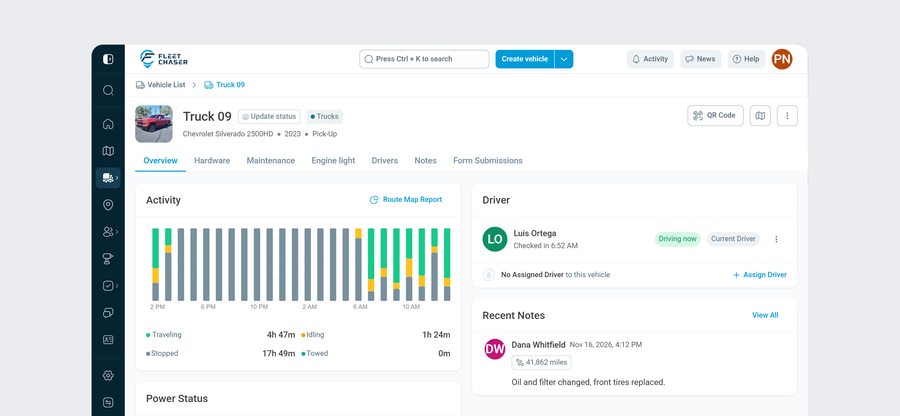
Click a card or a row and the vehicle opens on its own page, with Vehicle List › its name as the breadcrumb. The tabs work as before: Overview, Hardware, Maintenance, Engine light, Drivers, Notes and Form Submissions, with Cameras or DVR after Hardware for a vehicle with a camera. A vehicle without a tracker has no Engine light or Drivers tab.
In the header, next to the name, sit the status tag, which you click to set a status, a Non-tracker tag for a vehicle without a tracker, and the group tags. Its buttons are QR Code, which opens QR Code Management to connect or unlink the vehicle's QR sticker, a map button that shows the vehicle on the map, and the menu with Edit and Delete. In a smaller window, all three sit as icons at the top right of the page.
Three things moved out of the header:
- Photos. The header shows the main one; add, delete or choose the main photo in Edit.
- Driver names. They are on the Driver card on Overview and on the Drivers tab.
- Groups. Change them in Edit, in the Vehicle group field, or from the group's side under Vehicle Settings.
Adding a vehicle, the Hardware tab and the Driver card work as described in Easy Vehicle Setup.
Groups in one table
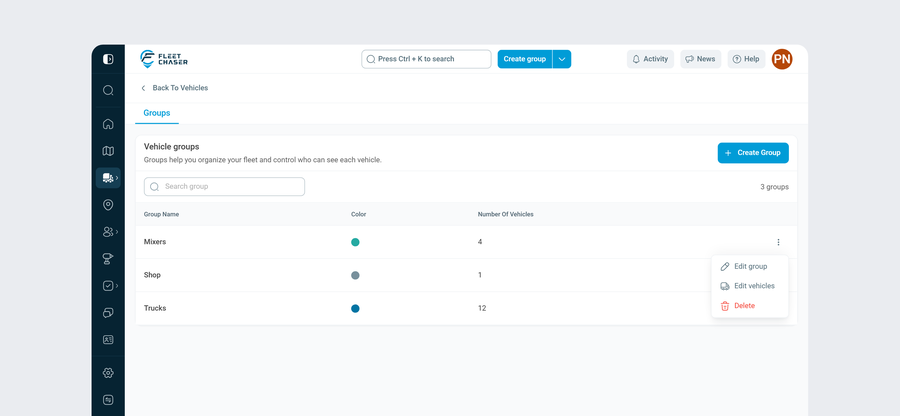
Vehicle groups now live behind Vehicle Settings at the top right of the Vehicles list (a gear icon on smaller screens), on the Groups tab. It is one table of your groups, with each one's color and number of vehicles, plus Search group and Create Group.
Each row's menu has Edit group, for the name, the color and the Employee groups; Edit vehicles; and Delete, which works once the group is empty: take its vehicles out with Edit vehicles first.
Edit vehicles lists your vehicles with a search box: click a vehicle to add it to the group or take it out, then click Save. Clicking a row opens it too; since a new group starts empty, it is the next step after Create Group.
More from this release is in the release notes for November 18.
Why it matters
A dispatcher finds one truck by typing its name, its model or the name of the driver checked in to it. On the cards, the office sees which vehicles are moving, which need the shop and who drives them without opening each one, and the groups that decide who sees which vehicles sit in one table.
Not on Fleet Chaser yet? Start a free trial and we will walk your team through it.
Do I need to set anything up?
No. Every account gets the new pages, with its vehicles, groups and tabs as they were. The list opens as cards, sorted Name A-Z.
Why can't I see the table?
The table needs a browser window at least 1280 pixels wide; narrower windows and tablets show cards.
Do my saved links still work?
Yes. Old links to vehicles and their tabs open the new vehicle pages, and an old link to a group opens the Groups tab under Vehicle Settings. A deleted vehicle, or one you can no longer access, shows Vehicle Not Found.