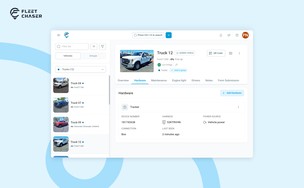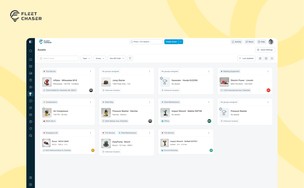

Until now, Employees opened as a split screen, with the first person already open beside the list. A person's page showed the truck assigned to them but not the one they were actually driving, their hours sat in tiles and month calendars above a single day's sessions, and groups had a switch of their own with a separate page for each.
This release rebuilds Employees on the same layout as Forms, Documents and Events. The list switches between cards and a table, each person gets a page whose Overview shows what they drive, what they submitted and how long they worked, the Time Clocks tab lets you approve hours day by day, and groups move to a new Employee Settings page.
Find anyone on the list
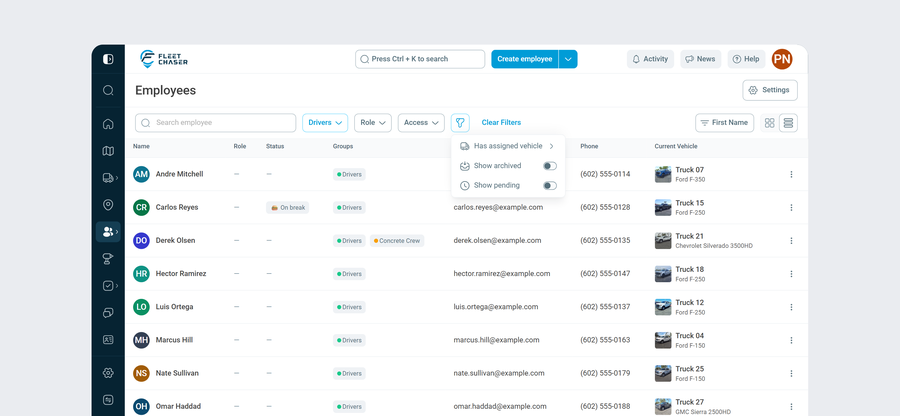
Employees now opens as a full-width list of cards, and on a large screen you can switch it to a table. There, three filters sit next to Search employee: Group, Role (Admin, Operator or No role) and Access (Full access, Employee app or No access); on a smaller screen they open from the filter icon. Role and Access replace the old Show admin switch and the Operator and User filters. Sort by first or last name. Each card or row shows the person's role, status, groups, contact details and assigned vehicle.
The filter menu holds Has assigned vehicle, Show archived and Show pending. The last two are off by default, so archived people and people who haven't accepted their invite stay hidden until you turn them on; until now, invited people were listed by default. Turned on, they join the list instead of replacing it.
The Vehicles list moved to the same layout in this release.
One page per person
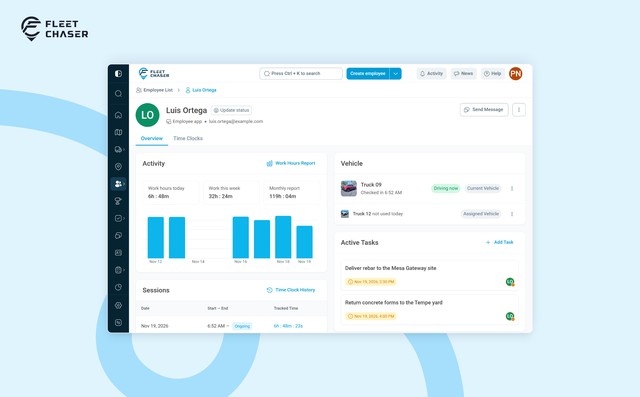
Click someone to open their page, with Employee List › their name as the breadcrumb. The header shows their photo and name, Admin or Operator tags, their status, a Pending tag while their invite hasn't been accepted, the access they have and their email.
In companies that use Chats, Send Message opens your direct chat with that person, or starts one. The menu beside it keeps every action from Edit to Manage platform Access, and Archive now sits at the bottom. Archive asks you to confirm: the person loses access, and all their data is kept. You stay on the page, now marked Archived with the date, and Unarchive employee in the same menu restores their platform access. Archiving also removes an Admin or Operator role; after unarchiving, give it back with Enable admin role or Assign as operator in the same menu.
The page has two tabs: Overview and, for admins and the person themselves, Time Clocks, in companies that have it switched on.
Their day at a glance
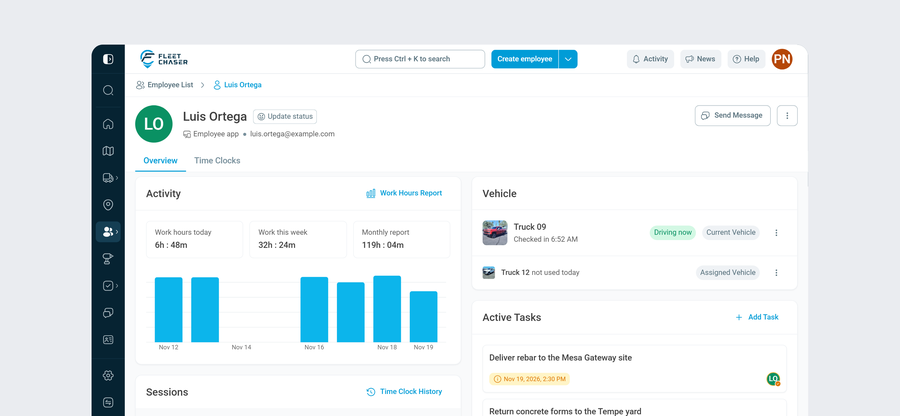
On a large screen, the Overview keeps two columns of cards, all redrawn. On the left:
- Activity shows Work hours today, Work this week and Monthly report, a daily chart and a Work Hours Report link.
- Sessions lists recent shifts, marking a running one Ongoing and a finished, unapproved one Pending.
- Employee Details holds groups, platform access, phone and address, with Edit Details.
On the right, the Vehicle card shows the vehicle the person is checked in to, tagged Driving now, and their assigned vehicle. If they are driving another one, the assigned vehicle is marked not used today when nobody is checked in to it and nobody has checked in to it today. Assign Vehicle lists every vehicle, and picking one that belongs to someone else asks you to confirm before it moves over. Checking a driver out works as on a vehicle's Driver card, from the card's menu or from the warning it shows after 24 hours checked in.
Under it come Active Tasks, with Add Task, and a new Submissions card: the ten latest forms the person sent in the period you pick, the last 7 days by default, each marked Passed or with its number of issues. Click a row to open the submission.
Activity and Sessions show only to admins and to the person themselves, and Active Tasks only in companies that use Tasks.
Approve hours day by day
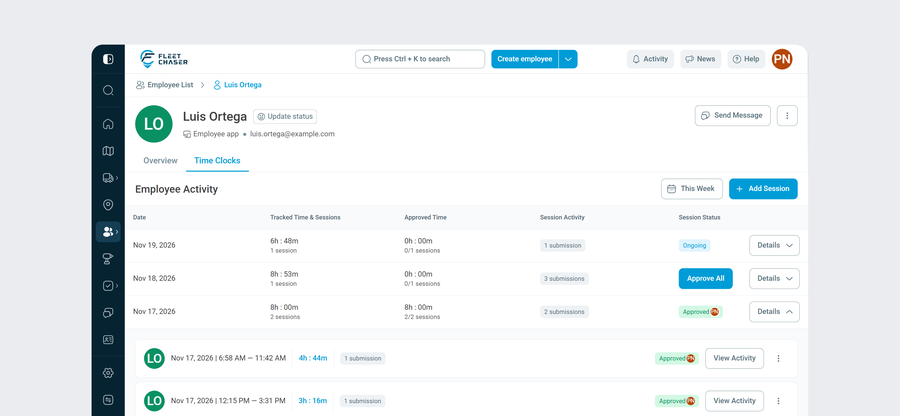
The Time Clocks tab is now one table. Pick the period in the Employee Activity bar (today by default, a preset such as this week, or a custom range) and add time with Add Session. A single day lists its sessions. A longer period lists a row for each day worked, with Tracked Time & Sessions, Approved Time, Session Activity and Session Status, and Details opens the day into its sessions.
Approve a finished session or, in a longer period, use Approve All on a day with nothing still running; both ask you to confirm first. The Approved tag then shows who approved the time, and Paid shows who paid it. The hour tiles and month calendars are gone from this tab; the same totals are still on the Overview's Activity card.
Open a session and Session Details has a Submissions tab in place of Inspections. It lists every form sent during the shift with its type, time and result, and each one opens its submission. The same tab appears when you open a session from Time Approval.
Groups in one table
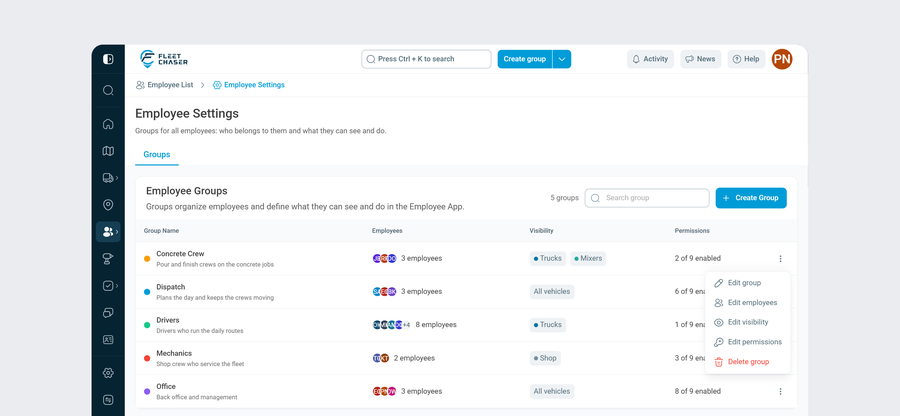
Employee groups moved behind the Settings button at the top right of the Employees list, a gear icon on smaller screens. It is not Settings in the side menu: it opens Employee Settings on its Groups tab.
That tab is one table with Group Name, Employees, Visibility (the vehicle groups the group can see, All vehicles or No vehicles) and Permissions, plus Search group and Create Group. Each row's menu has Edit group, Edit employees, Edit visibility, Edit permissions and Delete group, each in a dialog, so the separate page for every group is gone. Clicking a row does the same as Edit employees.
One rule is new: someone with Console or Employee App access can't be removed from their only group, in Edit employees or in their Edit form. A message explains why.
Recent and suggested statuses
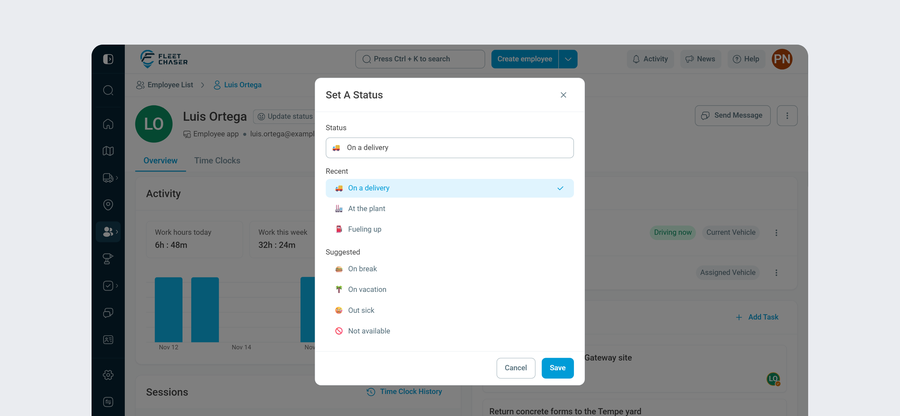
Click the status tag in a person's header to open the redesigned Set A Status. Recent lists up to three statuses recently used for that person or vehicle, and for employees Suggested offers On break, On vacation, Out sick and Not available. Pick one, change it if you need to, and click Save. The same dialog opens from a vehicle's page and from your own status in the account menu. Clear Status now ends a status instead of erasing it, so it shows up under Recent.
More from this release is in the release notes for November 18.
Why it matters
The office sees a person's day in one place: the truck they are in and the forms they sent, and admins see their recent shifts, with the ones waiting for approval marked Pending. Hours get approved a day at a time with a record of who approved and who paid, and groups, visibility and permissions sit in one table.
Not on Fleet Chaser yet? Start a free trial and we will walk your team through it.
Where did the Groups tab go?
Groups are managed from the Settings button at the top right of the Employees list (a gear icon on smaller screens), under Employee Settings → Groups. On a person's page, their groups show under Employee Details on the Overview; change them with Edit in their menu.
What happened to the Schedule tab?
The operators' Schedule tab is removed from the employee page. A vehicle's Drivers tab keeps its calendar.
Why can't I find someone I just invited?
People who haven't accepted their invite are now hidden by default. Turn on Show pending in the filter menu; Show archived does the same for archived people.
Where are the hour totals from the Time Clocks tab?
On the Overview's Activity card, as Work hours today, Work this week and Monthly report.
Why doesn't my bookmark to an employee page open?
Employee pages moved to new addresses and group pages are gone, so an old bookmark shows Page not found. Open the person from Employees → Employee list in the side menu and bookmark the new page.