



The problem
Setting up a real job takes a few minutes: a multi-stop route, products and quantities, a crew, a schedule, attachments. You’re eight minutes into building one and then a customer calls, the dialog closes, the tab reloads, or you just have to step away. Before, that half-built task was gone, and you started over from a blank form.
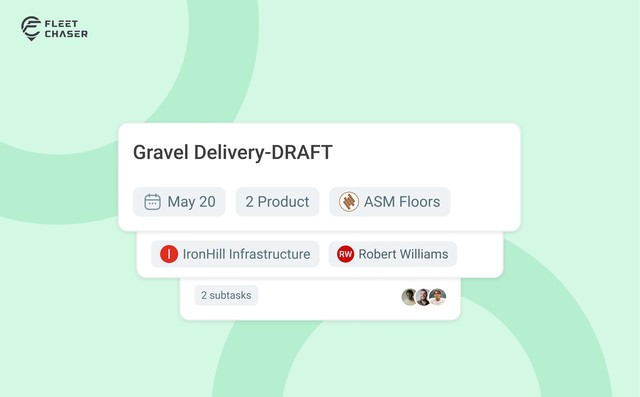
Drafts fix that. While you build a task, Fleet Chaser saves it for you automatically. You can walk away and pick up exactly where you left off.
How it works
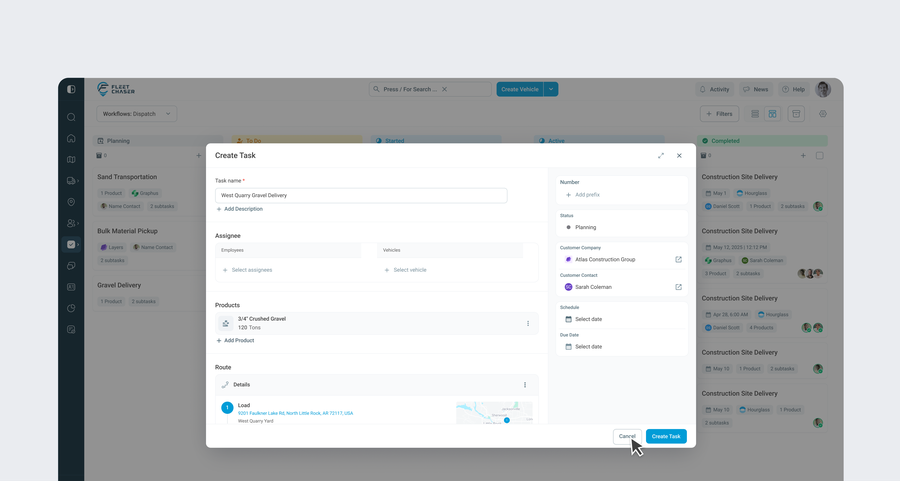
When you open New task and start filling it in, your progress is saved as a draft in the background as you go — no Save button to remember. Every meaningful change is captured.
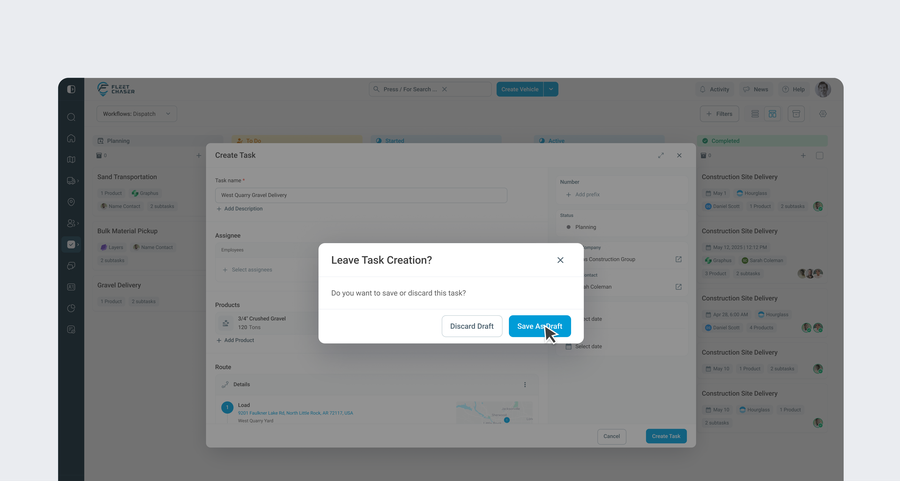
If you close the dialog before finishing, Fleet Chaser asks whether to keep it: “Save as a Draft” or “Discard”. Choose to keep it and the work is parked safely. Later, open it again as Edit draft and the whole form — name, route, products, assignees — comes back exactly as you left it, so you finish the job instead of rebuilding it.
Don’t want it after all? Discard draft clears it in one click.
Nothing goes live until you create the task
A draft is just your work-in-progress, not a real task yet, so building one is completely safe:
- It’s private to you. Only you see your own drafts, never the team or the board.
- It makes no noise. No notifications, no driver pushes, no activity-log entries while it’s a draft.
- It doesn’t take a task number. An abandoned draft never burns a number from your sequence.
- It’s not searchable. Unfinished work won’t surface in Quick Search or Advanced Search.
The task becomes real only when you press Create task. At that point it gets its number, its timeline starts, and it becomes visible to the team, searchable, and live for notifications — exactly when you intended, not while you were still typing.
Duplicating lands as a draft too
Duplicating an existing task opens the copy as a draft. The structure carries over so you can adjust it before it goes live, and it only becomes a real task when you create it — the same safety as building from scratch, with a head start.
Where drafts live
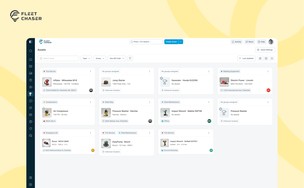
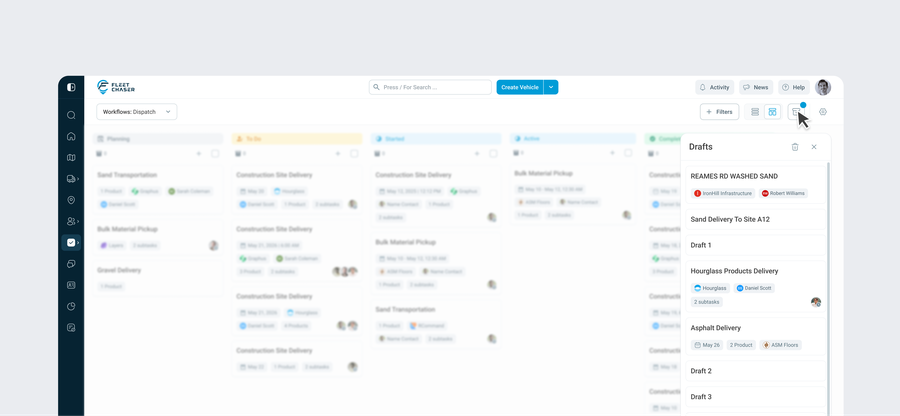
Saved drafts sit in their own Drafts view in the Console, with a count, so your unfinished tasks are easy to find and out of the way of live work until you’re ready.
Try it
Start a task, build out the route and products, close the dialog, and choose Save as a Draft. Reopen it from Drafts and finish where you left off. Questions or feedback? Drop us a note in chat or message support — we read everything.