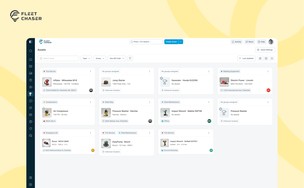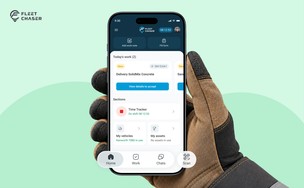

Forms is live in the Console, and the questions in it are yours. Write what your business needs to know, point it at the trucks it applies to, and publish. Your crew answers it on their phone standing at the vehicle.
Until now that answer existed but never travelled: the driver knew, the foreman knew, and you found out on Friday.
You'll find it in the sidebar under Forms, with two pages: Forms List and Submissions.
Building a form
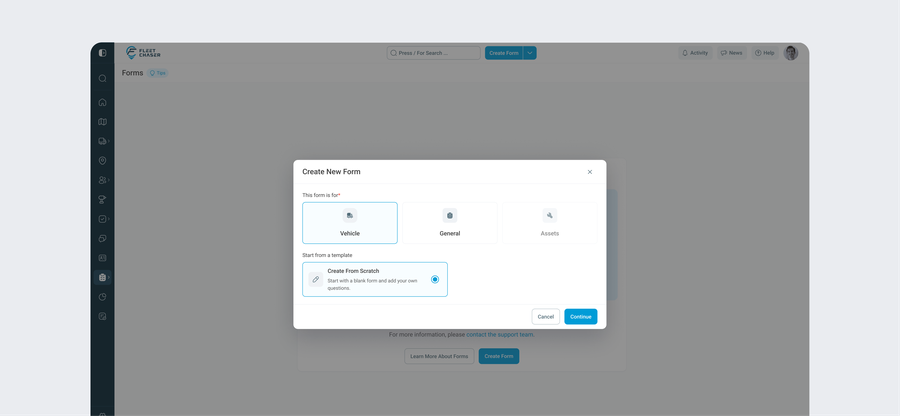
Create Form asks two things: what the form is about, and whether to start from a template. A form can be about a vehicle or be a General one that is tied to nothing in particular — a yard walk-round, a site sign-off, a weekly stock count. Assets are greyed out for now, and the only template today is Create From Scratch.
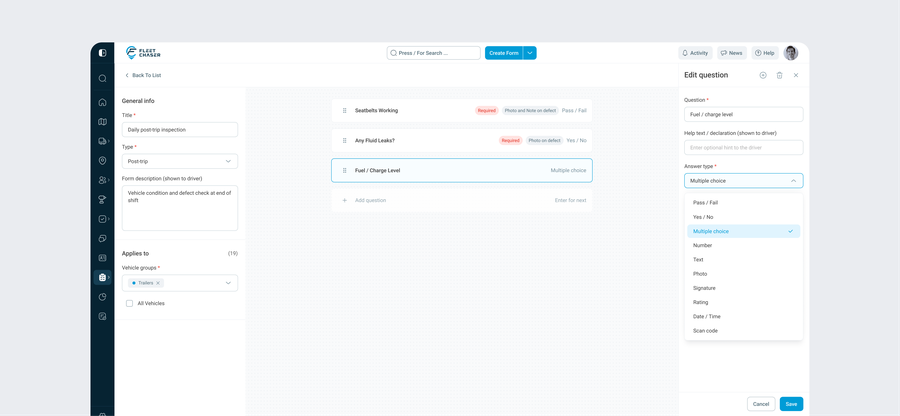
Then you're in the builder. On the left, General info: a title, a type, and a Form description (shown to driver). The type list follows what the form is about — on a vehicle that is Pre trip, Post trip, Check in, Check out, Report issue or Custom — and it decides which tab the form lives under.
Under that, Applies to: pick Vehicle groups, or tick All vehicles. This is what keeps a driver's list short. Scan a truck in the Trailers group and you get the forms pointed at Trailers, not all forty you've written.
The canvas on the right starts empty with one Add question button. Save and Publish sit top right and stay greyed out until the form is actually fillable.
Deciding what counts as a problem
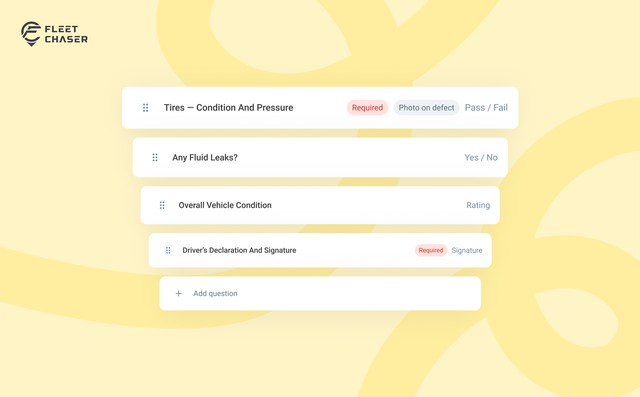
Adding a question opens a panel. You type the question, an optional Help text / declaration (shown to driver), and an Answer type from ten: Pass / Fail, Yes / No, Multiple choice, Number, Text, Photo, Signature, Rating, Date / Time, and Scan code — the last one asks the crew to scan a barcode or QR rather than type what it says.
Four of those can carry a problem. Pick Pass / Fail and you can name which answer is a defect — sometimes the answer you don't want is "Yes". On Multiple choice you tick which options count; on Rating you set the star threshold. Naming one is optional: leave it alone and the question is simply informational, recording what was true without ever counting as a fault. The other six types only ever record.
Then two checkboxes that decide what a problem has to arrive with: Require photo of the problem and Require a text description. At least one is mandatory.
A flagged problem can't arrive empty. If you asked for a photo, our servers won't accept that answer without one. So nobody reads "brake light out" at nine and spends until ten on the phone finding out which light and how bad.
What your crew sees on the phone
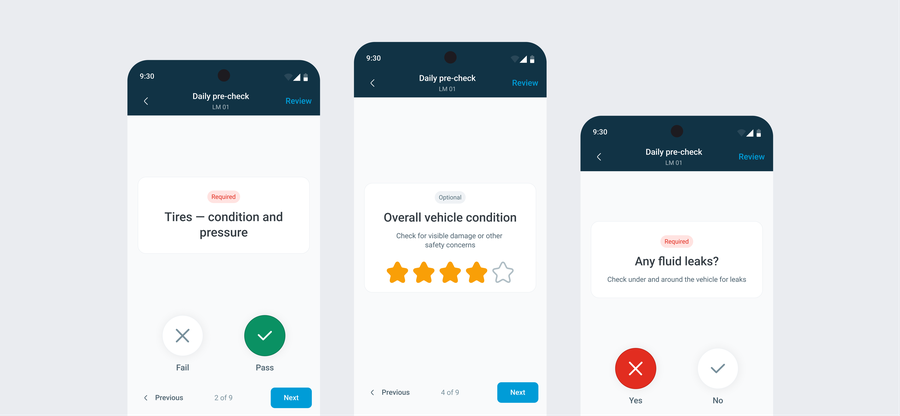
They tap Scan in the bottom bar of the Employee App and point the phone at the QR sticker on the truck. Up comes Available Forms for that vehicle, and they pick one. A pre trip is always there to start; the post trip only appears for whoever actually has that vehicle out, so nobody closes a trip somebody else is on.
Then it's one question per screen, with a 1 of 12 counter and Previous and Next at the bottom. Pass / Fail and Yes / No are two big circles, red for whichever answer you called the defect and green for the other, plus a grey N/A if you allowed one on that question. Ratings are stars, photos open the camera, signatures are drawn with a finger, and a scan-code question opens the scanner and drops the code straight into the answer.
Mark something as a defect and a bar slides up: Add Details. It opens a sheet headed "What's the problem?" with the description box or the photo button you asked for, and Save details stays dead until it's filled in. Review then lists every question with a coloured status before they hit Submit form.
What comes back to the office
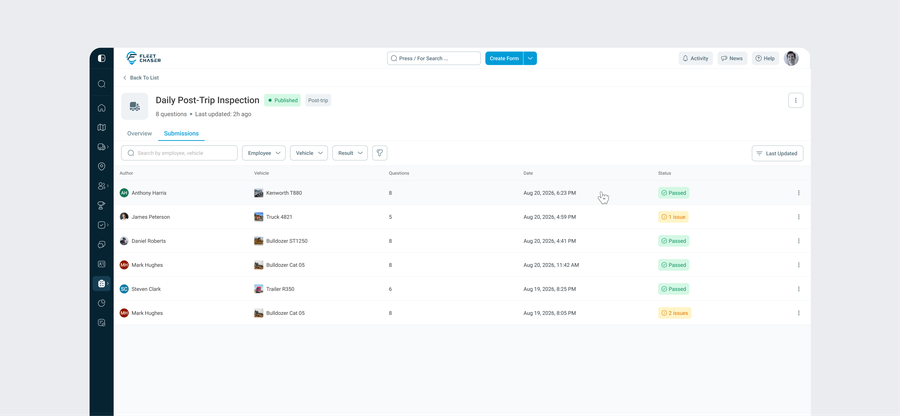
Submissions is the list of everything filed, and it's built to be read before you open anything: form name with its type underneath, author, vehicle, how many questions, the date, and a status — a green Passed or an amber 1 issue.
That status column is the whole morning. You can see which trucks want a second look without reading a single answer. Tabs split the list by form type; you can filter by Employee or Vehicle, search across them, and sort newest first. Export drops the list you're looking at into a CSV with the same columns.
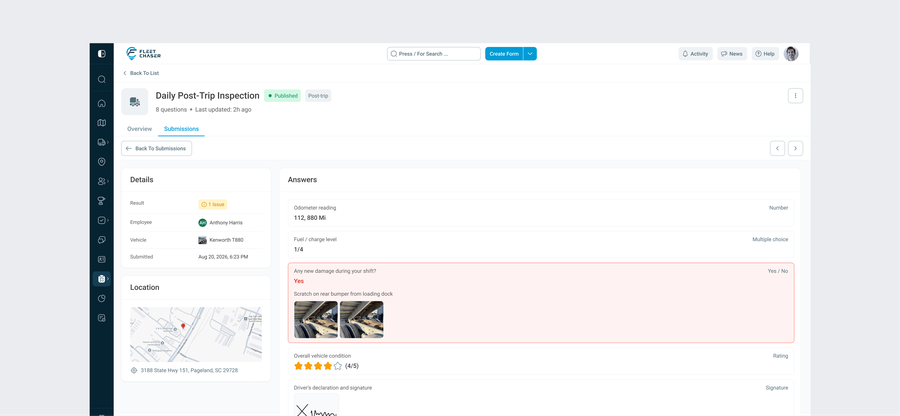
Open one and the whole submission is on one screen. On the left, Details: the result, who filled it, which vehicle, when. Under it a Location card with a map of where they were standing. On the right, Answers, numbered in the order they were asked, each with its answer type on the right-hand side.
The one that failed is impossible to miss: the whole block turns red, with the answer, the driver's note and the photo they took sitting inside it. A number comes back as a number, so an odometer reading is a value you can use rather than a sentence you have to read.
Each form also has its own page, with an Overview tab showing what it's set up to do and a Today Submissions card, and its own Submissions tab for just that form. And every vehicle now carries a Form Submission tab of its own, so you can stand on one truck's page and read everything that has ever been filled in on it.
Editing a form that's already live
A hose lets go on Tuesday afternoon. By that evening you've added a question about it to the excavator group, said which answer is the bad one, asked for a photo, and published. Wednesday morning it's on the phones.
Publishing freezes what your crews see. The moment you go back in to edit, you're working on a fresh draft while they carry on with the version they know, and nothing changes under them mid-shift. When you publish again, the new version takes over.
That also means a check filed in August still shows the questions that were asked in August, not the ones you've since reworded. Forms sit in Forms List under Published, Draft or Unpublished, and unpublishing one hides it from the app without touching anything already submitted.
Why it matters
The information you need to run this week already exists. Your crew produced it this morning. What it has never done is reach you while the day was still movable, and a decision made on Friday about Tuesday is a decision made twice.
So: keys or no keys on that truck. Bill the job or query it. Send someone back or don't. Those calls get made every morning either way. The only question is whether they're made on what somebody remembers or on what somebody actually saw.
One honest note: nothing pings you. The answers wait in Submissions until you open it.
Forms cover vehicles and General checks today; assets are next. Open the Console, go to Forms, and write down the question you've been meaning to ask. If you'd like it switched on, message support.
Not on Fleet Chaser yet? Start a free trial and we'll walk your team through it.
How quickly do answers reach me?
The moment your crew taps send. There's no sync step and no end-of-day upload, and no notification either: submissions are waiting in the list when you open it, newest first.
Can someone submit a problem without the photo I asked for?
No. If you ticked “Require photo of the problem”, that answer is refused without one, and that's checked on our side rather than only in the app.
Does every question have to have a right and a wrong answer?
No. Naming which answer counts as a defect is optional, so a question can just collect a reading — an hour meter, a fuel level, a scanned part number — without ever counting as a fault.
What happens to old submissions if I change a form?
Nothing. Publishing freezes a version and editing starts a new draft, so every submission keeps the questions it was actually answered against.
Can I get the data out?
Yes. Export on the Submissions page gives you a CSV of the list as you've filtered it: form, type, author, vehicle, question count, date and status.
Can people fill forms in with no signal?
They can fill them in and nothing is lost. Sending needs a connection, and so does attaching a photo.
Can I use a form on a trailer or a piece of equipment?
Not on the equipment itself yet — vehicles and vehicle groups today, and assets are next. What you can do now is write a General form, which is tied to nothing in particular, and use it for a yard or site check that covers the kit.