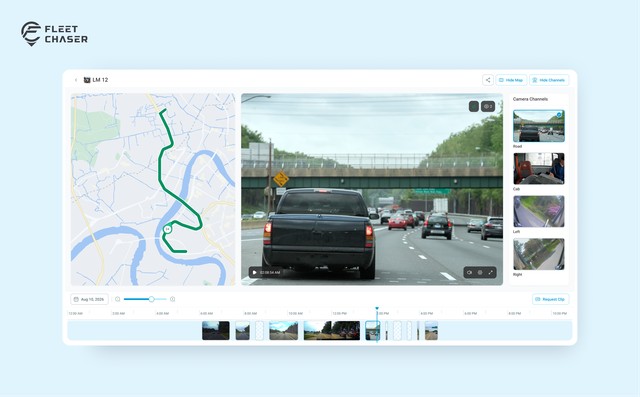

The camera player is rebuilt from the ground up. Scrub a whole day on a timeline of thumbnails, jump to any moment without the video starting over, cut the minutes you need into a saved clip, and send a colleague a link that opens on that exact moment. And when a camera can't show you video, it now tells you exactly why.
Something happened on a job on Tuesday afternoon and you need the ninety seconds around it. That used to mean a player that reloaded the whole stream every time you nudged the playhead, and then finding someone who knew how to export video.
Open a vehicle, go to Cameras, hit Playback. Here's what's different.
Jumps, not restarts
The player streams over WebRTC — the same technology behind video calls. Click 2:40 PM and the video goes to 2:40 PM: it repositions the stream you already have instead of tearing it down and starting the camera over. It also opens where you open it — Chrome or Safari, laptop or phone, and through office networks that block most things.
While the footage is coming from the camera you can pause, resume, and run it at up to 16× to skim a quiet stretch of road. Sound is there too, muted by default.
A timeline that shows you the day
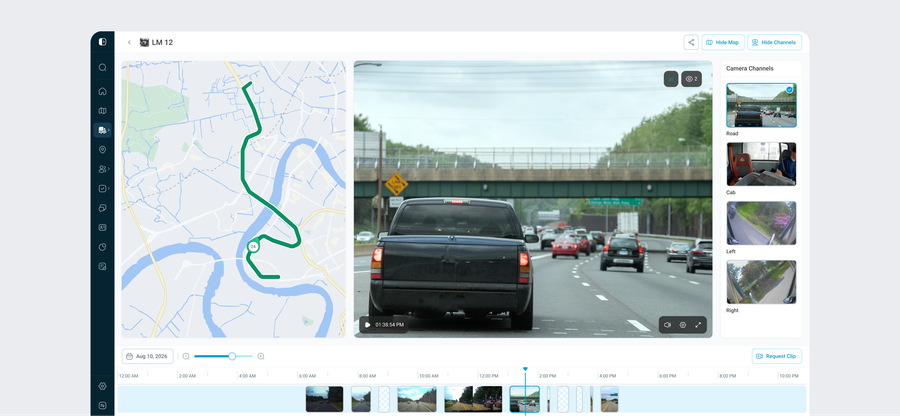
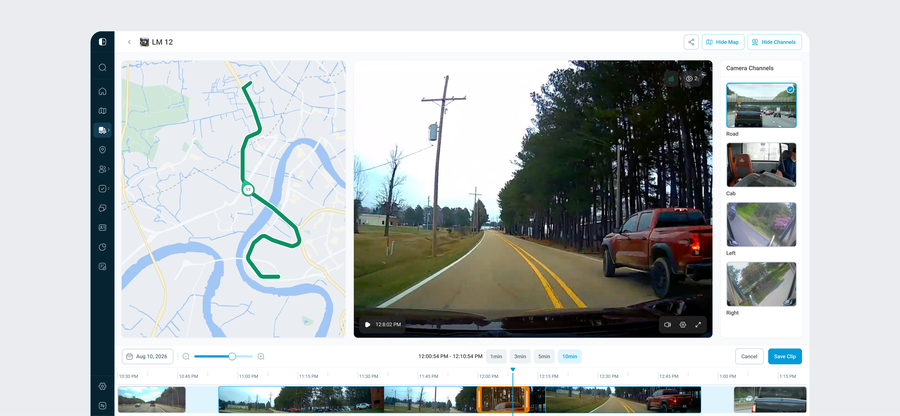
The bar under the video isn't a plain scrubber:
- Thumbnails inside every recording — you read the day instead of guessing at it.
- An activity strip above them: moving, idling, stopped, towed. The fastest way to find “the bit where the truck sat still for forty minutes.”
- Zoom from a whole day down to a few seconds, with the ruler switching from hours to minutes to seconds as you go.
The date picker highlights the days that actually have recordings, so you're not fishing.
Cut a clip in four clicks
Park the playhead on the moment and press Request Clip — it stays disabled until there's a recording under the playhead, and says so. Pick a length: 1min, 3min, 5min or 10min, or drag the edges of the amber box for anything in between. The selection can't run past the ends of the recording it's cut from, so a short recording simply gives you a shorter clip.
The toolbar spells out the exact range you're about to ask for the whole time it's selected.
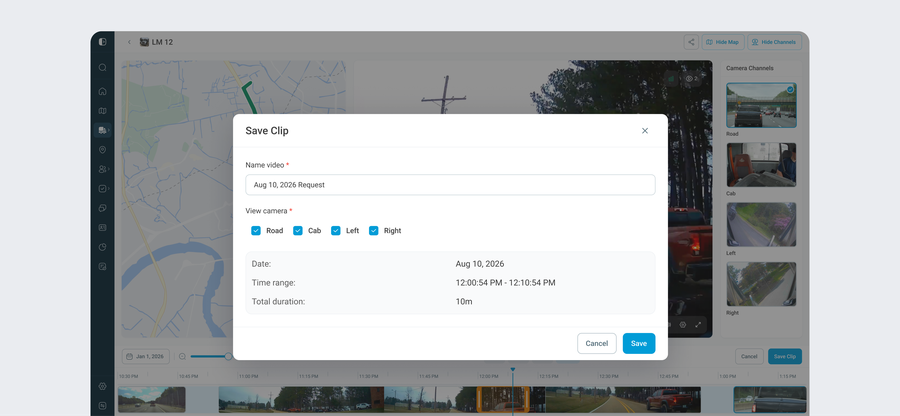
Save Clip opens a short dialog: name the video, tick which of the vehicle's cameras to include, check the date, time range and total duration. Save, and it lands in the vehicle's Saved media — where you can rename it, download it, or delete it. That's the bit that matters when it's going to an insurer.
Camera status: three states, and what each one actually lets you do
“Why can't I see my camera right now” was the most common question we got, and the old answer was a spinner. The vehicle's Cameras tab now shows one of three states beside the title, and it updates live.
| Status | Live view | Playback video | Requesting a clip |
|---|---|---|---|
| Recording — connected, at least one lens rolling | Yes | Yes | Yes |
| Online — connected, nothing recording right now | No | Yes | Yes |
| Offline — no word from it for about half a minute | No | No — stills only | Yes — filled when it’s back |
Online is the one that used to look broken — a green camera with no live picture. It isn't broken, and the player says so instead of spinning: “Live view is unavailable until the camera starts recording again. Existing recordings remain available in Playback.” Everything already recorded plays normally.
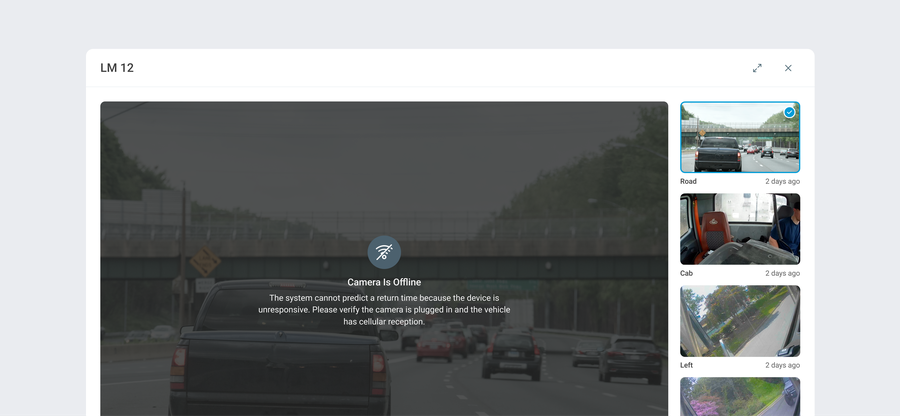
Offline is the honest one. Live is out, and so is playback video — but instead of a dead screen you get the stored stills for wherever you are on the timeline, and a badge that tells you what you can still do: “Video viewing is not available. You can create a request to save the video using the snapshot.” So scrub, select your range, submit. The clip is delivered when the camera comes back, and a download interrupted mid-transfer resumes rather than failing.
Where we can work out when a camera is coming back, we show it — Coming Online, or Online in 4 minutes. Where we can't, you get the reason rather than a shrug: “The system cannot predict a return time because the device is unresponsive. Please verify the camera is plugged in and the vehicle has cellular reception.” That's a checklist, not an apology — power and reception are the two things you can go and check.
Send the moment, not a description
The share button copies a link to exactly what you're looking at — same vehicle, same day, same moment. No more “check truck 118, around lunchtime, I think.” A map sits beside the video showing where the vehicle was, with a jump into its full History. And if a colleague is already reviewing the same footage, a counter tells you, so two people don't investigate the same incident from two desks.
The same states across the whole fleet
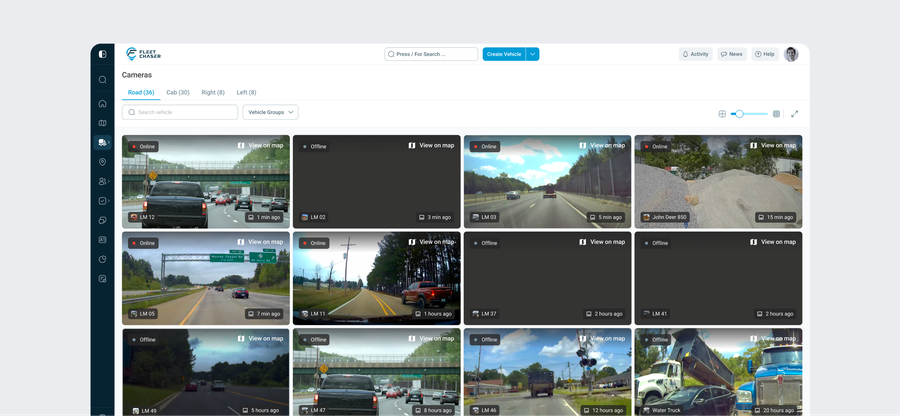
The Cameras page shows every camera you have on one screen, and each tile carries the same status plus how long ago its picture came in — so a camera that has quietly stopped producing anything is obvious at a glance. That page got a lot more than statuses in this release; that's the next article.
Why it matters
A dash cam is worth what you can get out of it on the day something goes wrong. A driver is accused of clipping a mailbox; a customer swears the load never arrived; an insurer wants the ten seconds before impact. That used to be a twenty-minute scramble.
Now it's: open the camera, scrub to the time, cut the clip, send the link — and on the day the camera is offline, the clip request still goes through.
As Mark at Value Waste put it: “There have been three if not four accidents that I've been able to claim that my truck wasn't there based on GPS coordinates.” Now the same claim arrives with the video attached.
Open a vehicle, go to Cameras, and hit Playback. If you have Fleet Chaser cameras and don't see the new player yet, message support and we'll sort it out.
Not on Fleet Chaser cameras yet? Start a free trial and we'll walk your team through it.
My camera is green but live view says there's no recording. Is it broken?
No. Green means the camera is connected; it only sends live video while it's actually recording. Everything recorded earlier is still in Playback, and you can request a clip from it as normal.
What's the difference between Online and Recording?
Online means we can talk to the camera. Recording means at least one of its lenses is rolling right now. Live view needs Recording; playback and clips only need the footage to exist.
How long before a camera shows as Offline?
About half a minute of complete silence. Any message from the camera counts as proof it's alive, so a working camera won't be flagged for one missed beat.
Can I still get footage from a camera that's offline?
Yes — you just can't watch it right then. Playback shows the stored stills instead of video, but the timeline and the clip request both work; the clip is delivered once the camera is back, and an interrupted download resumes.
How long can a clip be?
Pick 1, 3, 5 or 10 minutes, or drag the edges to anything in between. A clip can't run past the ends of the recording it's cut from.
Where do saved clips go?
Under Saved media on the vehicle's Cameras tab, once they've been pulled off the camera. You can rename, download or delete them there.