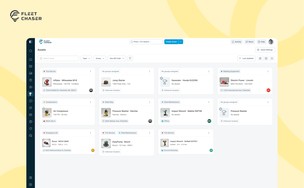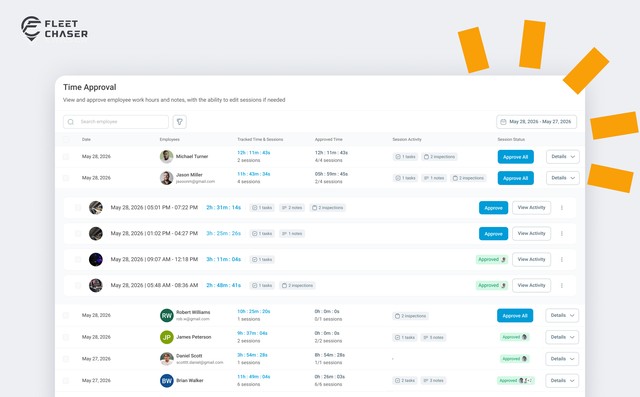
If you run a crew, you know the drill. At the end of the week a stack of timesheets lands on your desk — each one a name and two timestamps. You approve them on faith, because there's never been an easy way to see what actually happened between clock-in and clock-out. Then comes payroll, where "approved" and "paid" live in two different places (usually a spreadsheet), and it's on you to keep them straight.
Both of those gaps just closed. Time Approval now opens a full Session Details view that shows the entire shift before you sign off on it, and the new Pay Period screen turns approved hours into a clean, click-to-pay workflow. Together they cover the whole stretch from clock-out to paycheck — without ever leaving Fleet Chaser.
See the whole shift before you approve
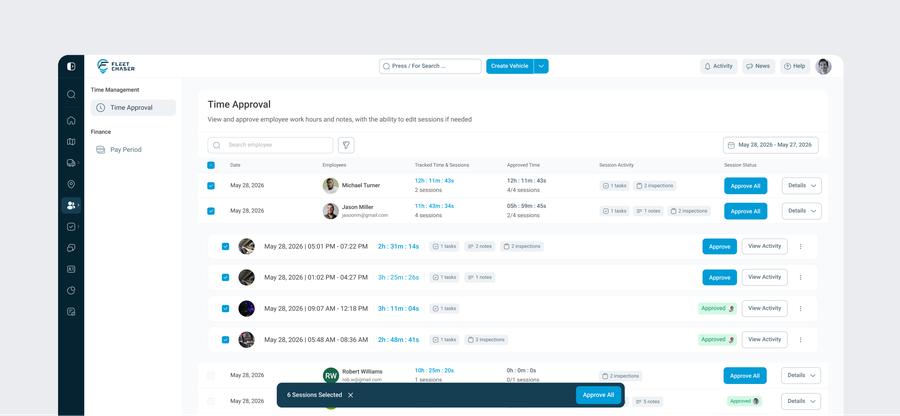
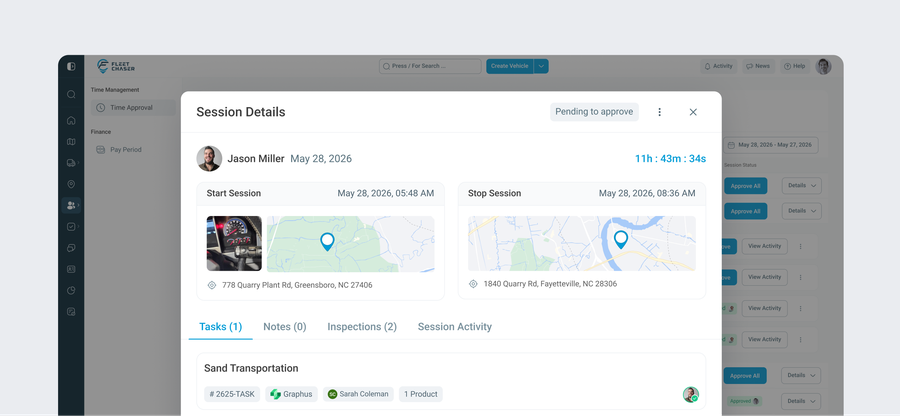
Approving time should be a decision, not a rubber stamp. Open any session from Time Management → Time Approval, and Session Details gives you everything you need to make that call with confidence:
- Start and stop, mapped — each with a timestamp, an address, and a pin on the map, so you can confirm the work happened where and when it should have.
- Total time worked, right at the top — no mental math.
- Four tabs that reconstruct the shift:
- Tasks — the jobs the employee actually worked
- Notes — what they logged in the field
- Inspections — the pre- and post-checks they completed
- Session Activity — a running log of every change made to the session, and who made it
That last tab matters more than it sounds. When a timesheet gets questioned weeks later, you have a clear audit trail instead of a he-said-she-said. And when everything checks out, you approve right there — one session at a time, or in bulk for a whole team.
From approved to paid — meet Pay Period
Approving hours is only half the job; someone still has to pay them. That's the step that used to send you back to a spreadsheet. Not anymore.
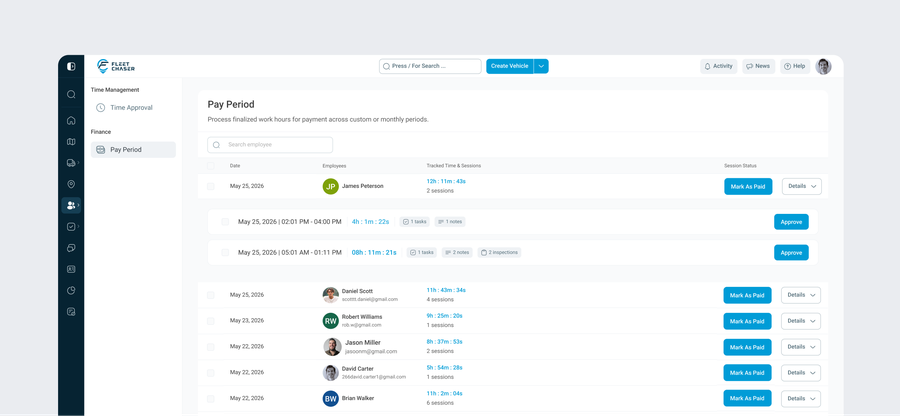
The new Pay Period view, under Finance, is a live payouts queue:
- Every employee's approved-but-unpaid sessions, grouped with their total time, so you can see exactly what's owed at a glance.
- Mark As Paid on a single session — or in bulk, to close out an entire pay run in one move.
- The moment a session is paid, it drops off the list automatically, so the queue is always an accurate picture of what's still outstanding. No double-paying, no "did I already pay this one?".
It's the difference between reconciling payroll by hand and watching it reconcile itself.
One loop, from clock-in to paycheck
Step back and the whole thing connects. An employee clocks in and works from the Employee App, their session lands in Time Approval where you review it with full context, you approve it, and Pay Period carries it the rest of the way to paid. No exports, no spreadsheets, no jumping between "what happened" and "what we owe."
For a growing fleet or field-service team, that means fewer payroll mistakes, faster pay runs, and a record you can stand behind if anyone ever asks.
Questions, or want a walkthrough for your team? Drop us a note in chat or message support — we'll take you through the flow end to end.