
TL;DR: Live Share — the public link that lets anyone watch your vehicle on a map, no account needed — just learned history. Your customer can now open the same link and replay the route for the exact days you worked their site. You pick the days a share covers (even days in the past), choose whether route history is included — and if it is, how long the link stays viewable after the job ends.
A customer asked us for exactly this: a toggle so their clients could see where the truck had been that day.
That's the whole update. Live Share used to answer one question: where is it now? The moment the work ended, the link went dark.
What Live Share is (in case you missed it)
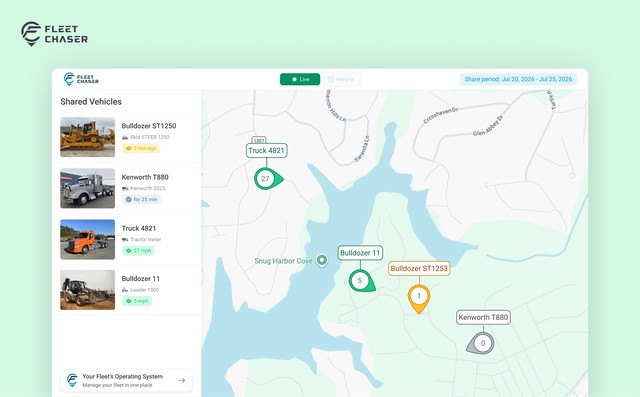
You share a vehicle — or several — with someone outside Fleet Chaser: the customer whose site your excavator is on, the client waiting on a delivery. They get a link. No account, no app, no training — the link opens a clean map in any browser, on any phone, showing the vehicle and its status. Everything else about your fleet stays yours.
New: History on the shared map
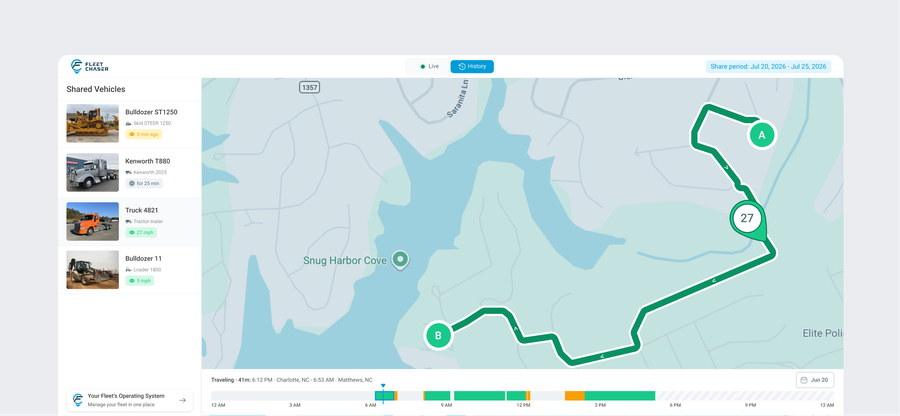
The shared map now has two modes, switched at the top of the page:
- Live — the default. Watch the vehicle move in real time.
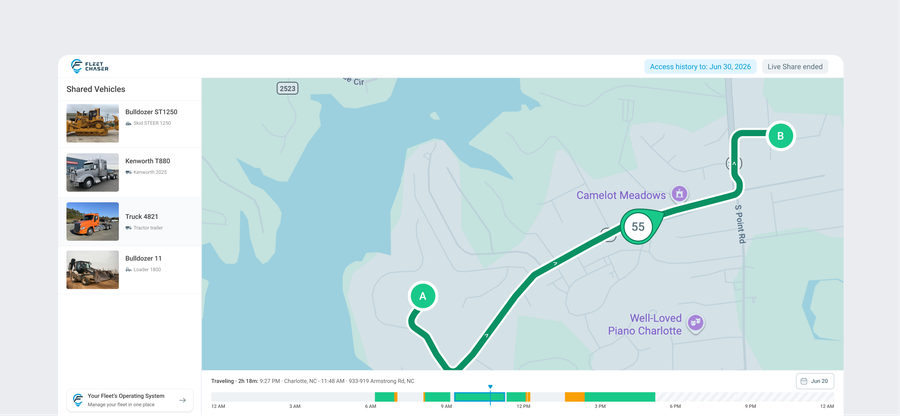
- History — pick a vehicle, pick a day, and its full route for that day draws on the map, with a scrubbable timeline of the day's activity — Traveling, Idling, Stopped.
The date picker only offers days the share actually covers, with the active days highlighted.
New: A share is now built around days, not a countdown
Creating a share used to mean one thing: how long the live link runs. The new create form thinks the way the job does — in two steps:
- Details — name the share, pick the vehicles, optionally add recipient emails.
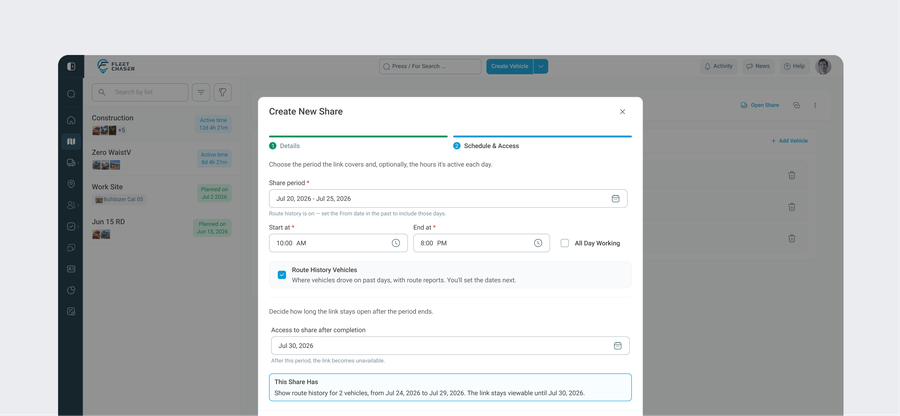
- Schedule & Access — pick the share period: the days (and working hours) the share covers, and whether to include route history. Include it, and you also choose how long the link stays viewable after the share ends.
Your excavator finishes a two-day job Tuesday evening; the customer sits down to review it Wednesday. Before, the link had already expired with the work. Now the work window and the link's lifetime are separate — the job ends when it ends, and the history stays open for as long as you chose.
And because the share period can start in the past, you can share history only. Job wrapped up yesterday and nobody set up a link? Create one now for the days you worked, send it with the invoice — a record of the work your customer can open and explore, not a static screenshot.
Live is no longer a setting. If the share period reaches into right now, the recipient sees live. If it's entirely in the past, it's pure history. The form spells the result out in plain words before you hit create — what's shared, for which days, and until when the link works.
You stay in control of what they see
Sharing more doesn't mean giving more away:
- History is opt-in. Leave it off and the recipient gets live tracking only — the History mode simply isn't there.
- The window is enforced, not decorative. Our servers only ever return data inside the days you granted. A 12-hour share can't be coaxed into showing the morning before it started.
- Location only. A shared view shows the vehicle — name, photo, status, where it is and where it's been — and none of your fleet's internals: no engine data, no diagnostics.
- The link expires. A live-only link closes when the share period does; a history link stays viewable until its access date, then stops working entirely. Either way, an ended share says so plainly on the page.
The shares list got cleaner, too
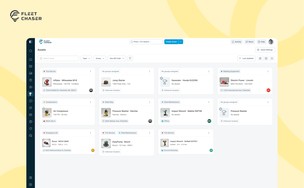
In the Console, My Shares and Company Shares merged into one list with clear states — Active, Planned, Passed — and one-click actions: open the share, copy the link, edit, end it, or delete it. A finished share with history isn't dead weight in the list anymore — it's your way back into that job's route history until its access window closes.
Why it matters
Live Share was already the easy answer to “where's my delivery?” Now it's also the easy answer to “prove the machine was there.” Hourly billing, disputed site time, a client who wants to see the work — one link covers the job while it runs and documents it after it's done. As Jeff at Landmark Materials put it: “Having visibility to where your fleet is has been a game-changer for our business” — and now you can hand that visibility to your customers, one job at a time.
Open the Live Share tab, create a share, and send the link with your next invoice.
Want to see it on your own fleet? Book a quick demo and we'll walk your team through it.
Does the person I share with need a Fleet Chaser account?
No. The link opens in any browser, on any device — no account, no app, no login.
Can I share history for work that already happened?
Yes. Pick past days as the share period and the link becomes a history-only share — a shareable record of where the vehicle worked on those days.
Can the recipient see my vehicle's data outside the shared days?
No. The date picker only offers the days you granted, and our servers only return data inside that window — it's enforced on the backend, not just hidden in the page.
What happens when the share ends?
The live view stops. If the share includes route history, the link keeps serving it until the access date you set; a live-only link closes as soon as the share ends.
Can I share live tracking without any history?
Yes. Leave route history off and the recipient sees live positions only — the History mode doesn't appear on their page.
What exactly does the recipient see?
The vehicle's name, photo, status, live position, and — if you enabled history — day routes with an activity timeline for the shared days. No engine data, no diagnostics, nothing else from your fleet.