




The problem
Some jobs are too big for one driver. Hauling 12,000 lbs of sand, running a multi-stop delivery, covering a site for a full shift — these need a crew. Until now Fleet Chaser made you fake that with duplicate tasks, one per driver, and then reconcile load counts by hand. No shared view of progress, double-deliveries, and a manager doing math in the Notes.
Multi-assignee tasks fix that. One task, the whole crew, one shared picture of what's done.
What it does
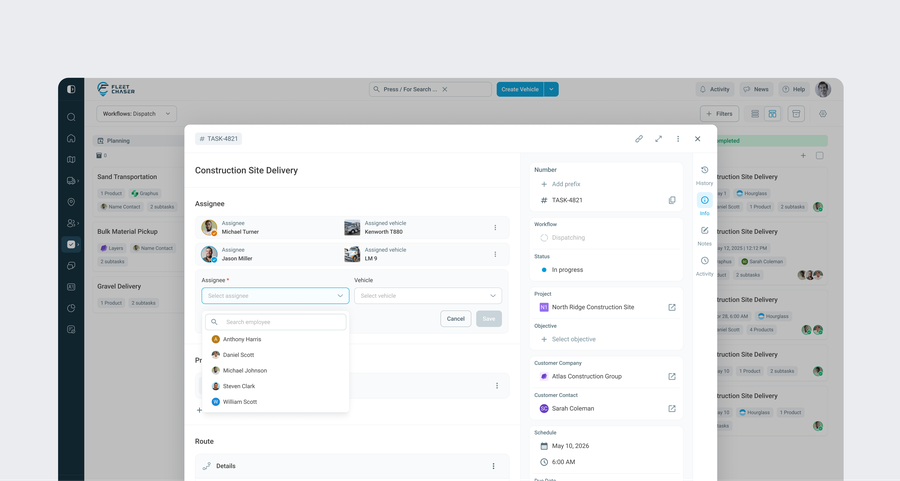
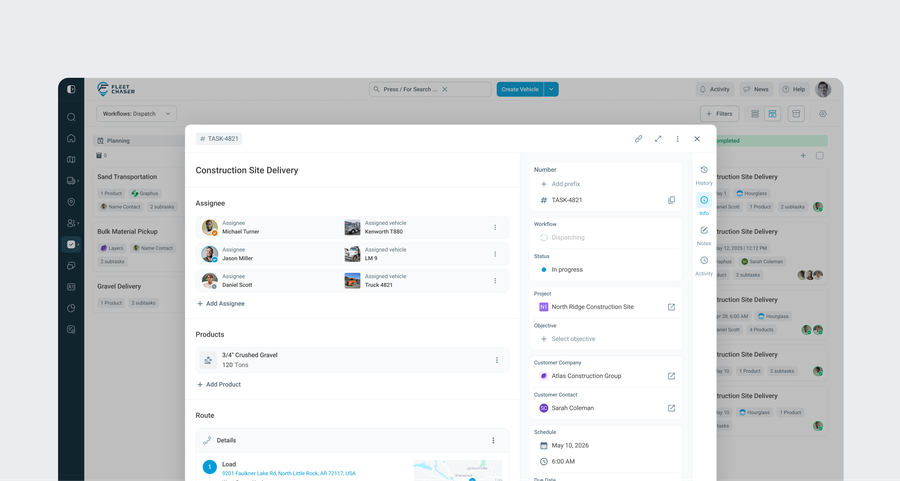
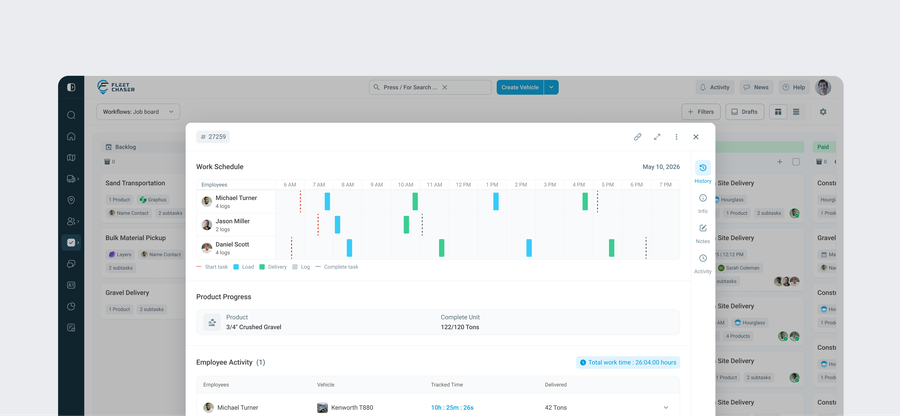
You assign more than one employee to a single task. Each assignee:
- Gets their own vehicle. The employee's default vehicle is prefilled (green indicator); override it per assignee if they're in a different truck that day.
- Works independently. Each person has their own Accept, Start, log work, and Complete — their progress doesn't wait on anyone else's.
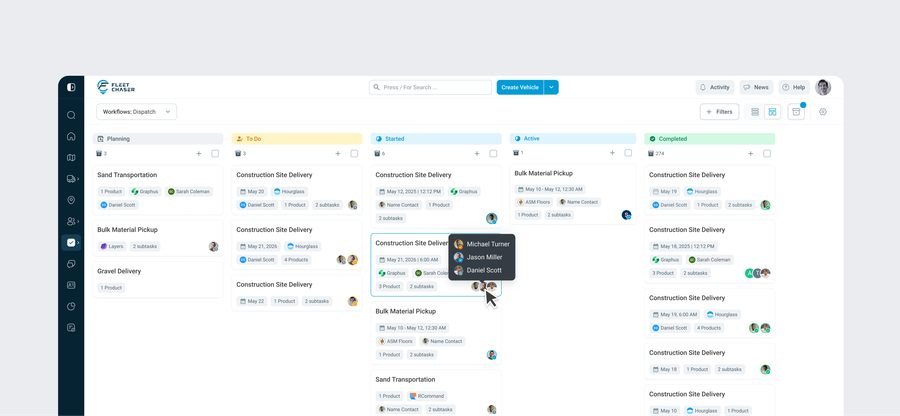
- Has their own status. One driver can be Started while another is still Pending. You see every assignee's state on the task at a glance.
The task itself follows the crew:
- It moves to In Progress as soon as the first assignee starts.
- It only moves to Completed when every assignee has finished. Nobody's work gets dropped because someone else closed the task early.
Shared progress, counted automatically
When the task carries products, every assignee's logged loads and deliveries roll up into one combined total. If three drivers are moving sand, the Progress tab shows "Sand 14/20 loads" across all of them in real time — not three separate tallies you add up yourself. Each driver only sees the job's requested target, so the crew stays aligned without stepping on each other.
Day-to-day details
- Editing the crew: assignees can be changed while the task is Pending. Once work has started the assignee list locks, so history stays honest. Vehicles stay editable longer.
- Notifications that make sense: a person gets a push the moment they're added to or replaced on a task. The manager gets a push when a driver accepts, starts, or completes their part. No duplicate pings when you adjust the crew.
- Find it by who's on it: Quick Search matches on assignee names — type a driver's name and the tasks they're on come up.
A quick example
Dispatch creates "Pick up 12,400 lbs construction sand — City Quarry". They add Ron, Maria, and Dee, each in their assigned truck. Ron accepts and starts his first load while Maria is still finishing a previous job — the task is already In Progress. As each driver logs loads, the sand counter climbs toward 20/20. When the last of the three taps Complete, the task closes on its own. The manager never opened a spreadsheet.
Try it
Open any task, add a second assignee, and watch the crew work one job together. Questions or feedback? Drop us a note in chat or message support — we read everything.