



The problem
Once a driver rolls out, what do you actually know about the work? Before, the answer lived in chat messages and hand-typed notes: how many loads moved, where, when, and how much is still on the truck. Managers reconstructed it after the fact, drivers re-typed counts, and when a customer disputed a delivery there was no clean record to point to.
The Progress tab fixes that. It's the single place that shows how a task was actually worked, built from real entries drivers create as they go, not a summary someone reassembled later.
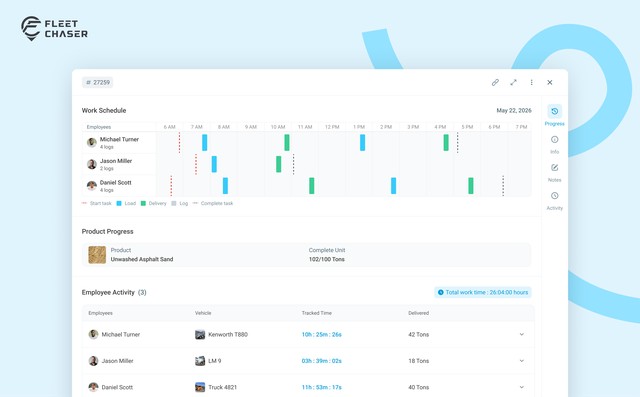
What Progress shows
Open any task in the Console and go to the Progress tab. You get three things:
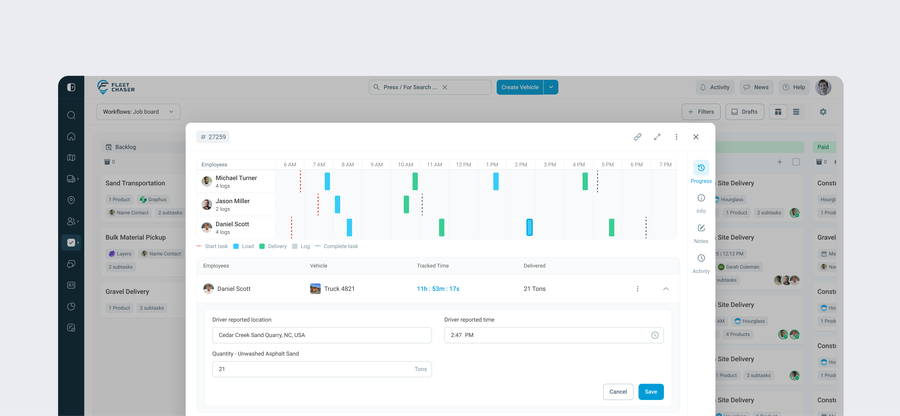
- A per-employee timeline. Each driver's work laid out along a time axis, so you can see who did what and when, including several drivers on the same job.
- Live per-product totals. Combined progress across the whole crew, updating in real time, so you see "Sand 14/20 loads" without anyone tallying by hand.
- A filterable log of every entry. Date, employee, type (Load or Delivery), product, quantity, location, filterable by date, employee, or product.
How the work fills it in
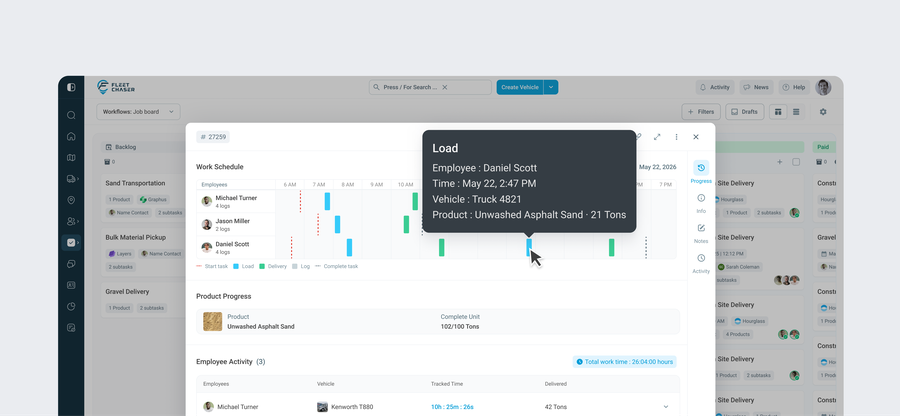
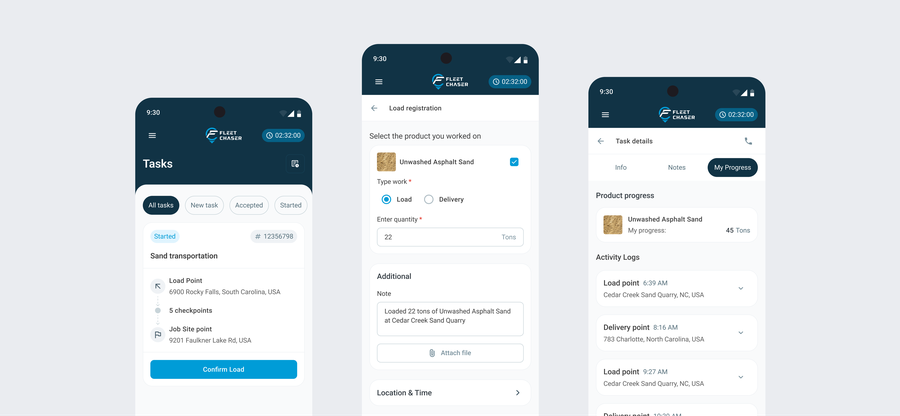
Every row in Progress is a real action a driver took. As the job runs, the driver logs work from the Employee App, and each log records:
- What moved. The product, whether it was a Load or a Delivery, and the quantity.
- Where. The device's GPS location at that moment.
- When. The timestamp of the action.
- Proof. Any photos, tickets, or files attached, plus an optional note.
Each entry is tied to the driver and to the stop on the route it belongs to, even on multi-stop routes that loop, so a 12-load day is 12 clean entries in Progress, not one fuzzy line.
The numbers add themselves up
Because Progress is built from structured entries, the math is automatic:
- On-hand. Loads minus deliveries is what's still on the vehicle for this task right now. That's why, when a driver loaded 2,000 of a 10,000 order, the unload step offers 2,000, not the full order. Progress reads the real on-hand figure, not the plan.
- It doesn't tidy up reality. If a delivery was logged with no matching load, the totals show it instead of hiding it, so real issues surface in Progress rather than disappearing.
Fixing an entry without losing the truth
Mistakes happen, a fat-fingered quantity, a missed minute. From the Progress tab a manager can edit an entry or add a note to it. The original is never overwritten: Fleet Chaser keeps what was captured exactly as it came in, records the correction as a separate layer on top, and writes the edit into the activity log. Entries are archived, never hard-deleted. So a corrected row in Progress still carries its own paper trail, which is exactly what you want when a delivery is questioned.
Try it
Have a driver log a load and a delivery, then open the task's Progress tab and watch the timeline, the on-hand, and the totals update themselves. Questions or feedback? Drop us a note in chat or message support, we read everything.