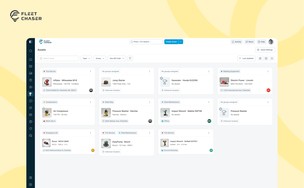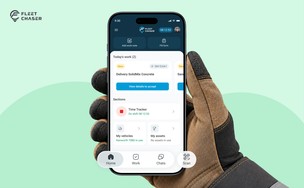

Most fleet questions are really one question: what did this vehicle actually do today? Where did it go, where did it sit, was it working or idling, and is the hardware healthy. Until now you could get pieces of that from the map. This update puts the whole day in one place - and lets you replay it.
Pick a day and see the whole thing at once
Open any vehicle, go to History, and pick a date. The day loads three ways at the same time:
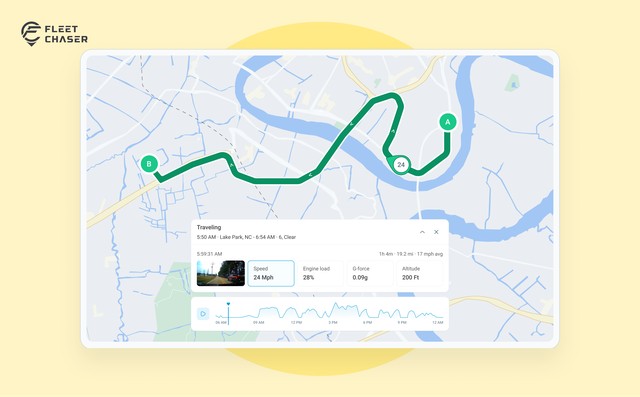
- The route on the map - the full path the vehicle drove, drawn as a line from start (A) to end (B), with small arrows along it showing the direction of travel.
- A time breakdown - four tiles at the top total up how long the vehicle spent Traveling, Idling, Stopped, and Towed that day. No math, no scrolling.
- An hour-by-hour strip - the day split into two-hour blocks, so you can see at a glance when it was busy (green for driving, yellow for idling) and when it sat still (grey).
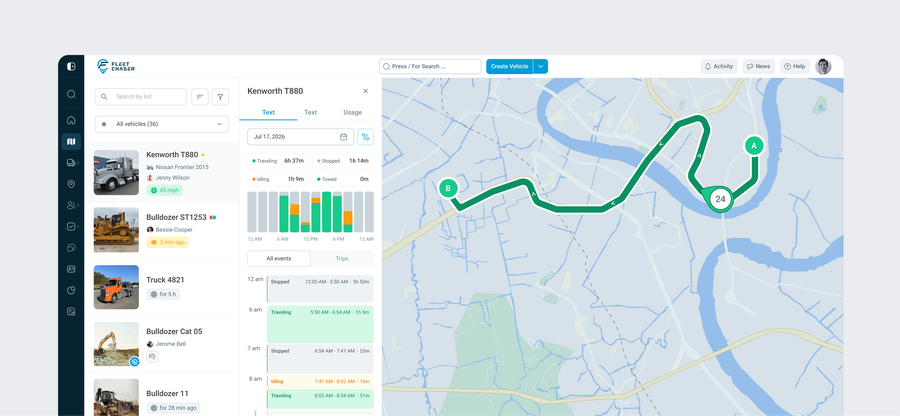
"Towed" is its own state, separate from Stopped and Idling - so if a vehicle moved while its engine was off (for example, on a flatbed), it shows up as towed instead of looking like a mystery trip.
Every event, or just the trips
Under the summary is a scrollable timeline of the day, with two views:
- All events shows everything in order - each drive, idle, and stop as a block sized to how long it lasted, with the time range and duration ("3:19 PM - 4:01 PM · 42m"). Stretches where the tracker had no signal are marked as their own blocks, so a gap isn't mistaken for a long stop. A zoom control stretches the timeline out when a busy hour is packed tight.
- Trips strips it down to just the drives as tappable cards - time, duration, and miles - and folds the parked time between them into a one-line summary ("1h 5m Stopped · 12m Idling").
Tap any drive and it opens on the map with its distance, duration, and average speed, ready to replay. Arrows step you to the previous or next event without going back to the list.
Replay the drive, second by second
This is the part people ask for most. Open a trip and press play: a marker glides along the route in about half a minute (shorter trips replay quicker, long ones take a little longer), and the data cards update to whatever second the playhead is on. You can also grab the timeline and scrub to any moment yourself.
At each moment you can read:
- Speed at that point in the drive
- Engine data - RPM and throttle, where the tracker reports it
- Altitude
- a live graph of whichever reading you've selected, across the whole trip
Tap a tile to switch which reading the graph follows - and your choice sticks as you move from trip to trip. On phones there's no play button: you scroll the graph strip to move through the drive, and the map marker keeps step.
For fleets that watch driving behavior, selecting G-force turns the graph into a left/right cornering view and opens a small crosshair gauge - acceleration and braking on one axis, left/right lean on the other - with a red "harsh driving" ring so a rough stretch is easy to spot. (Available on trackers that report motion-sensor data.)
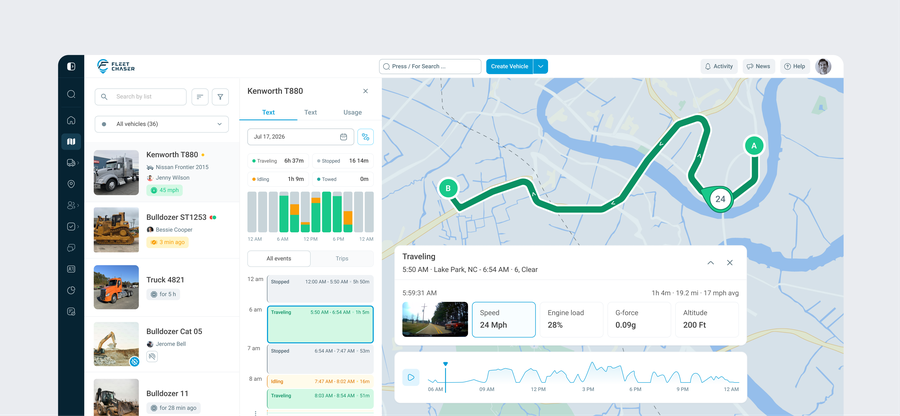
And if the vehicle has a camera (CAM GPS), the road-facing frame closest to that moment appears as a thumbnail beside the data - so you're not only seeing where it was, you're seeing what the road looked like. Tap it for the full picture.
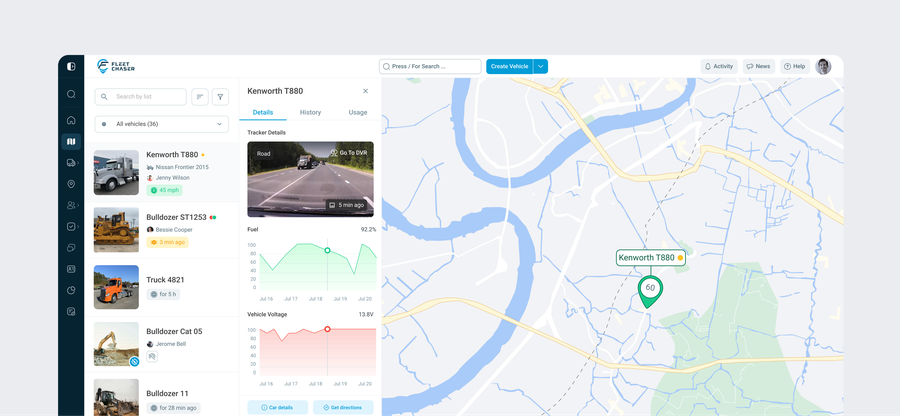
The Details tab now shows power and battery health
The vehicle Details tab picked up real hardware telemetry:
- Power source at a glance, with a warning flag when something looks off.
- Voltage chart that labels itself for how the tracker is powered - Vehicle, Solar, or Battery voltage.
- Battery charts (voltage and charge percentage) for battery-powered installs, so you can catch a dying unit before it goes dark.
That means "is this tracker healthy?" is now something you can answer from the same screen, instead of finding out when a vehicle stops reporting.
Under the hood: it's faster too
Beyond the visible features, the whole map was rebuilt to be lighter. Grouping pins together as you zoom now runs in the background, so a map full of vehicles pans and zooms smoothly instead of stuttering. You won't see a setting for it - you'll just notice the map keeps up.
Why it matters
The through-line is the same one behind everything we build: stop calling the driver to reconstruct the day. The route, the stops, the idle time, the driving, the hardware health - it's all on one screen now, for any date you pick. Dispatchers spend less time on the phone asking "what happened," and managers get a record they can actually point to when a customer or a claim disputes it.
Open any vehicle, hit History, and pick yesterday. See how much of your usual "what did this truck do" phone call is already answered.
Want to see it on your own fleet? Book a quick demo and we'll walk your team through it.
Which vehicles show the camera photos?
Vehicles equipped with a Fleet Chaser camera (CAM GPS). During replay, the road-facing frame closest in time to the moment you're viewing appears as a thumbnail next to the data; where the camera wasn't recording, no photo shows.
What do Traveling, Stopped, Idling, and Towed mean?
They're the four states we break a vehicle's day into. Traveling is moving under its own power, Idling is running but not moving, Stopped is parked with the engine off, and Towed is movement without the engine running (for example, on a flatbed).
Can I see how a driver was actually driving?
Yes. During trip playback you can see speed, engine data (RPM/throttle), and altitude for each moment, plus a graph across the whole trip. On trackers that report motion-sensor data, a G-force view and crosshair gauge highlight hard acceleration, braking, and cornering.
Do I need new hardware for the power and battery charts?
The voltage and battery charts reflect what your tracker already reports based on how it's powered - vehicle-wired, solar, or battery. Battery charge charts appear for battery-powered installs.