
The problem
A multi-stop job used to live as an address typed into the task description. The driver guessed the order, there was nothing forcing work to actually happen at a stop before moving on, and afterwards no one could prove the sequence. For a haul with a pickup, a work site, and three drops, "figure it out" isn't a plan.
Route Planning turns that into a real itinerary you draw on a map, and the Employee App walks the driver through it.
Building a route (Console)
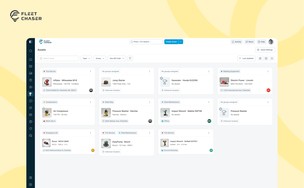
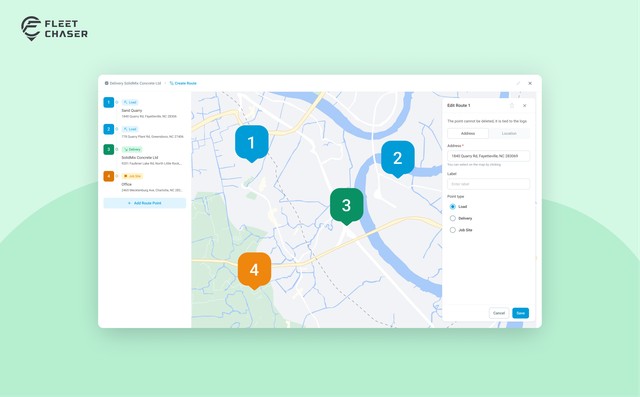
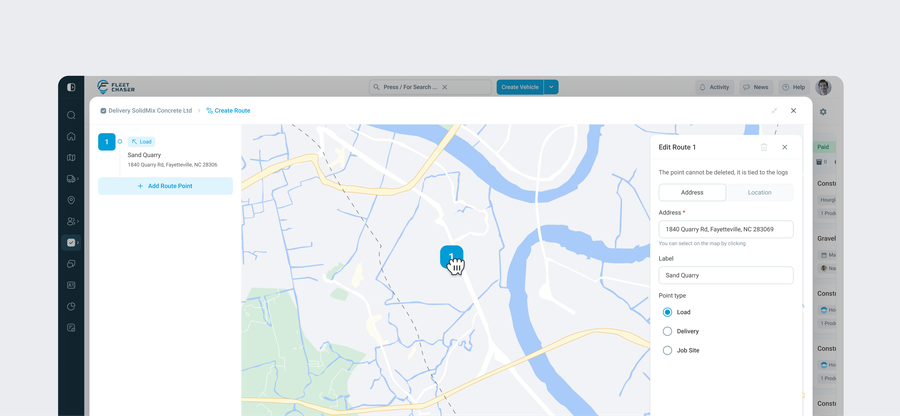
Inside task creation or editing, the route builder is a large interactive map with a satellite toggle. You add checkpoints three ways:
- Click the map where the stop is.
- Type an address, with autocomplete.
- Pick a saved Location, and the point and address fill in for you.
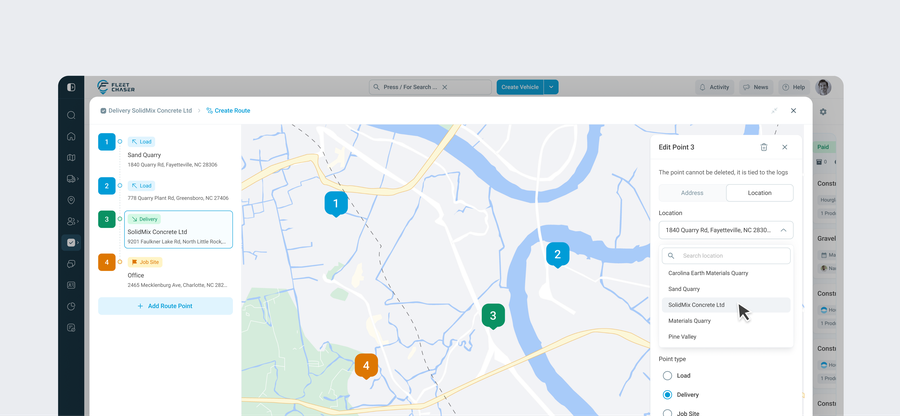
Each checkpoint gets a type and an editable label (if you picked a saved Location, its name is used by default, so the driver sees "City Quarry", not a raw address). Reorder the stops by dragging them, and clear the whole route in one action when plans change. One safeguard: a checkpoint that already has logged work against it can't be deleted, so you can't erase history by editing the route.
The three checkpoint types
Each stop is color-coded on the map by its type, so the route reads at a glance:
- Load (blue). A pickup point.
- Delivery (green). A drop-off point.
- Job Site (orange). A work stop that gates the route. The driver cannot advance past it until the work there has been logged, so a required task at a site can't be skipped on the way through.
How it runs (Employee App)
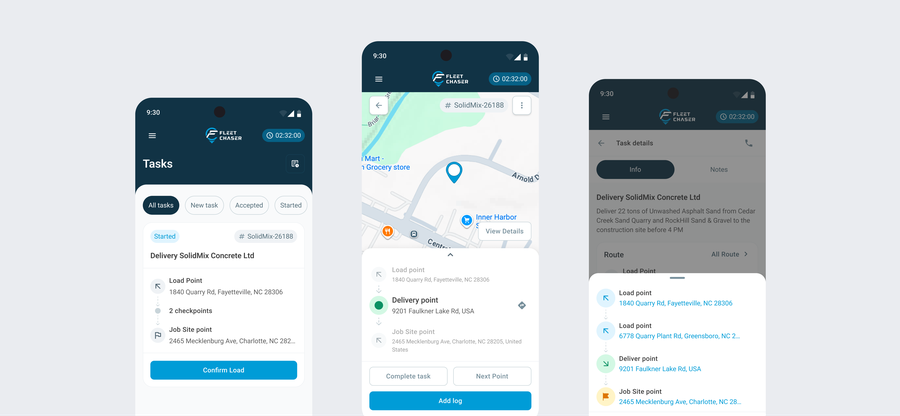
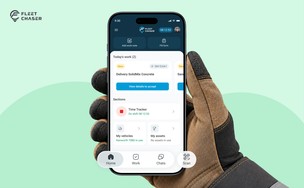
Once the task is started, the app walks the driver through the route in order. Stops are numbered in sequence and carry their type color (blue Load, green Delivery, orange Job Site), and the stop the driver is on right now is highlighted, so there's never a question of what's next or where to go.
The route adapts to the kind of job:
- A single-stop route is a destination. Drive there, log the work, done.
- A multi-stop route loops. The driver cycles Load and Delivery as many times as the job needs; the route keeps offering the next stop, and the job finishes when the product target is met, not after an arbitrary number of trips.
- A Job Site stop holds the line until work there is logged, then the route continues.
View route stays hidden until the task is started, since a route can still be taking shape before then, and the app handles a finished ("nothing left to do") route cleanly instead of dead-ending.
Built to be reliable
Routes are now a proper relational structure on the backend rather than a blob of text. In plain terms: stops are real, ordered records, so sequence, GPS, and per-stop logs hold up as routes get more complex, and the Employee App reads the live execution state instead of guessing.
Try it
Create a task, open the route builder, drop a Load, a Job Site, and a Delivery, then start it on the Employee App and follow the numbered, color-coded stops through the trip. Questions or feedback? Drop us a note in chat or message support, we read everything.