



The problem
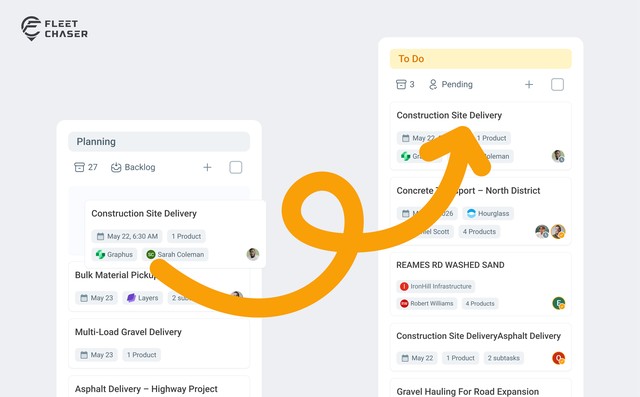
Most dispatchers plan ahead. You build next week's jobs now, park them in Backlog, and then every morning you drag the ones starting today onto the active board so drivers actually see them. Miss that morning ritual and a job sits in Backlog while the start time comes and goes.
Schedule Automation removes the ritual. You tell a workflow "when a job is about to start, move it onto the board for me" — once. From then on, planned work promotes itself.
How it works
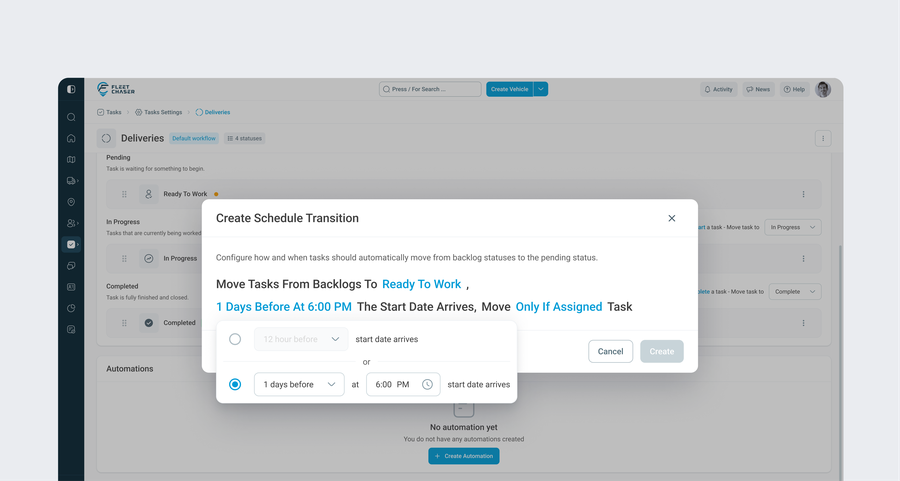
Schedule Automation is a rule you set on a workflow (Settings, Tasks, then a workflow). The rule has three parts:
- A target status. Where tasks should land when the timer fires — typically your Pending or Ready column.
- A trigger. When the move should happen, relative to the task's start date.
- Scope. Whether to skip tasks that still have no assignee.
It only acts on tasks sitting in a Backlog-type status that have a start date set. A job with no start date is never auto-moved — there's nothing to count down to. When the rule fires, Fleet Chaser moves the task on behalf of whoever created it, so the activity log and notifications stay attributed correctly.
Choosing the trigger
Two ways to express "when":
- Relative to the exact start time. Immediately, or 4, 6, 8, 12 hours before the task is scheduled to start. Good for same-day, time-sensitive dispatch.
- A fixed time of day, a number of days before. For example "1 day before, at 9:00 AM". This one respects the task's own timezone, so a 9:00 AM promotion is 9:00 AM where the job runs, not on the server.
Pick whichever matches how your team thinks about lead time.
It reacts when plans change
Plans move. The automation keeps up:
- Create or edit a task after its trigger moment has already passed, and it moves immediately.
- Pull the start date earlier so the trigger is now in the past, and it moves immediately.
- Push the start date later, and the move is rescheduled to match.
- Clear the start date, and the pending move is cancelled.
If you turned on "Don't move unassigned tasks": a task with no one on it waits. Add an assignee after the trigger has passed and it moves right away; remove the last assignee and the move is held back until someone's on it again.
You're still in control
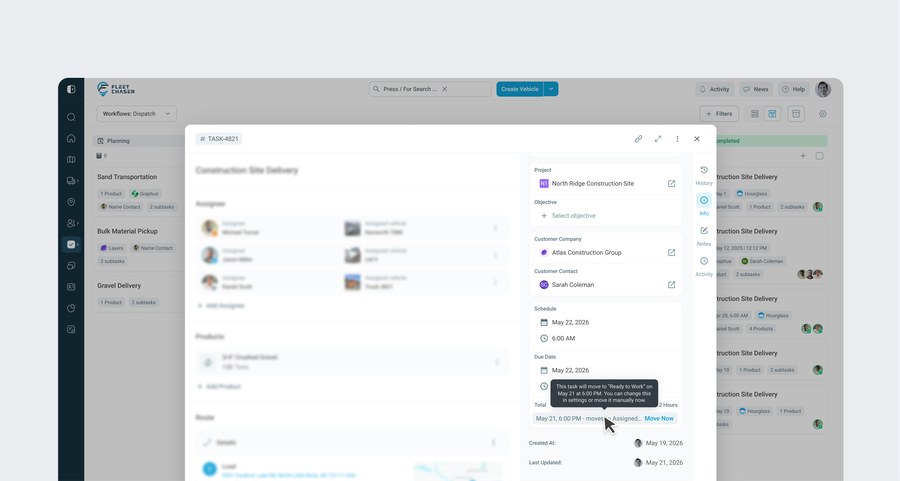
On any task that's waiting for an automated move, the Console shows an inline note next to its schedule, for example: "Mar 13, 9:00 AM, moves to Ready for Development." Next to it is a Move now link, so when a job needs to jump the queue you promote it by hand in one click. Turning the rule off on the workflow stops all future auto-moves without touching the tasks already on the board.
A quick example
Your Dispatch workflow has a rule: 1 day before, 6:00 AM, move to Pending, and don't move unassigned tasks. On Tuesday you plan Thursday's hauls and leave them in Backlog. Wednesday at 6:00 AM, every Thursday job that has a crew assigned quietly lands in Pending, ready for drivers. The one job still missing a driver stays put until you assign someone, then it joins the rest. You didn't drag a single card.
Try it
Open a workflow's automation settings, set a target status and a trigger, and let your planned work walk itself onto the board. Questions or feedback? Drop us a note in chat or message support, we read everything.