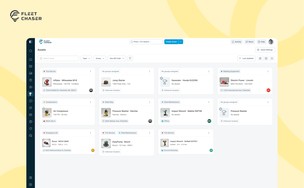



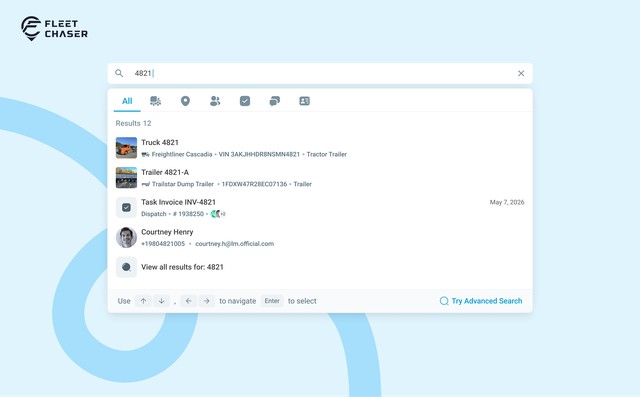

You shouldn't have to stop and figure out where to look for something in Fleet Chaser. You should be able to type its name and be on its page a second later. That's what we rebuilt Search around.
There are two searches now, and they're good at different things.
- Quick Search — the box in the top bar — is for getting somewhere fast.
- Advanced Search is for the times a name isn't enough: when you want to filter a list, search by something other than a name, or pull in archived records.
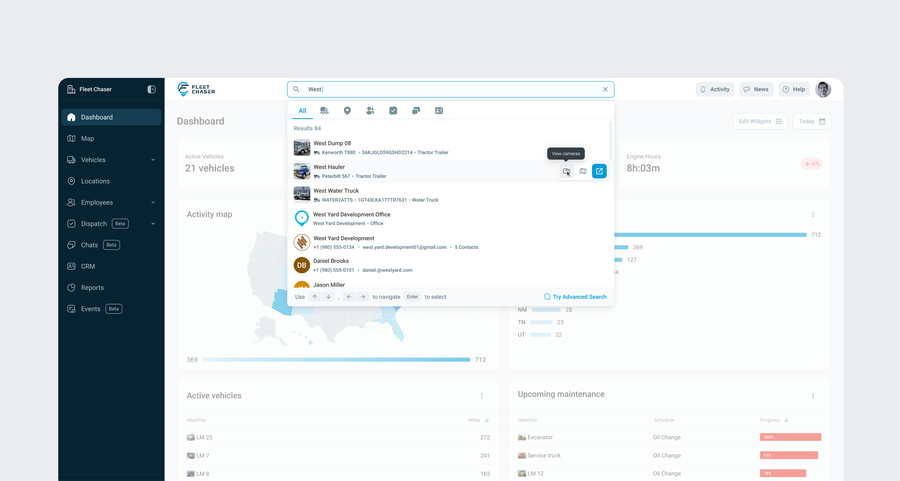
Quick Search: type a name, jump to it
Click the box and start typing. Quick Search now looks across everything you'd actually want to jump to — vehicles, locations, employees, tasks, CRM contacts, chat channels — and it groups the results, so if you meant a task and you're getting vehicles, one click sorts that out.
Every result is something you can act on without leaving the box: open it, copy a link to it, jump to its map or its chat. And before you've typed anything, it shows you what you were just looking at — because a lot of the time, that's exactly where you want to go back to.
Why it only searches names
Quick Search matches the name of a thing — the vehicle's name, the location's name, the task's title — not every field tucked inside it. That's on purpose. Keeping it to names is what keeps it fast, and what keeps the results clean instead of a wall of half-matches. The moment you do need to search deeper, Quick Search hands you straight to Advanced Search with your query already filled in. (And it only ever shows you your own company's data.)
Advanced Search: when a name isn't enough
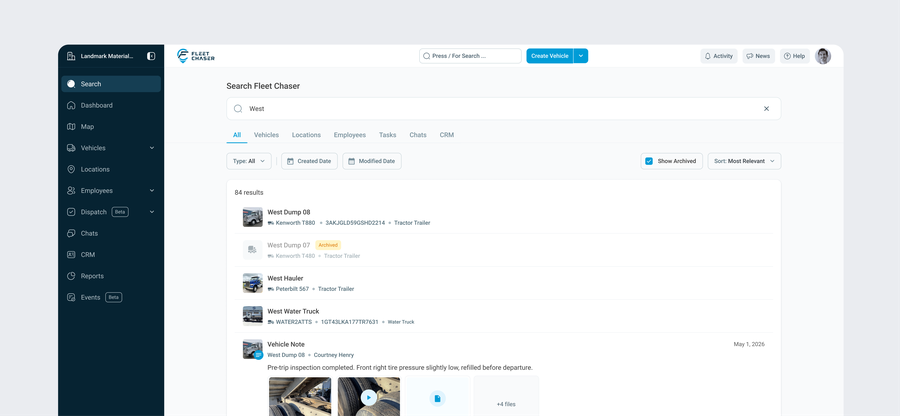
Advanced Search is the heavier tool. It reaches past names, lets you filter, and can bring archived records into the results. This release adds CRM contacts to what it covers, plus a round of cleanup — a tidier layout, results that refresh properly when you change a filter, and a few rough spots smoothed out.
So which one do I use?
If you know roughly what it's called and you want to be there now, that's Quick Search — type the name, hit Enter. If you need to find things by something other than a name, narrow down a list, or include archived records, that's Advanced Search.
Give the new Quick Search a real run for a day. It's the quickest way around Fleet Chaser now, and it's the kind of thing that's hard to give up once you're used to it. As always, tell us what you think — through support.