
The problem
Work doesn't stop at one team. A haul finishes in Dispatch, but now Billing needs to invoice it. A lead clears Sales, and Operations has to schedule it. Until now that handoff meant rebuilding the task on the other team's board by hand: re-typing the details, re-attaching the paperwork, and losing the history along the way. Two teams, two records, no shared truth.
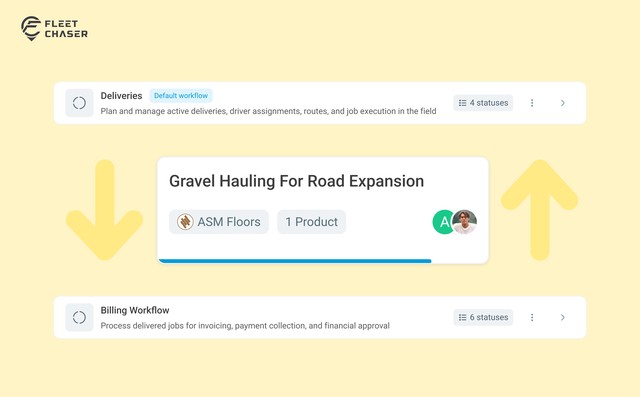
Transfer makes the handoff one move. The same task moves to the other team's board on its own, with everything still attached.
How it works
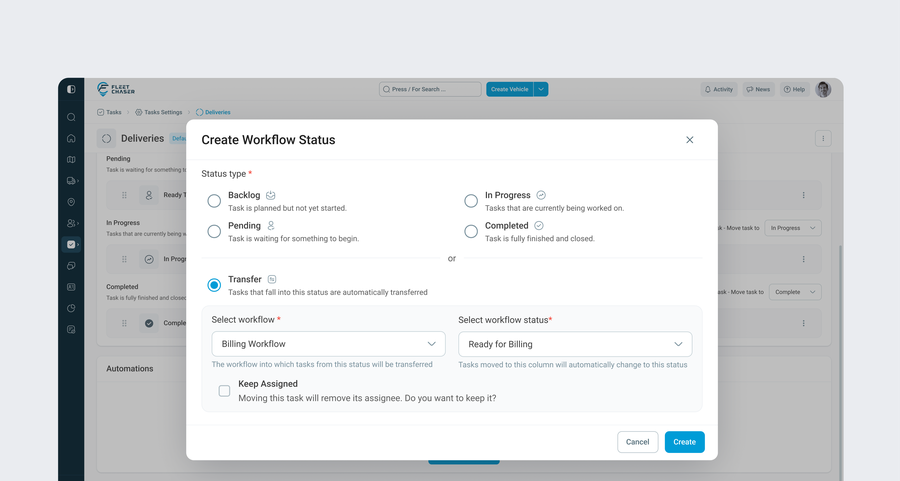
Transfer is a kind of status. In Task Settings you add a status of type Transfer to a workflow and point it at a destination: a specific column in a different workflow. That status becomes a doorway.
When a task lands in a Transfer column, Fleet Chaser immediately routes it to the destination column in the other workflow. It does not sit in the Transfer column waiting, so you'll never see work piling up there. The task simply leaves one board and shows up at the bottom of the configured column on the other.
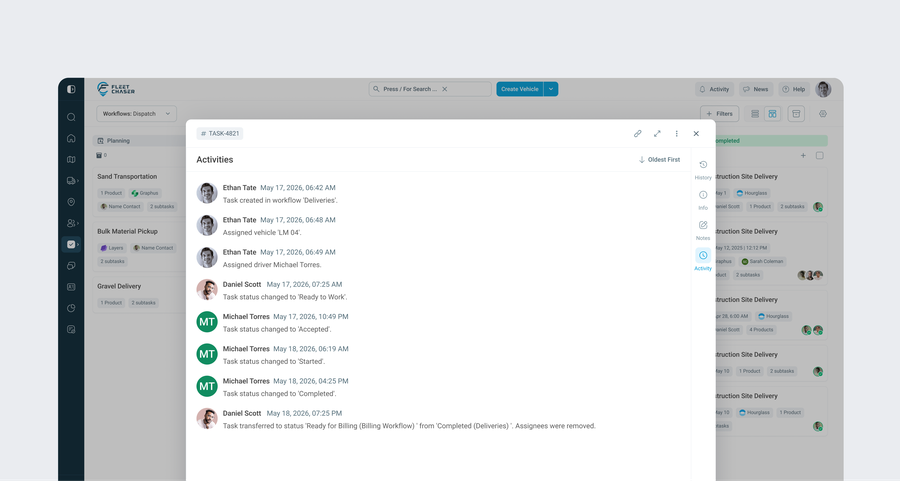
It is the same task the whole way through. The task number, products and quantities, route, notes, attachments, and its full activity log all travel with it. The activity log records the transfer itself, including where it came from and where it went, so the trail is never broken.
Keeping (or dropping) the crew
Each Transfer column has a Keep assigned switch:
- Keep assigned on. The same people and their vehicles come along. Their status resets to Pending so the receiving team formally accepts the work fresh, rather than inheriting someone else's "started" state.
- Keep assigned off. The task arrives unassigned, ready for the new team to staff with their own people.
Pick whichever matches the handoff. A crew that keeps working the job across stages: keep them. A pure desk handoff like Dispatch to Billing: usually drop them.
A quick example
The Dispatch workflow has a Transfer column called "Send to Billing", pointed at the Billing workflow's "To Invoice" column, with Keep assigned off. A dispatcher finishes a sand haul and drops it into "Send to Billing". It instantly appears at the bottom of Billing's "To Invoice" column, unassigned, with every delivered quantity, ticket photo, and the full activity log intact. The billing clerk opens one task and invoices from real data. Nobody re-typed anything, and nothing was lost in the handoff.
Try it
In Task Settings, add a Transfer status to a workflow, point it at the team that picks the work up next, and decide whether the crew rides along. Questions or feedback? Drop us a note in chat or message support, we read everything.