



VINs / 2006 / Sterling Truck / L8500 Series / 2FZHAWDA06AV64625
2006 Sterling Truck L8500 Series
Vin:
2FZHAWDA06AV64625
Type:
Truck
Year:
2006
Make:
Sterling Truck
Model:
L8500 Series
GVWR:
?

Engine
Manufacturer
Cat
Model
C9
Fuel
Diesel
Horse Power
335
Displacement(Liters)
8.8
Cylinders
6
Cycles
4
Configuration
In-Line
Drive Trian
Type
6x4
Manufacturer
Manufacturer
STERLING TRUCKS (DAIMLER DIVISION)
Plant City
ST.THOMAS
Plant State
ONTARIO
Plant Country
CANADA
Safety Features
Brake System Type
Air
Do you manage a fleet?
FleetChaser will help you track:
- Mileage and maintenance
- Filling and expenses
- Real-time technical condition
Learn More
You'll never want to go back to how your fleet operated before Fleet Chaser
Our construction fleet management software makes your fleet management better, safer, and easier.
Construction and Fleet Management Articles

Managing operations across fleets and teams can often get tangled in miscommunication or clarity. To solve this, Fleet Chaser's Status Management feature brings clarity and ease to your operations. Whether it's a vehicle needing maintenance or an employee unavailable due to a sick day, statuses provide instant visibility into availability and readiness.

Managing fleets, tasks, and data just got a lot easier! The Fleet Chaser dashboard has been completely redesigned to improve usability and bring a game-changing feature: Customization.

If you manage a large enterprise fleet with hundreds of vehicles, you face the daunting challenge of optimizing operations every day. Your fleet is a critical resource; however, costs can grow exponentially if the right approach isn’t applied. Hence, achieving efficiency is a top priority. The good news is that fleet management software can be your ally in streamlining operations and maximizing productivity.

Operating a fleet requires greater-scale management to ensure performance optimization, expense reduction, and efficient cost distribution. Without outlining a budget that keeps track of every expenditure and point of resource consumption, financing and running a fleet business becomes very complicated and unproductive.
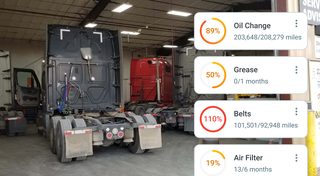

Managing a fleet has never been more challenging. Rising insurance premiums, unpredictable fuel costs, and growing maintenance costs combined with the need to keep equipment running efficiently on tight schedules…

A well-constructed fleet management strategy is the backbone of profitability and efficiency of any fleet business. Adequate management not only reduces delays by reinforcing organization but also prevents downtime, cutting costs and increasing potential revenue as a result, and ensures your assets are always in top condition.
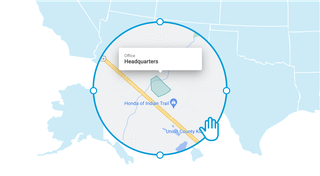
Geofencing leverages GPS or RFID technology to establish virtual perimeters around physical locations, granting fleet managers meticulous control and invaluable insights. It addresses concerns such as driver behavior monitoring, unauthorized asset use prevention, streamlined administrative tasks, load counting, and improved safety compliance. To gain a comprehensive understanding of the tangible benefits geofencing offers, let's delve deeper into its functionality.

A construction dispatcher fields the same four calls all day — where are you, did you finish, when's the truck coming, which site. None are emergencies, but together they burn about two hours. Here's where the time goes — and the first call to move off the phone.