



VINs / 2009 / Freightliner / Cascadia / 1FUJGLDR59LAE5738
2009 Freightliner Cascadia
Vin:
1FUJGLDR59LAE5738
Type:
Truck-Tractor
Year:
2009
Make:
Freightliner
Model:
Cascadia
GVWR:
?
Engine
Model
Detroit Diesel DD15
Fuel
Diesel
Displacement(Liters)
14.8
Cylinders
6
Configuration
In-Line
Drive Trian
Type
6x4
Manufacturer
Manufacturer
DAIMLER TRUCK NORTH AMERICA LLC
Plant City
CLEVELAND
Plant State
NORTH CAROLINA
Plant Country
UNITED STATES (USA)
Safety Features
Brake System Type
Air and Hydraulic
Do you manage a fleet?
FleetChaser will help you track:
- Mileage and maintenance
- Filling and expenses
- Real-time technical condition
Learn More
You'll never want to go back to how your fleet operated before Fleet Chaser
Our construction fleet management software makes your fleet management better, safer, and easier.
Construction and Fleet Management Articles

In 2025, fleet owners face rising costs, pressure from the competition, and stricter regulations. The key to staying ahead is to adapt, not just follow every trend out there. We’ve picked 5 main fleet management trends to help you keep your operations more efficient and competitive. Ready to improve your fleet more? Check out these insights.

Managing a fleet has never been more challenging. Rising insurance premiums, unpredictable fuel costs, and growing maintenance costs combined with the need to keep equipment running efficiently on tight schedules…

Discover our major updates to the Dash Camera section, designed to streamline your fleet management:
- Enhanced Camera Interface: Enjoy an updated design with a new timeline feature for easy video status tracking.
- Improved Live Section: Clearer status indicators for real-time camera monitoring.
- Upgraded Saved Media Section: Organized media tabs and date sorting for effortless access to your recordings.
Explore these new features for a more efficient fleet management experience.
Keeping your trucks on the road means keeping your business running. A single defect can pose a major setback to your fleet, sacrificing time, money, and customer satisfaction. “Prevention is better than cure” applies here pretty much.
That’s why extending the lifetime of your trucks boils down to preventive maintenance: knowing what type of issues are likely to arise and addressing them early on.
Take a proactive approach to your truck’s upkeep and find out how to avoid the five most common breakdown causes.

We’ve refreshed the platform’s look, focusing on a more user-friendly design. The new interface not only looks more attractive but is also designed to boost your productivity by making navigation simpler.

Idle fleet vehicles draining money, drivers taking hour-long detours to lunch, traffic jams derailing schedules, maintenance issues snowballing into bills with multiple zeros… If you’re nodding along to these fleet management issues, you’re not alone.

In a fast-paced fleet management environment, staying on top of important updates is crucial. That’s why we are introducing Fleet Chaser Notifications—a centralized system designed to ensure you never miss critical alerts while avoiding unnecessary distractions.
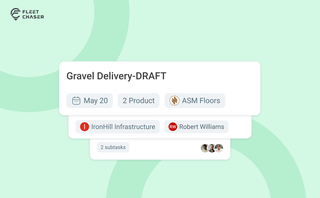
Setting up a real job takes a few minutes — a route, products, a crew, a schedule. Get interrupted halfway and that half-built task used to be gone. Drafts fix that: while you build a task, Fleet Chaser saves it automatically, so you can step away and pick up exactly where you left off. A draft stays private and silent — no task number, no notifications — until you press Create task.

A well-constructed fleet management strategy is the backbone of profitability and efficiency of any fleet business. Adequate management not only reduces delays by reinforcing organization but also prevents downtime, cutting costs and increasing potential revenue as a result, and ensures your assets are always in top condition.