



VINs / 2012 / Hyundai / Veloster / KMHTC6AD5CU048322
2012 Hyundai Veloster
Vin:
KMHTC6AD5CU048322
Type:
Coupe
Year:
2012
Make:
Hyundai
Model:
Veloster
Series:
GLS(Middle grade)
GVWR:
?

Engine
Model
DOHC GDI GAMMA
Fuel
Gasoline
Fuel Injection Type
Stoichiometric Gasoline Direct Injection (SGDI)
Displacement(Liters)
1.6
Manufacturer
Manufacturer
HYUNDAI MOTOR CO
Plant Company
Hyundai Motor Company
Plant City
ULSAN
Plant Country
SOUTH KOREA
Safety Features
Air Bag Location(Front)
1st Row (Driver and Passenger)
Air Bag Location(Sides)
1st Row (Driver and Passenger)
Seat Belts(All)
Manual
Do you manage a fleet?
FleetChaser will help you track:
- Mileage and maintenance
- Filling and expenses
- Real-time technical condition
Learn More
You'll never want to go back to how your fleet operated before Fleet Chaser
Our construction fleet management software makes your fleet management better, safer, and easier.
Construction and Fleet Management Articles

Some jobs are too big for one driver. Multi-assignee tasks let you put the whole crew on a single task — each person with their own vehicle, status, and progress — while loads and deliveries are counted automatically into one shared total.
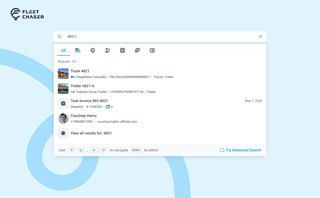
You shouldn't have to stop and figure out where to look for something in Fleet Chaser. You should be able to type its name and be on its page a second later. That's what we rebuilt Search around.
There are two searches now, and they're good at different things.
- Quick Search — the box in the top bar — is for getting somewhere fast.
- Advanced Search is for the times a name isn't enough: when you want to filter a list, search by something other than a name, or pull in archived records.

Managing operations across fleets and teams can often get tangled in miscommunication or clarity. To solve this, Fleet Chaser's Status Management feature brings clarity and ease to your operations. Whether it's a vehicle needing maintenance or an employee unavailable due to a sick day, statuses provide instant visibility into availability and readiness.
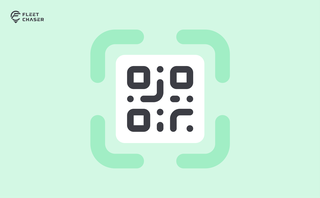
QR Codes are live in Fleet Chaser. Drivers scan a sticker on any vehicle to jump straight into the right inspection — no searching, no typing — and managers link a code to a vehicle right from the Console in seconds.
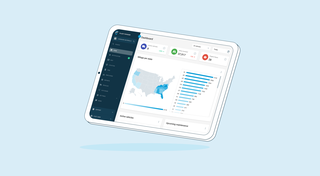
We’re thrilled to present new navigation in Fleet Chaser.
The new navigation not only streamlines your workflow, but also helps us roll out all the new features: notifications, dispatching, maintenance work orders, and more.
The new navigation is available in your user account, log in and check it out. 🌝
Hover over the toolbar or to the main workspace. Both sections will unfold, making it convenient to work in every one of them. The maps will also unfold, providing a larger view to see every little detail.
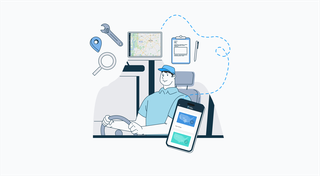
A well-constructed fleet management strategy is the backbone of profitability and efficiency of any fleet business. Adequate management not only reduces delays by reinforcing organization but also prevents downtime, cutting costs and increasing potential revenue as a result, and ensures your assets are always in top condition.
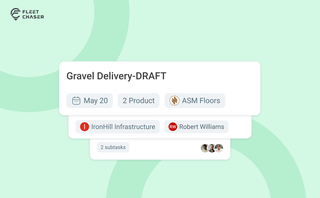
Setting up a real job takes a few minutes — a route, products, a crew, a schedule. Get interrupted halfway and that half-built task used to be gone. Drafts fix that: while you build a task, Fleet Chaser saves it automatically, so you can step away and pick up exactly where you left off. A draft stays private and silent — no task number, no notifications — until you press Create task.
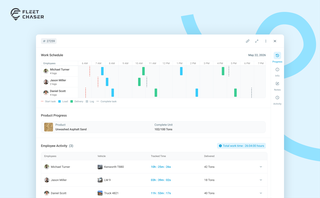
The Progress tab is the single place that shows how a task was actually worked — built from real entries drivers create as they go, not a summary someone reassembled later. A per-employee timeline, live per-product totals, and a filterable log of every load and delivery, with every edit kept on the activity log so corrections never erase the truth.
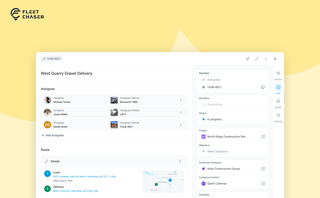
In most operations, the plan and the work live in different places. The plan's on a board, or in a dispatcher's head. The work's out on a site, in a truck, spread across locations. And whatever actually happened comes back later in pieces — a phone call, a half-remembered note, a photo that never got sent.
Tasks v2 closes that gap. You set up the work the way your business runs it, your crew does it from their phone, and when it's done you open the task and see exactly how it went — who did what, when, how much — without calling anyone to ask.
It doesn't much matter whether you dispatch field crews, haul materials between sites, run service calls, or coordinate office work across locations. The point of Tasks v2 is that it bends to your process instead of forcing you into someone else's.