



VINs / 2013 / Ford / Fusion / 3FA6P0HR0DR100376
2013 Ford Fusion
Vin:
3FA6P0HR0DR100376
Type:
Sedan/Saloon
Year:
2013
Make:
Ford
Model:
Fusion
Series:
SE
GVWR:
?

Engine
Manufacturer
Ford
Fuel
Gasoline
Fuel Injection Type
Stoichiometric Gasoline Direct Injection (SGDI)
Displacement(Liters)
1.6
Cylinders
4
Configuration
In-Line
Manufacturer
Manufacturer
FORD MOTOR COMPANY, MEXICO
Plant Company
Hermosillo
Plant City
HERMOSILLO
Plant Country
MEXICO
Safety Features
Air Bag Location(Front)
1st Row (Driver and Passenger)
Air Bag Location(Sides)
1st and 2nd Rows
Seat Belts(All)
Manual
Do you manage a fleet?
FleetChaser will help you track:
- Mileage and maintenance
- Filling and expenses
- Real-time technical condition
Learn More
You'll never want to go back to how your fleet operated before Fleet Chaser
Our construction fleet management software makes your fleet management better, safer, and easier.
Construction and Fleet Management Articles
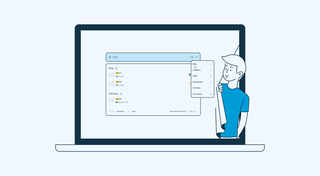
With simplified Global Search, every team member who will be interacting with the software will save valuable time — and, in the long run, all those shortcuts add up, enabling you to focus longer on making crucial decisions for business prosperity, rather than just managing operations.

Imagine it’s a Monday morning, and your fleet of 100 construction vehicles is ready to hit the road. You’ve got a bunch of active job orders, and one of them is pretty critical: your concrete mixer truck needs to be at a construction site by 8 a.m. sharp.
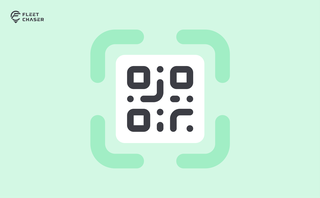
QR Codes are live in Fleet Chaser. Drivers scan a sticker on any vehicle to jump straight into the right inspection — no searching, no typing — and managers link a code to a vehicle right from the Console in seconds.

We’ve refreshed the platform’s look, focusing on a more user-friendly design. The new interface not only looks more attractive but is also designed to boost your productivity by making navigation simpler.
![[Fleet Chaser] Fleet Management Software Features - Preview](https://cms-media.fleetchaser.com/images/Fleet_Chaser_Fleet_Management_Software_Featu.max-320x320.png)
As of December 2024, there are 968 fleet management software (FMS) options listed on Capterra alone. Think of going through dozens of them, hoping to find the perfect fit for your fleet. You spend days, maybe weeks, swamped by endless features and specs, sitting through overhyped demos, and feeling your brain turn to mush.
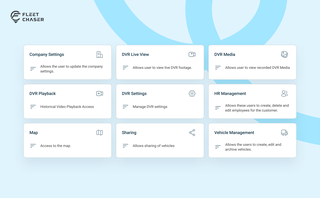
Permissions decide who on your team can see and do what. Admins can do everything; everyone else gets access through groups you build, so each role gets exactly what it needs and nothing more. Here is how to set it up in the Console under Employees.

Discover our major updates to the Dash Camera section, designed to streamline your fleet management:
- Enhanced Camera Interface: Enjoy an updated design with a new timeline feature for easy video status tracking.
- Improved Live Section: Clearer status indicators for real-time camera monitoring.
- Upgraded Saved Media Section: Organized media tabs and date sorting for effortless access to your recordings.
Explore these new features for a more efficient fleet management experience.

What does it take to develop a fleet management budget that will support you on the way to your business goals? In this short guide will cover the determining aspects you should keep in mind and strategies to employ when drawing up a fleet budget.
But first, let’s clarify — why is it imperative to have one? 🤔
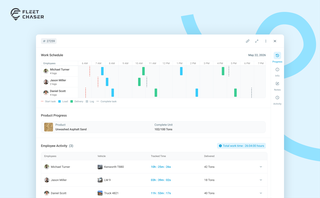
The Progress tab is the single place that shows how a task was actually worked — built from real entries drivers create as they go, not a summary someone reassembled later. A per-employee timeline, live per-product totals, and a filterable log of every load and delivery, with every edit kept on the activity log so corrections never erase the truth.