



VINs / 1997 / Ford / E-350 / 1FDKE30F5VHB60198
1997 Ford E-350
Vin:
1FDKE30F5VHB60198
Year:
1997
Make:
Ford
Model:
E-350
Series:
Econoline
GVWR:
?

Engine
Manufacturer
Navistar
Model
7.3 Turbo -DI
Fuel
Diesel
Horse Power
205
Displacement(Liters)
7.3
Cylinders
8
Configuration
V-Shaped
Turbocharged
Yes
Drive Trian
Type
4x2
Manufacturer
Manufacturer
FORD MOTOR COMPANY
Plant City
LORAIN
Plant State
OHIO
Plant Country
UNITED STATES (USA)
Safety Features
Seat Belts(All)
Manual
Brake System Type
Hydraulic
Do you manage a fleet?
FleetChaser will help you track:
- Mileage and maintenance
- Filling and expenses
- Real-time technical condition
Learn More
You'll never want to go back to how your fleet operated before Fleet Chaser
Our construction fleet management software makes your fleet management better, safer, and easier.
Construction and Fleet Management Articles
Hi folks! Let us brighten up your mood :)
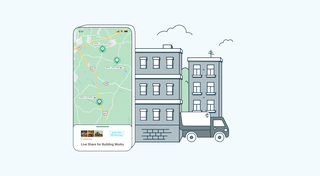
We're excited to introduce Live Share, enabling real-time sharing of vehicle information with your customers.
Customers in the dark about their delivery? Customers don’t know where the truck is? Partner companies can’t access vehicle status? These are hurdles of the past!
With Live Share, you can now effortlessly share your vehicles with customers, partners, and colleagues in a secure and customizable manner.

Imagine it’s a Monday morning, and your fleet of 100 construction vehicles is ready to hit the road. You’ve got a bunch of active job orders, and one of them is pretty critical: your concrete mixer truck needs to be at a construction site by 8 a.m. sharp.
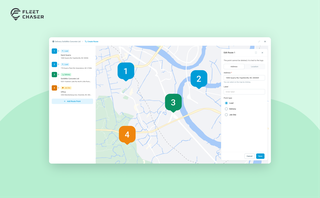
Route Planning turns a multi-stop job from "an address typed into the task description" into a real itinerary you draw on a map. Color-coded Load, Delivery, and Job Site checkpoints, drag to reorder, addresses or saved Locations, and an Employee App that walks the driver through the route in order — including the Job Site stops that hold the line until the work there is logged.
![[Fleet Chaser] Fleet Management Software Features - Preview](https://cms-media.fleetchaser.com/images/Fleet_Chaser_Fleet_Management_Software_Featu.max-320x320.png)
As of December 2024, there are 968 fleet management software (FMS) options listed on Capterra alone. Think of going through dozens of them, hoping to find the perfect fit for your fleet. You spend days, maybe weeks, swamped by endless features and specs, sitting through overhyped demos, and feeling your brain turn to mush.

Unexpected downtime presents a tangible setback for your fleet. Not only is your asset now off the road, but you have to tweak your operations and allocate finances to accommodate for it.
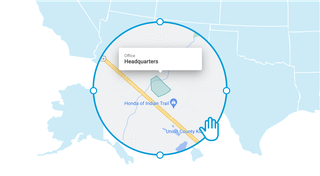
Geofencing leverages GPS or RFID technology to establish virtual perimeters around physical locations, granting fleet managers meticulous control and invaluable insights. It addresses concerns such as driver behavior monitoring, unauthorized asset use prevention, streamlined administrative tasks, load counting, and improved safety compliance. To gain a comprehensive understanding of the tangible benefits geofencing offers, let's delve deeper into its functionality.

What does it take to develop a fleet management budget that will support you on the way to your business goals? In this short guide will cover the determining aspects you should keep in mind and strategies to employ when drawing up a fleet budget.
But first, let’s clarify — why is it imperative to have one? 🤔

Ever needed to record specific vehicle information that you can’t quite assign to your existing data categories? With notes, important vehicle details are safe in one place, always at your disposal. This can be repair shop inspections, vehicle documents, legal information, etc.

Managing a fleet is not just about tracking vehicles—it’s about staying informed, reacting instantly to critical events, and making better business decisions. That’s why we are launching the Fleet Chaser Event System, a powerful, customizable tool that lets you create rules tailored specifically to your company’s needs and receive real-time alerts when key events occur.