



VINs / 2015 / Ford / F-750 / 3FRXF7FK2FV744748
2015 Ford F-750
Vin:
3FRXF7FK2FV744748
Type:
Truck
Year:
2015
Make:
Ford
Model:
F-750
GVWR:
?

Engine
Manufacturer
Cummins
Fuel
Diesel
Horse Power
260
Displacement(Liters)
6.7
Cylinders
6
Configuration
In-Line
Drive Trian
Type
4x2
Manufacturer
Manufacturer
BLUE DIAMOND TRUCK, S. DE R. L. DE C. V.
Plant Company
Blue Diamond Trucks
Plant City
ESCOBEDO
Plant Country
MEXICO
Safety Features
Seat Belts(All)
Manual
Brake System Type
Air
Do you manage a fleet?
FleetChaser will help you track:
- Mileage and maintenance
- Filling and expenses
- Real-time technical condition
Learn More
You'll never want to go back to how your fleet operated before Fleet Chaser
Our construction fleet management software makes your fleet management better, safer, and easier.
Construction and Fleet Management Articles

A construction dispatcher fields the same four calls all day — where are you, did you finish, when's the truck coming, which site. None are emergencies, but together they burn about two hours. Here's where the time goes — and the first call to move off the phone.

Managing multiple companies can be a challenge, especially when you constantly need to log in and out of different accounts. Previously, Fleet Chaser users were limited to managing just one company at a time. If you worked for more than one company, switching between them required logging out and logging in again, which was time-consuming and inconvenient.
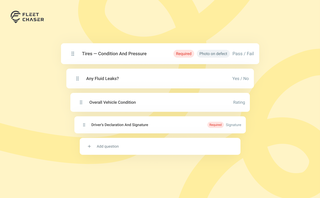
Forms is live in the Console, and the questions in it are yours. Write what your business needs to know, point it at the trucks it applies to, and publish.

Fleet Chaser chat keeps every conversation right next to the routes, tasks, and time clock your team already works in. Over the past few months we've made it clearer to use and steadier out in the field — reply to specific messages, share files with cleaner previews, and stay connected even when the signal drops.

In a fast-paced fleet management environment, staying on top of important updates is crucial. That’s why we are introducing Fleet Chaser Notifications—a centralized system designed to ensure you never miss critical alerts while avoiding unnecessary distractions.

Managing a fleet isn’t just about tracking dots on a map. It’s about knowing exactly what’s happening — and reacting before small issues become big problems. That’s why we rebuilt and expanded the Fleet Chaser Events System. Now, with a cleaner interface and more flexible rules, Events is open to every Fleet Chaser customer.

You know where your vehicle is. But do you know what's happening around it?
That's why we introduced the Cameras Overview tab in Fleet Chaser. Now, dispatchers, safety managers, or operations leads can quickly see exactly what's going on - directly through the cameras installed in your vehicles.

Managing operations across fleets and teams can often get tangled in miscommunication or clarity. To solve this, Fleet Chaser's Status Management feature brings clarity and ease to your operations. Whether it's a vehicle needing maintenance or an employee unavailable due to a sick day, statuses provide instant visibility into availability and readiness.
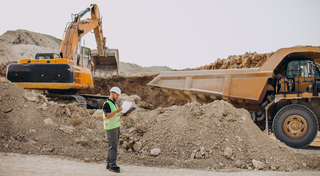
Compare 8 dispatch platforms for US construction fleets — features, pricing, and which fits a 10-vehicle vs 50+ fleet. Includes Samsara, Fleetio, Procore.