



VINs / 2017 / Nissan / Rogue / JN8AT2MV9HW274324
2017 Nissan Rogue
Vin:
JN8AT2MV9HW274324
Type:
Crossover Utility Vehicle (CUV)
Year:
2017
Make:
Nissan
Model:
Rogue
GVWR:
?
Engine
Fuel
Gasoline
Horse Power
170
Displacement(Liters)
2.5
Cylinders
4
Drive Trian
Type
4WD/4-Wheel Drive/4x4
Axles
2
Wheels
4
Manufacturer
Manufacturer
NISSAN MOTOR COMPANY, LTD
Plant Company
Nissan Motor Kyushu Co., Ltd.
Plant City
KYUSHU PLANT, MIYAKO-GUN
Plant State
FUKUOKA
Plant Country
JAPAN
Safety Features
Air Bag Location(Front)
1st Row (Driver and Passenger)
Air Bag Location(Sides)
1st Row (Driver and Passenger)
Seat Belts(All)
Manual
ABS (Antilock Braking System)
Standard
ESC (Electronic Stability Control)
Standard
Other Restraint System Info
2nd row outboard and center 3-point manual belts
Do you manage a fleet?
FleetChaser will help you track:
- Mileage and maintenance
- Filling and expenses
- Real-time technical condition
Learn More
You'll never want to go back to how your fleet operated before Fleet Chaser
Our construction fleet management software makes your fleet management better, safer, and easier.
Construction and Fleet Management Articles
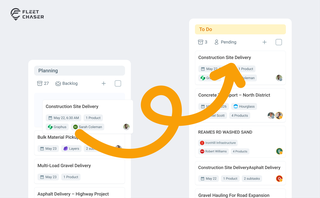
Most dispatchers still drag tomorrow's jobs onto the board every morning. Schedule Automation removes the ritual — set a rule on a workflow once, and planned tasks promote themselves onto the active board when their start time is near. It reacts when plans change, and you can still promote any job by hand in one click.
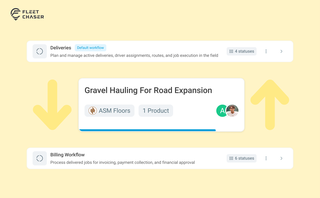
Work doesn’t stop at one team. Transfer in Fleet Chaser hands a task from one workflow to another in a single move, keeping every product, attachment, and activity-log entry attached. No re-typing, no lost history.
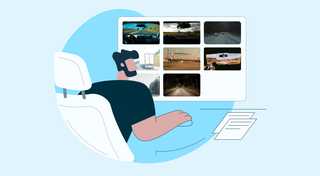
You know where your vehicle is. But do you know what's happening around it?
That's why we introduced the Cameras Overview tab in Fleet Chaser. Now, dispatchers, safety managers, or operations leads can quickly see exactly what's going on - directly through the cameras installed in your vehicles.

In a fast-paced fleet management environment, staying on top of important updates is crucial. That’s why we are introducing Fleet Chaser Notifications—a centralized system designed to ensure you never miss critical alerts while avoiding unnecessary distractions.
QR Codes are live in Fleet Chaser. Drivers scan a sticker on any vehicle to jump straight into the right inspection — no searching, no typing — and managers link a code to a vehicle right from the Console in seconds.
We've launched Time Clock, a fully integrated system that lets employees track their time with clarity — and gives managers the tools to approve and manage everything without the guesswork.
Built into both the Employee App and the Console, this feature helps eliminate timesheet chaos and brings structure to your team's day-to-day work tracking.
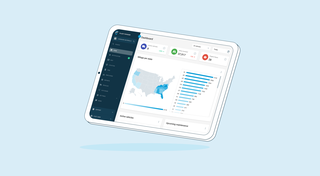
We’re thrilled to present new navigation in Fleet Chaser.
The new navigation not only streamlines your workflow, but also helps us roll out all the new features: notifications, dispatching, maintenance work orders, and more.
The new navigation is available in your user account, log in and check it out. 🌝
Hover over the toolbar or to the main workspace. Both sections will unfold, making it convenient to work in every one of them. The maps will also unfold, providing a larger view to see every little detail.
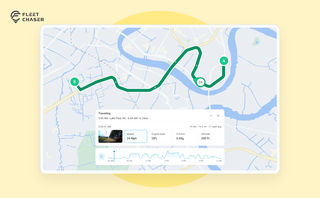
The map's History view is now a full replay of a vehicle's day. Pick a date to see the whole route, a timeline of every trip, stop, and idle, and replay it second by second with speed, engine, altitude, and camera data - plus power and battery health on the Details tab.
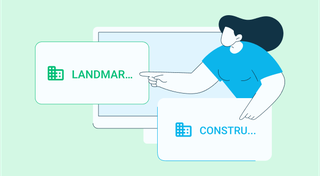
Managing multiple companies can be a challenge, especially when you constantly need to log in and out of different accounts. Previously, Fleet Chaser users were limited to managing just one company at a time. If you worked for more than one company, switching between them required logging out and logging in again, which was time-consuming and inconvenient.