



VINs / 2018 / Bmw / 320I / WBA8A3C58JA489362
2018 Bmw 320I
Vin:
WBA8A3C58JA489362
Type:
Sedan/Saloon
Year:
2018
Make:
Bmw
Model:
320I
Trim:
xDrive Sedan
Series:
3-Series
GVWR:
?

Engine
Fuel
Gasoline
Horse Power
180.00
Displacement(Liters)
2
Cylinders
4
Top Speed(MPH)
130
Drive Trian
Type
AWD/All-Wheel Drive
Axles
2
Wheels
4
Manufacturer
Manufacturer
BMW AG
Plant City
MUNICH
Plant Country
GERMANY
Safety Features
Air Bag Location(Front)
1st Row (Driver and Passenger)
Air Bag Location(Sides)
1st Row (Driver and Passenger)
Seat Belts(All)
Manual
ABS (Antilock Braking System)
Standard
ESC (Electronic Stability Control)
Standard
Other Restraint System Info
Pretensioners for Driver and Front Passenger.
Do you manage a fleet?
FleetChaser will help you track:
- Mileage and maintenance
- Filling and expenses
- Real-time technical condition
Learn More
You'll never want to go back to how your fleet operated before Fleet Chaser
Our construction fleet management software makes your fleet management better, safer, and easier.
Construction and Fleet Management Articles
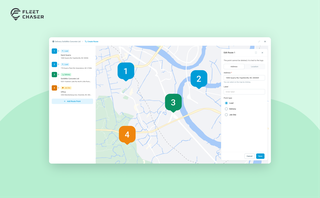
Route Planning turns a multi-stop job from "an address typed into the task description" into a real itinerary you draw on a map. Color-coded Load, Delivery, and Job Site checkpoints, drag to reorder, addresses or saved Locations, and an Employee App that walks the driver through the route in order — including the Job Site stops that hold the line until the work there is logged.
Managing multiple companies can be a challenge, especially when you constantly need to log in and out of different accounts. Previously, Fleet Chaser users were limited to managing just one company at a time. If you worked for more than one company, switching between them required logging out and logging in again, which was time-consuming and inconvenient.
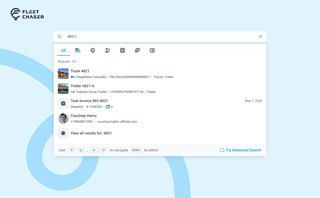
You shouldn't have to stop and figure out where to look for something in Fleet Chaser. You should be able to type its name and be on its page a second later. That's what we rebuilt Search around.
There are two searches now, and they're good at different things.
- Quick Search — the box in the top bar — is for getting somewhere fast.
- Advanced Search is for the times a name isn't enough: when you want to filter a list, search by something other than a name, or pull in archived records.

In a fast-paced fleet management environment, staying on top of important updates is crucial. That’s why we are introducing Fleet Chaser Notifications—a centralized system designed to ensure you never miss critical alerts while avoiding unnecessary distractions.
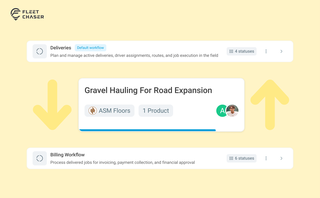
Work doesn’t stop at one team. Transfer in Fleet Chaser hands a task from one workflow to another in a single move, keeping every product, attachment, and activity-log entry attached. No re-typing, no lost history.
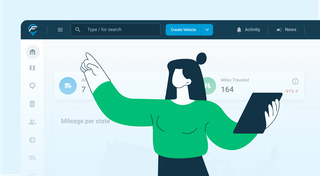
We’ve refreshed the platform’s look, focusing on a more user-friendly design. The new interface not only looks more attractive but is also designed to boost your productivity by making navigation simpler.
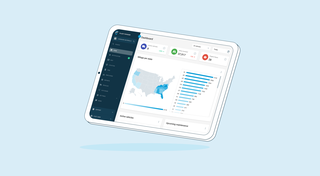
We’re thrilled to present new navigation in Fleet Chaser.
The new navigation not only streamlines your workflow, but also helps us roll out all the new features: notifications, dispatching, maintenance work orders, and more.
The new navigation is available in your user account, log in and check it out. 🌝
Hover over the toolbar or to the main workspace. Both sections will unfold, making it convenient to work in every one of them. The maps will also unfold, providing a larger view to see every little detail.
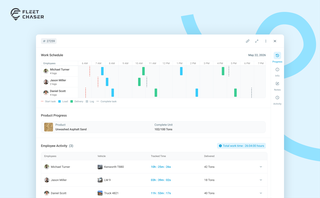
The Progress tab is the single place that shows how a task was actually worked — built from real entries drivers create as they go, not a summary someone reassembled later. A per-employee timeline, live per-product totals, and a filterable log of every load and delivery, with every edit kept on the activity log so corrections never erase the truth.
Managing a fleet has never been more challenging. Rising insurance premiums, unpredictable fuel costs, and growing maintenance costs combined with the need to keep equipment running efficiently on tight schedules…