



VINs / 2018 / Jeep / Wrangler Jk / 1C4HJWDG3JL925754
2018 Jeep Wrangler Jk
Vin:
1C4HJWDG3JL925754
Type:
Sport Utility Vehicle (SUV)/Multi-Purpose Vehicle (MPV)
Year:
2018
Make:
Jeep
Model:
Wrangler Jk
Trim:
Unlimited Sport
GVWR:
?
Engine
Manufacturer
FCA
Fuel
Gasoline
Horse Power
285
Displacement(Liters)
3.6
Cylinders
6
Configuration
V-Shaped
Drive Trian
Type
4WD/4-Wheel Drive/4x4
Manufacturer
Manufacturer
FCA US LLC
Plant Company
Toledo Supplier Park
Plant City
TOLEDO
Plant State
OHIO
Plant Country
UNITED STATES (USA)
Safety Features
Air Bag Location(Front)
1st Row (Driver and Passenger)
Air Bag Location(Sides)
1st Row (Driver and Passenger)
Seat Belts(All)
Manual
Brake System Type
Hydraulic
Other Restraint System Info
Active Seat Belt
Do you manage a fleet?
FleetChaser will help you track:
- Mileage and maintenance
- Filling and expenses
- Real-time technical condition
Learn More
You'll never want to go back to how your fleet operated before Fleet Chaser
Our construction fleet management software makes your fleet management better, safer, and easier.
Construction and Fleet Management Articles

You’ve got all this data coming from your fleet vehicles on maintenance, fuel, and mileage, but it feels like navigating through a maze with no map to guide you. You know tracking the right fleet metrics is crucial, but where do you even begin and what really matters? Read this article to learn about the key KPIs that tell you whether your fleet is on track or heading for trouble.
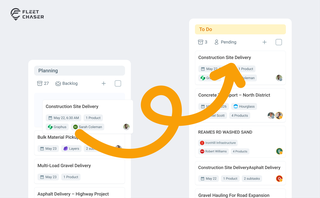
Most dispatchers still drag tomorrow's jobs onto the board every morning. Schedule Automation removes the ritual — set a rule on a workflow once, and planned tasks promote themselves onto the active board when their start time is near. It reacts when plans change, and you can still promote any job by hand in one click.
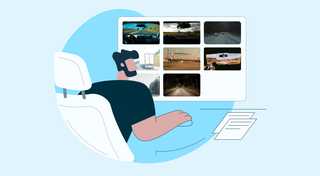
You know where your vehicle is. But do you know what's happening around it?
That's why we introduced the Cameras Overview tab in Fleet Chaser. Now, dispatchers, safety managers, or operations leads can quickly see exactly what's going on - directly through the cameras installed in your vehicles.

Unexpected downtime presents a tangible setback for your fleet. Not only is your asset now off the road, but you have to tweak your operations and allocate finances to accommodate for it.
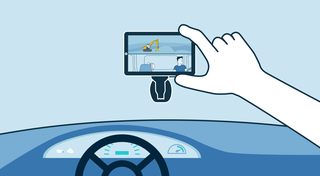
The most critical components of a fleet are the drivers and the vehicles. It is important that good driving behavior is monitored and encouraged, and fleets are kept safe.. Dash cameras make it possible to catch irresponsible driving early, provide concrete evidence in the event of an accident, and, most importantly, avoid them.

Ever needed to record specific vehicle information that you can’t quite assign to your existing data categories? With notes, important vehicle details are safe in one place, always at your disposal. This can be repair shop inspections, vehicle documents, legal information, etc.
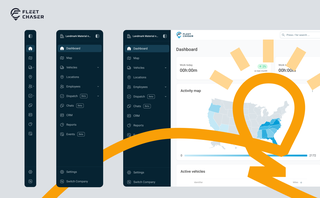
Fleet Chaser navigation just got an upgrade — dark theme, grouped sections, and a collapsible sidebar with 3 states. Here's what changed and where things moved.
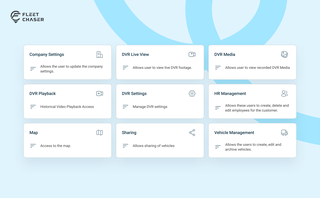
Permissions decide who on your team can see and do what. Admins can do everything; everyone else gets access through groups you build, so each role gets exactly what it needs and nothing more. Here is how to set it up in the Console under Employees.
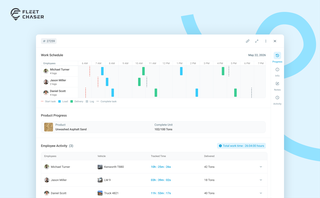
The Progress tab is the single place that shows how a task was actually worked — built from real entries drivers create as they go, not a summary someone reassembled later. A per-employee timeline, live per-product totals, and a filterable log of every load and delivery, with every edit kept on the activity log so corrections never erase the truth.