



VINs / 2020 / Chevrolet / Silverado / 3GCPYCEF7LG169552
2020 Chevrolet Silverado
Vin:
3GCPYCEF7LG169552
Type:
Pickup
Year:
2020
Make:
Chevrolet
Model:
Silverado
Trim:
Trail Boss Custom
Series:
1500
GVWR:
?
Engine
Model
L82 - DI, AFM, ALUM, GEN 5, VAR 1
Fuel
Gasoline
Displacement(Liters)
5.3
Cylinders
8
Drive Trian
Type
4WD/4-Wheel Drive/4x4
Axles
2
Wheels
4
Manufacturer
Manufacturer
GENERAL MOTORS LLC
Plant City
SILAO
Plant Country
MEXICO
Safety Features
Air Bag Location(Front)
1st Row (Driver and Passenger)
Air Bag Location(Sides)
1st Row (Driver and Passenger)
Seat Belts(All)
Manual
Brake System Type
Hydraulic
ABS (Antilock Braking System)
Standard
ESC (Electronic Stability Control)
Standard
Do you manage a fleet?
FleetChaser will help you track:
- Mileage and maintenance
- Filling and expenses
- Real-time technical condition
Learn More
You'll never want to go back to how your fleet operated before Fleet Chaser
Our construction fleet management software makes your fleet management better, safer, and easier.
Construction and Fleet Management Articles
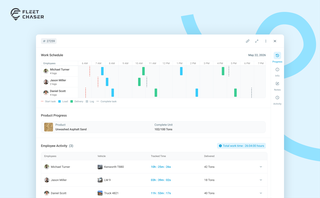
The Progress tab is the single place that shows how a task was actually worked — built from real entries drivers create as they go, not a summary someone reassembled later. A per-employee timeline, live per-product totals, and a filterable log of every load and delivery, with every edit kept on the activity log so corrections never erase the truth.
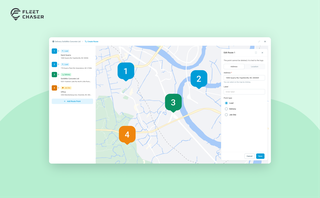
Route Planning turns a multi-stop job from "an address typed into the task description" into a real itinerary you draw on a map. Color-coded Load, Delivery, and Job Site checkpoints, drag to reorder, addresses or saved Locations, and an Employee App that walks the driver through the route in order — including the Job Site stops that hold the line until the work there is logged.
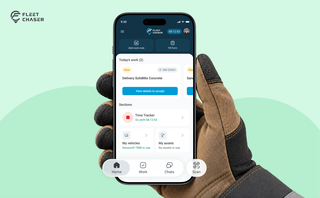
Every part of the Employee App's navigation moved: the bar along the bottom, the menu behind the hamburger, and the first screen your crew sees. The new one is built around the shift.

Reventive maintenance is paramount to sustaining your fleet’s health and minimizing downtime. It’s crucial to have a solid preventive protocol to ensure your vehicles are in top shape for as long as possible; however, creating a preventive maintenance plan or schedule from scratch is impossible without the right tools.
We advise fleet managers/owners to get familiar with the best practices you can implement to optimize fleet downtime prevention.
We’ve listed down five most crucial tips: save them to make sure your business is on its way to growth!

Managing operations across fleets and teams can often get tangled in miscommunication or clarity. To solve this, Fleet Chaser's Status Management feature brings clarity and ease to your operations. Whether it's a vehicle needing maintenance or an employee unavailable due to a sick day, statuses provide instant visibility into availability and readiness.
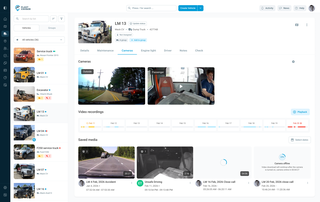
New Fleet Chaser Cameras experience: faster Playback, recording history by day, and Request video to save clips to Saved media for reliable downloads and proof storage.

Some jobs are too big for one driver. Multi-assignee tasks let you put the whole crew on a single task — each person with their own vehicle, status, and progress — while loads and deliveries are counted automatically into one shared total.
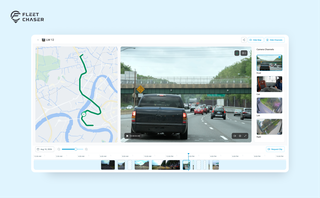
Scrub a whole day on a timeline of thumbnails, jump anywhere without the video starting over, cut the minutes you need into a clip you can download — and finally get a straight answer when a camera won't show you live video.
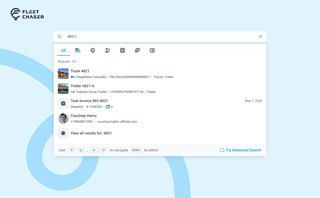
You shouldn't have to stop and figure out where to look for something in Fleet Chaser. You should be able to type its name and be on its page a second later. That's what we rebuilt Search around.
There are two searches now, and they're good at different things.
- Quick Search — the box in the top bar — is for getting somewhere fast.
- Advanced Search is for the times a name isn't enough: when you want to filter a list, search by something other than a name, or pull in archived records.