



VINs / 2020 / Honda / Accord / 1HGCV1F14LA011376
2020 Honda Accord
Vin:
1HGCV1F14LA011376
Type:
Sedan/Saloon
Year:
2020
Make:
Honda
Model:
Accord
Trim:
LX
GVWR:
?

Engine
Manufacturer
HONDA
Model
L15BE
Fuel
Gasoline
Horse Power
192
Displacement(Liters)
1.5
Cylinders
4
Cycles
4
Configuration
In-Line
Turbocharged
Yes
Drive Trian
Type
4x2
Axles
2
Wheels
4
Manufacturer
Manufacturer
AMERICAN HONDA MOTOR CO., INC.
Plant City
MARYSVILLE
Plant State
OHIO
Plant Country
UNITED STATES (USA)
Safety Features
Air Bag Location(Front)
1st Row (Driver and Passenger)
Air Bag Location(Sides)
1st Row (Driver and Passenger)
Seat Belts(All)
Manual
ABS (Antilock Braking System)
Standard
ESC (Electronic Stability Control)
Standard
Do you manage a fleet?
FleetChaser will help you track:
- Mileage and maintenance
- Filling and expenses
- Real-time technical condition
Learn More
You'll never want to go back to how your fleet operated before Fleet Chaser
Our construction fleet management software makes your fleet management better, safer, and easier.
Construction and Fleet Management Articles
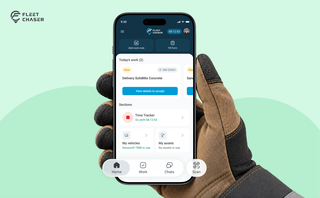
Every part of the Employee App's navigation moved: the bar along the bottom, the menu behind the hamburger, and the first screen your crew sees. The new one is built around the shift.

Managing fleets, tasks, and data just got a lot easier! The Fleet Chaser dashboard has been completely redesigned to improve usability and bring a game-changing feature: Customization.

Fleet Management Software: A Compelling Investment for 2024
Nowadays, fleet management has the potential to be ramped up to unprecedented speeds and simplified, yet it can carry much more complex data and realize sophisticated tasks.
Pen-and-paper fleet management methods have become competitively disadvantaged, if not obsolete.
Innovative fleet solutions are a prerequisite for running a successful fleet — their long list of powerful features and benefits attests to this.
If you were contemplating making the jump to fleet software, let this be a solidifying, factual overview of the solution’s advantages to dispel your doubts.
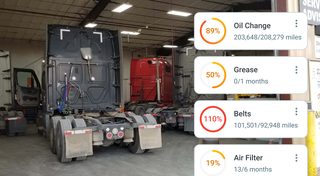

Finding useful data and utilizing it properly is a stepping stone towards running an efficient fleet. However, many fleet management systems are unoptimized, and crucial data either gets lost or underused. With fleet management software, working with fleet data is incredibly easier and more straightforward, eliminating manual work and boosting business efficiency.

Managing a fleet is not just about tracking vehicles—it’s about staying informed, reacting instantly to critical events, and making better business decisions. That’s why we are launching the Fleet Chaser Event System, a powerful, customizable tool that lets you create rules tailored specifically to your company’s needs and receive real-time alerts when key events occur.

In 2025, fleet owners face rising costs, pressure from the competition, and stricter regulations. The key to staying ahead is to adapt, not just follow every trend out there. We’ve picked 5 main fleet management trends to help you keep your operations more efficient and competitive. Ready to improve your fleet more? Check out these insights.
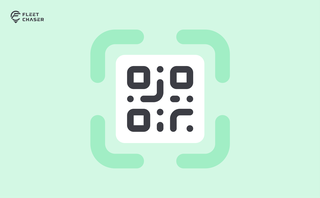
QR Codes are live in Fleet Chaser. Drivers scan a sticker on any vehicle to jump straight into the right inspection — no searching, no typing — and managers link a code to a vehicle right from the Console in seconds.
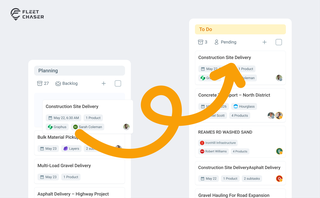
Most dispatchers still drag tomorrow's jobs onto the board every morning. Schedule Automation removes the ritual — set a rule on a workflow once, and planned tasks promote themselves onto the active board when their start time is near. It reacts when plans change, and you can still promote any job by hand in one click.