



VINs / 2025 / Ford / F-250 / 1FT7W2BT2SED00788
2025 Ford F-250
Vin:
1FT7W2BT2SED00788
Type:
Pickup
Year:
2025
Make:
Ford
Model:
F-250
GVWR:
?

Engine
Manufacturer
Ford
Fuel
Diesel
Displacement(Liters)
6.7
Cylinders
8
Configuration
V-Shaped
Drive Trian
Type
4WD/4-Wheel Drive/4x4
Manufacturer
Manufacturer
FORD MOTOR COMPANY
Plant Company
Kentucky Truck: Jefferson County
Plant City
LOUISVILLE
Plant State
KENTUCKY
Plant Country
UNITED STATES (USA)
Safety Features
Air Bag Location(Front)
1st Row (Driver and Passenger)
Air Bag Location(Sides)
1st and 2nd Rows
Seat Belts(All)
Manual
Brake System Type
Hydraulic
ABS (Antilock Braking System)
Standard
ESC (Electronic Stability Control)
Standard
Do you manage a fleet?
FleetChaser will help you track:
- Mileage and maintenance
- Filling and expenses
- Real-time technical condition
Learn More
You'll never want to go back to how your fleet operated before Fleet Chaser
Our construction fleet management software makes your fleet management better, safer, and easier.
Construction and Fleet Management Articles

A construction dispatcher fields the same four calls all day — where are you, did you finish, when's the truck coming, which site. None are emergencies, but together they burn about two hours. Here's where the time goes — and the first call to move off the phone.
Fleet management requires the handling and analysis of numerous metrics and variables, which can quickly get out of hand and clutter your desk with piles of hard-to-access information. Compiling reports, communicating with employees, contractors, and drivers, etc., should be intuitive, all laid out in a simple, visual way.
This is where fleet management software comes in.
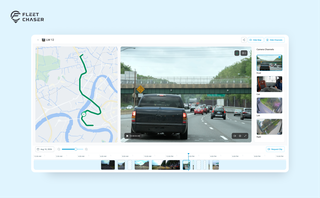
Scrub a whole day on a timeline of thumbnails, jump anywhere without the video starting over, cut the minutes you need into a clip you can download — and finally get a straight answer when a camera won't show you live video.

Reventive maintenance is paramount to sustaining your fleet’s health and minimizing downtime. It’s crucial to have a solid preventive protocol to ensure your vehicles are in top shape for as long as possible; however, creating a preventive maintenance plan or schedule from scratch is impossible without the right tools.
We advise fleet managers/owners to get familiar with the best practices you can implement to optimize fleet downtime prevention.
We’ve listed down five most crucial tips: save them to make sure your business is on its way to growth!
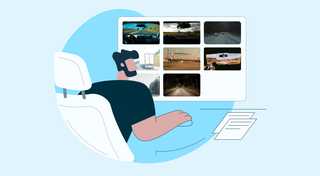
You know where your vehicle is. But do you know what's happening around it?
That's why we introduced the Cameras Overview tab in Fleet Chaser. Now, dispatchers, safety managers, or operations leads can quickly see exactly what's going on - directly through the cameras installed in your vehicles.
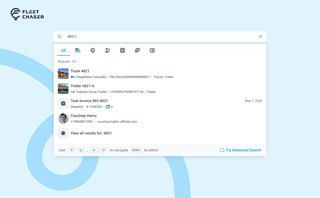
You shouldn't have to stop and figure out where to look for something in Fleet Chaser. You should be able to type its name and be on its page a second later. That's what we rebuilt Search around.
There are two searches now, and they're good at different things.
- Quick Search — the box in the top bar — is for getting somewhere fast.
- Advanced Search is for the times a name isn't enough: when you want to filter a list, search by something other than a name, or pull in archived records.
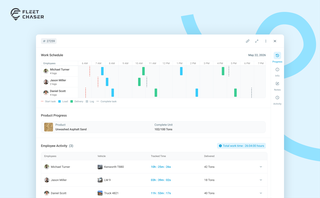
The Progress tab is the single place that shows how a task was actually worked — built from real entries drivers create as they go, not a summary someone reassembled later. A per-employee timeline, live per-product totals, and a filterable log of every load and delivery, with every edit kept on the activity log so corrections never erase the truth.
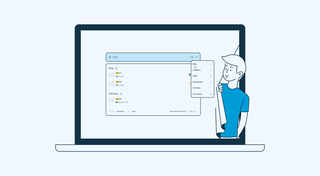
With simplified Global Search, every team member who will be interacting with the software will save valuable time — and, in the long run, all those shortcuts add up, enabling you to focus longer on making crucial decisions for business prosperity, rather than just managing operations.
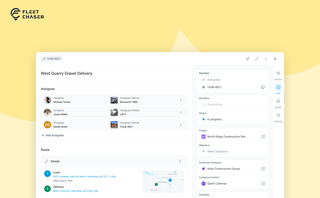
In most operations, the plan and the work live in different places. The plan's on a board, or in a dispatcher's head. The work's out on a site, in a truck, spread across locations. And whatever actually happened comes back later in pieces — a phone call, a half-remembered note, a photo that never got sent.
Tasks v2 closes that gap. You set up the work the way your business runs it, your crew does it from their phone, and when it's done you open the task and see exactly how it went — who did what, when, how much — without calling anyone to ask.
It doesn't much matter whether you dispatch field crews, haul materials between sites, run service calls, or coordinate office work across locations. The point of Tasks v2 is that it bends to your process instead of forcing you into someone else's.