



VINs / 2006 / Chevrolet / C5 / 1GBE5E3216F411113
2006 Chevrolet C5
Vin:
1GBE5E3216F411113
Year:
2006
Make:
Chevrolet
Model:
C5
Series:
5000 Medium Duty
GVWR:
?
Engine
Manufacturer
Duramax
Fuel
Diesel
Displacement(Liters)
6.6
Cylinders
8
Configuration
V-Shaped
Turbocharged
Yes
Drive Trian
Type
4WD/4-Wheel Drive/4x4
Axles
2
Manufacturer
Manufacturer
GENERAL MOTORS LLC
Plant Company
GMNA
Plant City
FLINT
Plant State
MICHIGAN
Plant Country
UNITED STATES (USA)
Safety Features
Brake System Type
Hydraulic
Do you manage a fleet?
FleetChaser will help you track:
- Mileage and maintenance
- Filling and expenses
- Real-time technical condition
Learn More
You'll never want to go back to how your fleet operated before Fleet Chaser
Our construction fleet management software makes your fleet management better, safer, and easier.
Construction and Fleet Management Articles

We’ve refreshed the platform’s look, focusing on a more user-friendly design. The new interface not only looks more attractive but is also designed to boost your productivity by making navigation simpler.

What does it take to develop a fleet management budget that will support you on the way to your business goals? In this short guide will cover the determining aspects you should keep in mind and strategies to employ when drawing up a fleet budget.
But first, let’s clarify — why is it imperative to have one? 🤔
![[Fleet Chaser] Fleet Management Software Features - Preview](https://cms-media.fleetchaser.com/images/Fleet_Chaser_Fleet_Management_Software_Featu.max-320x320.png)
As of December 2024, there are 968 fleet management software (FMS) options listed on Capterra alone. Think of going through dozens of them, hoping to find the perfect fit for your fleet. You spend days, maybe weeks, swamped by endless features and specs, sitting through overhyped demos, and feeling your brain turn to mush.
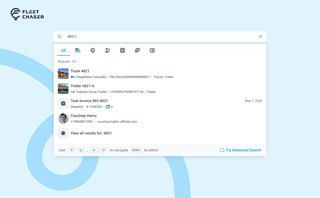
You shouldn't have to stop and figure out where to look for something in Fleet Chaser. You should be able to type its name and be on its page a second later. That's what we rebuilt Search around.
There are two searches now, and they're good at different things.
- Quick Search — the box in the top bar — is for getting somewhere fast.
- Advanced Search is for the times a name isn't enough: when you want to filter a list, search by something other than a name, or pull in archived records.
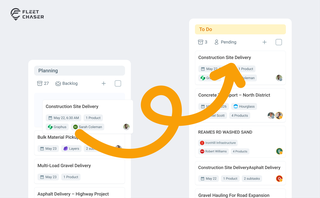
Most dispatchers still drag tomorrow's jobs onto the board every morning. Schedule Automation removes the ritual — set a rule on a workflow once, and planned tasks promote themselves onto the active board when their start time is near. It reacts when plans change, and you can still promote any job by hand in one click.

If you manage a large enterprise fleet with hundreds of vehicles, you face the daunting challenge of optimizing operations every day. Your fleet is a critical resource; however, costs can grow exponentially if the right approach isn’t applied. Hence, achieving efficiency is a top priority. The good news is that fleet management software can be your ally in streamlining operations and maximizing productivity.
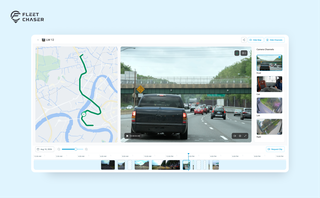
Scrub a whole day on a timeline of thumbnails, jump anywhere without the video starting over, cut the minutes you need into a clip you can download — and finally get a straight answer when a camera won't show you live video.

You’ve got all this data coming from your fleet vehicles on maintenance, fuel, and mileage, but it feels like navigating through a maze with no map to guide you. You know tracking the right fleet metrics is crucial, but where do you even begin and what really matters? Read this article to learn about the key KPIs that tell you whether your fleet is on track or heading for trouble.

Managing a fleet is not just about tracking vehicles—it’s about staying informed, reacting instantly to critical events, and making better business decisions. That’s why we are launching the Fleet Chaser Event System, a powerful, customizable tool that lets you create rules tailored specifically to your company’s needs and receive real-time alerts when key events occur.