



VINs / 2007 / GMC / C5 / 1GDE5E1237F411092
2007 GMC C5
Vin:
1GDE5E1237F411092
Year:
2007
Make:
GMC
Model:
C5
Series:
5000 Medium Duty
GVWR:
?
Engine
Manufacturer
GM
Fuel
Diesel
Displacement(Liters)
6.6
Cylinders
8
Configuration
V-Shaped
Turbocharged
Yes
Drive Trian
Type
4x2
Axles
2
Manufacturer
Manufacturer
GENERAL MOTORS LLC
Plant Company
GMNA
Plant City
FLINT
Plant State
MICHIGAN
Plant Country
UNITED STATES (USA)
Safety Features
Brake System Type
Hydraulic
Do you manage a fleet?
FleetChaser will help you track:
- Mileage and maintenance
- Filling and expenses
- Real-time technical condition
Learn More
You'll never want to go back to how your fleet operated before Fleet Chaser
Our construction fleet management software makes your fleet management better, safer, and easier.
Construction and Fleet Management Articles

Fleet Management Software: A Compelling Investment for 2024
Nowadays, fleet management has the potential to be ramped up to unprecedented speeds and simplified, yet it can carry much more complex data and realize sophisticated tasks.
Pen-and-paper fleet management methods have become competitively disadvantaged, if not obsolete.
Innovative fleet solutions are a prerequisite for running a successful fleet — their long list of powerful features and benefits attests to this.
If you were contemplating making the jump to fleet software, let this be a solidifying, factual overview of the solution’s advantages to dispel your doubts.

A construction dispatcher fields the same four calls all day — where are you, did you finish, when's the truck coming, which site. None are emergencies, but together they burn about two hours. Here's where the time goes — and the first call to move off the phone.
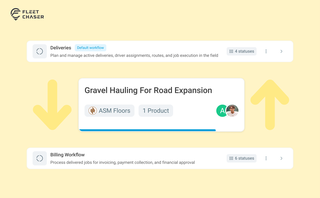
Work doesn’t stop at one team. Transfer in Fleet Chaser hands a task from one workflow to another in a single move, keeping every product, attachment, and activity-log entry attached. No re-typing, no lost history.
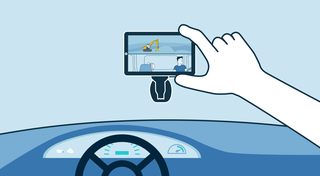
The most critical components of a fleet are the drivers and the vehicles. It is important that good driving behavior is monitored and encouraged, and fleets are kept safe.. Dash cameras make it possible to catch irresponsible driving early, provide concrete evidence in the event of an accident, and, most importantly, avoid them.

Imagine it’s a Monday morning, and your fleet of 100 construction vehicles is ready to hit the road. You’ve got a bunch of active job orders, and one of them is pretty critical: your concrete mixer truck needs to be at a construction site by 8 a.m. sharp.

Managing operations across fleets and teams can often get tangled in miscommunication or clarity. To solve this, Fleet Chaser's Status Management feature brings clarity and ease to your operations. Whether it's a vehicle needing maintenance or an employee unavailable due to a sick day, statuses provide instant visibility into availability and readiness.
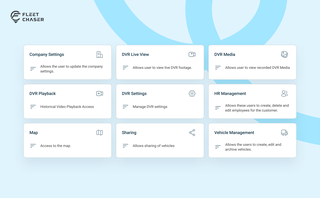
Permissions decide who on your team can see and do what. Admins can do everything; everyone else gets access through groups you build, so each role gets exactly what it needs and nothing more. Here is how to set it up in the Console under Employees.

In 2025, fleet owners face rising costs, pressure from the competition, and stricter regulations. The key to staying ahead is to adapt, not just follow every trend out there. We’ve picked 5 main fleet management trends to help you keep your operations more efficient and competitive. Ready to improve your fleet more? Check out these insights.
![[Fleet Chaser] Fleet Management Software Features - Preview](https://cms-media.fleetchaser.com/images/Fleet_Chaser_Fleet_Management_Software_Featu.max-320x320.png)
As of December 2024, there are 968 fleet management software (FMS) options listed on Capterra alone. Think of going through dozens of them, hoping to find the perfect fit for your fleet. You spend days, maybe weeks, swamped by endless features and specs, sitting through overhyped demos, and feeling your brain turn to mush.