



VINs / 2013 / Freightliner / Cascadia / 3AKJGLDRXDSBT5002
2013 Freightliner Cascadia
Vin:
3AKJGLDRXDSBT5002
Type:
Truck-Tractor
Year:
2013
Make:
Freightliner
Model:
Cascadia
GVWR:
?
Engine
Model
Detroit Diesel DD15
Fuel
Diesel
Displacement(Liters)
14.8
Cylinders
6
Configuration
In-Line
Drive Trian
Type
6x4
Manufacturer
Manufacturer
DAIMLER VEHÍCULOS COMERCIALES MÉXICO S. DE R.L. DE C.V.
Plant City
SALTILLO
Plant State
COAHUILA
Plant Country
MEXICO
Safety Features
Brake System Type
Air and Hydraulic
Do you manage a fleet?
FleetChaser will help you track:
- Mileage and maintenance
- Filling and expenses
- Real-time technical condition
Learn More
You'll never want to go back to how your fleet operated before Fleet Chaser
Our construction fleet management software makes your fleet management better, safer, and easier.
Construction and Fleet Management Articles

Fleet Chaser chat keeps every conversation right next to the routes, tasks, and time clock your team already works in. Over the past few months we've made it clearer to use and steadier out in the field — reply to specific messages, share files with cleaner previews, and stay connected even when the signal drops.
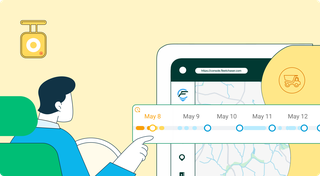
Discover our major updates to the Dash Camera section, designed to streamline your fleet management:
- Enhanced Camera Interface: Enjoy an updated design with a new timeline feature for easy video status tracking.
- Improved Live Section: Clearer status indicators for real-time camera monitoring.
- Upgraded Saved Media Section: Organized media tabs and date sorting for effortless access to your recordings.
Explore these new features for a more efficient fleet management experience.
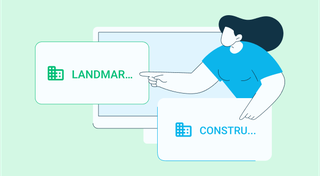
Managing multiple companies can be a challenge, especially when you constantly need to log in and out of different accounts. Previously, Fleet Chaser users were limited to managing just one company at a time. If you worked for more than one company, switching between them required logging out and logging in again, which was time-consuming and inconvenient.
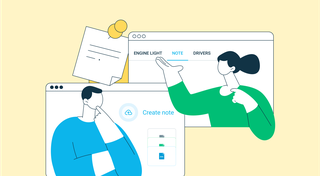
Ever needed to record specific vehicle information that you can’t quite assign to your existing data categories? With notes, important vehicle details are safe in one place, always at your disposal. This can be repair shop inspections, vehicle documents, legal information, etc.
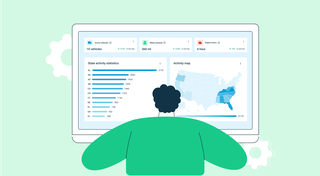
Managing fleets, tasks, and data just got a lot easier! The Fleet Chaser dashboard has been completely redesigned to improve usability and bring a game-changing feature: Customization.
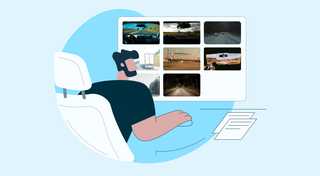
You know where your vehicle is. But do you know what's happening around it?
That's why we introduced the Cameras Overview tab in Fleet Chaser. Now, dispatchers, safety managers, or operations leads can quickly see exactly what's going on - directly through the cameras installed in your vehicles.

Some jobs are too big for one driver. Multi-assignee tasks let you put the whole crew on a single task — each person with their own vehicle, status, and progress — while loads and deliveries are counted automatically into one shared total.
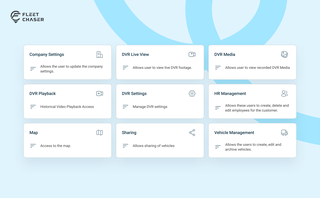
Permissions decide who on your team can see and do what. Admins can do everything; everyone else gets access through groups you build, so each role gets exactly what it needs and nothing more. Here is how to set it up in the Console under Employees.
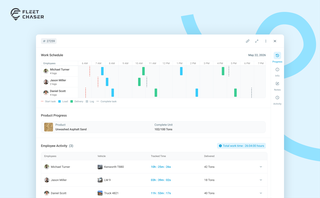
The Progress tab is the single place that shows how a task was actually worked — built from real entries drivers create as they go, not a summary someone reassembled later. A per-employee timeline, live per-product totals, and a filterable log of every load and delivery, with every edit kept on the activity log so corrections never erase the truth.