



VINs / 2016 / Cadillac / Srx / 3GYFNBE32GS531126
2016 Cadillac Srx
Vin:
3GYFNBE32GS531126
Type:
Sport Utility Vehicle (SUV)/Multi-Purpose Vehicle (MPV)
Year:
2016
Make:
Cadillac
Model:
Srx
Trim:
Luxury
GVWR:
?
Engine
Manufacturer
GM
Model
LFX - SIDI, VVT, E85 MAX, Aluminum
Fuel
Gasoline
Fuel Injection Type
Stoichiometric Gasoline Direct Injection (SGDI)
Displacement(Liters)
3.6
Cylinders
6
Drive Trian
Type
FWD/Front-Wheel Drive
Manufacturer
Manufacturer
GENERAL MOTORS LLC
Plant Company
GMNA
Plant City
RAMOS ARIZPE
Plant State
COAHUILA
Plant Country
MEXICO
Safety Features
Air Bag Location(Front)
1st Row (Driver and Passenger)
Air Bag Location(Sides)
1st Row (Driver and Passenger)
Seat Belts(All)
Manual
Brake System Type
Hydraulic
Do you manage a fleet?
FleetChaser will help you track:
- Mileage and maintenance
- Filling and expenses
- Real-time technical condition
Learn More
You'll never want to go back to how your fleet operated before Fleet Chaser
Our construction fleet management software makes your fleet management better, safer, and easier.
Construction and Fleet Management Articles
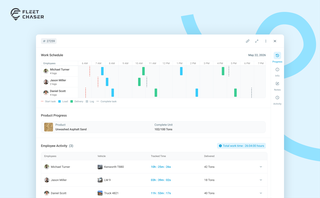
The Progress tab is the single place that shows how a task was actually worked — built from real entries drivers create as they go, not a summary someone reassembled later. A per-employee timeline, live per-product totals, and a filterable log of every load and delivery, with every edit kept on the activity log so corrections never erase the truth.

Fleet Chaser chat keeps every conversation right next to the routes, tasks, and time clock your team already works in. Over the past few months we've made it clearer to use and steadier out in the field — reply to specific messages, share files with cleaner previews, and stay connected even when the signal drops.

Idle fleet vehicles draining money, drivers taking hour-long detours to lunch, traffic jams derailing schedules, maintenance issues snowballing into bills with multiple zeros… If you’re nodding along to these fleet management issues, you’re not alone.

You know where your vehicle is. But do you know what's happening around it?
That's why we introduced the Cameras Overview tab in Fleet Chaser. Now, dispatchers, safety managers, or operations leads can quickly see exactly what's going on - directly through the cameras installed in your vehicles.
Keeping your trucks on the road means keeping your business running. A single defect can pose a major setback to your fleet, sacrificing time, money, and customer satisfaction. “Prevention is better than cure” applies here pretty much.
That’s why extending the lifetime of your trucks boils down to preventive maintenance: knowing what type of issues are likely to arise and addressing them early on.
Take a proactive approach to your truck’s upkeep and find out how to avoid the five most common breakdown causes.

Managing fleets, tasks, and data just got a lot easier! The Fleet Chaser dashboard has been completely redesigned to improve usability and bring a game-changing feature: Customization.

Unexpected downtime presents a tangible setback for your fleet. Not only is your asset now off the road, but you have to tweak your operations and allocate finances to accommodate for it.

Managing operations across fleets and teams can often get tangled in miscommunication or clarity. To solve this, Fleet Chaser's Status Management feature brings clarity and ease to your operations. Whether it's a vehicle needing maintenance or an employee unavailable due to a sick day, statuses provide instant visibility into availability and readiness.

We’ve refreshed the platform’s look, focusing on a more user-friendly design. The new interface not only looks more attractive but is also designed to boost your productivity by making navigation simpler.