



VINs / 2016 / Chevrolet / Express / 1GAZGPFF3G1275513
2016 Chevrolet Express
Vin:
1GAZGPFF3G1275513
Type:
Van
Year:
2016
Make:
Chevrolet
Model:
Express
Trim:
LT EXT
Series:
3500 Passenger
GVWR:
?
Engine
Manufacturer
GM
Model
L20 - Flexible Fuel (Gas/Ethanol), SFI IRON
Fuel
Gasoline
Fuel(Secondary)
Ethanol (E85)
Fuel Injection Type
Sequential Fuel Injection (SFI)
Displacement(Liters)
4.8
Cylinders
8
Manufacturer
Manufacturer
GENERAL MOTORS LLC
Plant Company
GMNA
Plant City
WENTZVILLE
Plant State
MISSOURI
Plant Country
UNITED STATES (USA)
Safety Features
Air Bag Location(Front)
1st Row (Driver and Passenger)
Air Bag Location(Sides)
1st Row (Driver and Passenger)
Seat Belts(All)
Manual
Brake System Type
Hydraulic
Other Restraint System Info
Roof Side airbag in all seating rows for vehicles with 3 or fewer seating rows. 1st, 2nd and 3rd row for vehicles with 4 or more seating rows.
Do you manage a fleet?
FleetChaser will help you track:
- Mileage and maintenance
- Filling and expenses
- Real-time technical condition
Learn More
You'll never want to go back to how your fleet operated before Fleet Chaser
Our construction fleet management software makes your fleet management better, safer, and easier.
Construction and Fleet Management Articles
Fleet management requires the handling and analysis of numerous metrics and variables, which can quickly get out of hand and clutter your desk with piles of hard-to-access information. Compiling reports, communicating with employees, contractors, and drivers, etc., should be intuitive, all laid out in a simple, visual way.
This is where fleet management software comes in.
![[Fleet Chaser] Fleet Management Software Features - Preview](https://cms-media.fleetchaser.com/images/Fleet_Chaser_Fleet_Management_Software_Featu.max-320x320.png)
As of December 2024, there are 968 fleet management software (FMS) options listed on Capterra alone. Think of going through dozens of them, hoping to find the perfect fit for your fleet. You spend days, maybe weeks, swamped by endless features and specs, sitting through overhyped demos, and feeling your brain turn to mush.
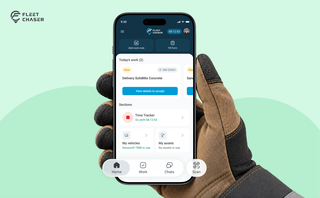
Every part of the Employee App's navigation moved: the bar along the bottom, the menu behind the hamburger, and the first screen your crew sees. The new one is built around the shift.
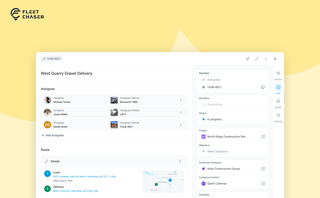
In most operations, the plan and the work live in different places. The plan's on a board, or in a dispatcher's head. The work's out on a site, in a truck, spread across locations. And whatever actually happened comes back later in pieces — a phone call, a half-remembered note, a photo that never got sent.
Tasks v2 closes that gap. You set up the work the way your business runs it, your crew does it from their phone, and when it's done you open the task and see exactly how it went — who did what, when, how much — without calling anyone to ask.
It doesn't much matter whether you dispatch field crews, haul materials between sites, run service calls, or coordinate office work across locations. The point of Tasks v2 is that it bends to your process instead of forcing you into someone else's.
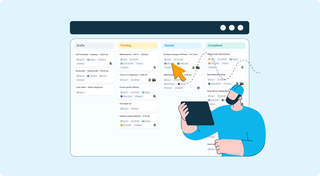
The way teams collaborate is changing. Whether you're coordinating field crews, managing office projects, or overseeing multi-location operations, the old methods of sticky notes, phone calls, and endless email chains just don't cut it anymore.
We're excited to announce the launch of Tasks – a revolutionary feature that transforms how your entire organization plans, assigns, and completes work. This isn't just about field operations; it's about creating seamless workflows across every department, every role, and every location in your business.
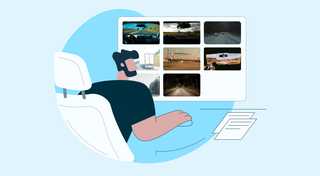
You know where your vehicle is. But do you know what's happening around it?
That's why we introduced the Cameras Overview tab in Fleet Chaser. Now, dispatchers, safety managers, or operations leads can quickly see exactly what's going on - directly through the cameras installed in your vehicles.
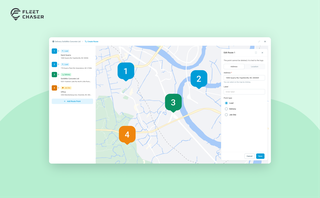
Route Planning turns a multi-stop job from "an address typed into the task description" into a real itinerary you draw on a map. Color-coded Load, Delivery, and Job Site checkpoints, drag to reorder, addresses or saved Locations, and an Employee App that walks the driver through the route in order — including the Job Site stops that hold the line until the work there is logged.
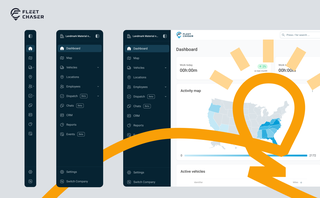
Fleet Chaser navigation just got an upgrade — dark theme, grouped sections, and a collapsible sidebar with 3 states. Here's what changed and where things moved.

But your drivers may need to be on board with that decision. How do you do what’s best for your drivers and fleet without harming driver trust while juggling legal concerns?
Not to worry. Here are crucial points to keep in mind in your efforts to equip your fleet with dash cams while preserving driver privacy: