



VINs / 2016 / Chevrolet / Trax / 3GNCJKSB1GL264983
2016 Chevrolet Trax
Vin:
3GNCJKSB1GL264983
Type:
Sport Utility Vehicle (SUV)/Multi-Purpose Vehicle (MPV)
Year:
2016
Make:
Chevrolet
Model:
Trax
Trim:
LS
GVWR:
?
Engine
Model
LUV - MFI, VVT, ALUM, GME E85 MAX
Fuel
Gasoline
Fuel Injection Type
Multipoint Fuel Injection (MPFI)
Displacement(Liters)
1.4
Cylinders
4
Configuration
In-Line
Turbocharged
Yes
Drive Trian
Type
FWD/Front-Wheel Drive
Manufacturer
Manufacturer
GENERAL MOTORS LLC
Plant Company
GMNA
Plant City
SAN LUIS POTOSI
Plant State
COAHUILA
Plant Country
MEXICO
Safety Features
Air Bag Location(Front)
1st Row (Driver and Passenger)
Air Bag Location(Sides)
1st and 2nd Rows
Seat Belts(All)
Manual
Brake System Type
Hydraulic
Do you manage a fleet?
FleetChaser will help you track:
- Mileage and maintenance
- Filling and expenses
- Real-time technical condition
Learn More
You'll never want to go back to how your fleet operated before Fleet Chaser
Our construction fleet management software makes your fleet management better, safer, and easier.
Construction and Fleet Management Articles
QR Codes are live in Fleet Chaser. Drivers scan a sticker on any vehicle to jump straight into the right inspection — no searching, no typing — and managers link a code to a vehicle right from the Console in seconds.

Some jobs are too big for one driver. Multi-assignee tasks let you put the whole crew on a single task — each person with their own vehicle, status, and progress — while loads and deliveries are counted automatically into one shared total.
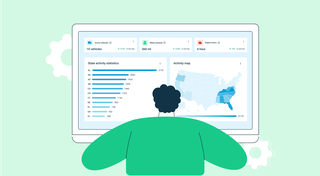
Managing fleets, tasks, and data just got a lot easier! The Fleet Chaser dashboard has been completely redesigned to improve usability and bring a game-changing feature: Customization.

Managing multiple companies can be a challenge, especially when you constantly need to log in and out of different accounts. Previously, Fleet Chaser users were limited to managing just one company at a time. If you worked for more than one company, switching between them required logging out and logging in again, which was time-consuming and inconvenient.
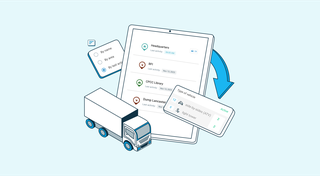
The last activity view is already in your account. This feature enables you to instantly view info on trucks’ activity in certain locations. No need to search info on the last activity manually: it will be displayed neatly right next to each location’s name. Stay updated and have a nice day ahead!

In a fast-paced fleet management environment, staying on top of important updates is crucial. That’s why we are introducing Fleet Chaser Notifications—a centralized system designed to ensure you never miss critical alerts while avoiding unnecessary distractions.

Managing a fleet isn’t just about tracking dots on a map. It’s about knowing exactly what’s happening — and reacting before small issues become big problems. That’s why we rebuilt and expanded the Fleet Chaser Events System. Now, with a cleaner interface and more flexible rules, Events is open to every Fleet Chaser customer.

Unexpected downtime presents a tangible setback for your fleet. Not only is your asset now off the road, but you have to tweak your operations and allocate finances to accommodate for it.
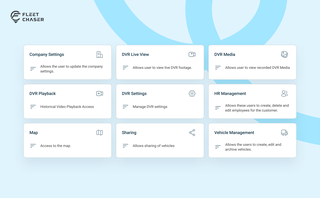
Permissions decide who on your team can see and do what. Admins can do everything; everyone else gets access through groups you build, so each role gets exactly what it needs and nothing more. Here is how to set it up in the Console under Employees.