


VINs / 2017 / Nissan / Altima / 1N4AL3AP7HC497766
2017 Nissan Altima
Vin:
1N4AL3AP7HC497766
Type:
Sedan/Saloon
Year:
2017
Make:
Nissan
Model:
Altima
GVWR:
?
Engine
Fuel
Gasoline
Displacement(Liters)
2.5
Cylinders
4
Configuration
In-Line
Drive Trian
Type
4x2
Axles
2
Wheels
4
Manufacturer
Manufacturer
NISSAN NORTH AMERICA, INC.
Plant Company
Nissan North America Inc.
Plant City
SMYRNA
Plant State
TENNESSEE
Plant Country
UNITED STATES (USA)
Safety Features
Air Bag Location(Front)
1st Row (Driver and Passenger)
Air Bag Location(Sides)
1st Row (Driver and Passenger)
Seat Belts(All)
Manual
ABS (Antilock Braking System)
Standard
ESC (Electronic Stability Control)
Standard
Other Restraint System Info
2nd row outboard and center 3-point manual belts
Do you manage a fleet?
FleetChaser will help you track:
- Mileage and maintenance
- Filling and expenses
- Real-time technical condition
Learn More
You'll never want to go back to how your fleet operated before Fleet Chaser
Our construction fleet management software makes your fleet management better, safer, and easier.
Construction and Fleet Management Articles
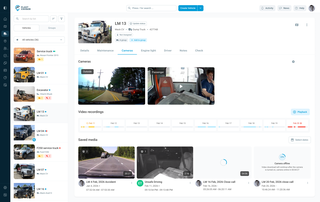
New Fleet Chaser Cameras experience: faster Playback, recording history by day, and Request video to save clips to Saved media for reliable downloads and proof storage.
Telematics went from military GPS tracking to a powerful fleet management tool that prevents problems before they arise. Now, it’s all about control, confidence, and peace of mind for fleet owners. Want to see how telematics can transform your fleet? This article breaks down how modern telematics solutions work, real-life success stories, and the answers you’ve been looking for, like where your vehicles are and how to cut fuel costs. Feel free to dive in!
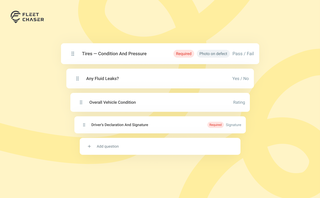
Forms is live in the Console, and the questions in it are yours. Write what your business needs to know, point it at the trucks it applies to, and publish.

Managing operations across fleets and teams can often get tangled in miscommunication or clarity. To solve this, Fleet Chaser's Status Management feature brings clarity and ease to your operations. Whether it's a vehicle needing maintenance or an employee unavailable due to a sick day, statuses provide instant visibility into availability and readiness.
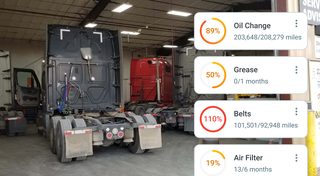
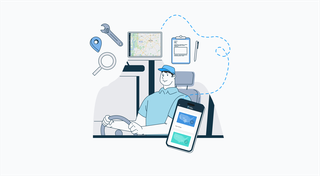
A well-constructed fleet management strategy is the backbone of profitability and efficiency of any fleet business. Adequate management not only reduces delays by reinforcing organization but also prevents downtime, cutting costs and increasing potential revenue as a result, and ensures your assets are always in top condition.
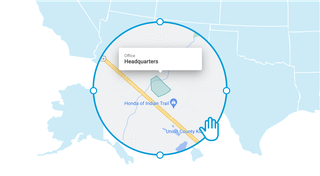
Geofencing leverages GPS or RFID technology to establish virtual perimeters around physical locations, granting fleet managers meticulous control and invaluable insights. It addresses concerns such as driver behavior monitoring, unauthorized asset use prevention, streamlined administrative tasks, load counting, and improved safety compliance. To gain a comprehensive understanding of the tangible benefits geofencing offers, let's delve deeper into its functionality.
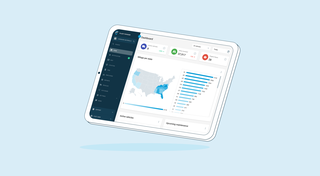
We’re thrilled to present new navigation in Fleet Chaser.
The new navigation not only streamlines your workflow, but also helps us roll out all the new features: notifications, dispatching, maintenance work orders, and more.
The new navigation is available in your user account, log in and check it out. 🌝
Hover over the toolbar or to the main workspace. Both sections will unfold, making it convenient to work in every one of them. The maps will also unfold, providing a larger view to see every little detail.
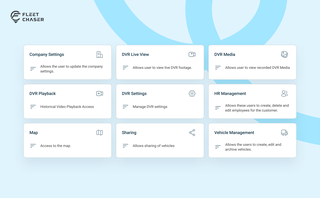
Permissions decide who on your team can see and do what. Admins can do everything; everyone else gets access through groups you build, so each role gets exactly what it needs and nothing more. Here is how to set it up in the Console under Employees.