



VINs / 2018 / Chevrolet / Colorado / 1GCGTBEN0J1209868
2018 Chevrolet Colorado
Vin:
1GCGTBEN0J1209868
Type:
Pickup
Year:
2018
Make:
Chevrolet
Model:
Colorado
Trim:
Work Truck
GVWR:
?
Engine
Model
LGZ - DI: Direct Injection, VVT: Variable Valve Timing, ALUM, VAR2, GEN2
Fuel
Gasoline
Displacement(Liters)
3.6
Cylinders
6
Configuration
V-Shaped
Top Speed(MPH)
120
Drive Trian
Type
4WD/4-Wheel Drive/4x4
Axles
2
Wheels
4
Manufacturer
Manufacturer
GENERAL MOTORS LLC
Plant Company
GMNA
Plant City
WENTZVILLE
Plant State
MISSOURI
Plant Country
UNITED STATES (USA)
Safety Features
Air Bag Location(Front)
1st Row (Driver and Passenger)
Air Bag Location(Sides)
1st Row (Driver and Passenger)
Seat Belts(All)
Manual
ABS (Antilock Braking System)
Standard
ESC (Electronic Stability Control)
Standard
Do you manage a fleet?
FleetChaser will help you track:
- Mileage and maintenance
- Filling and expenses
- Real-time technical condition
Learn More
You'll never want to go back to how your fleet operated before Fleet Chaser
Our construction fleet management software makes your fleet management better, safer, and easier.
Construction and Fleet Management Articles

Fleet Chaser: Liquid Metal Design Philosophy
At Fleet Chaser, our design philosophy embodies clarity, resilience, and adaptability, much like liquid metal—a substance strong enough for rigorous demands yet fluid sufficient to mold effortlessly around your unique business needs. Here's how this philosophy translates into our interface and functionalities.
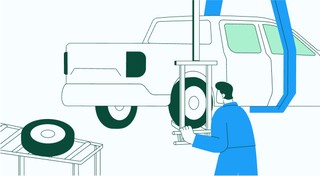
Keeping your trucks on the road means keeping your business running. A single defect can pose a major setback to your fleet, sacrificing time, money, and customer satisfaction. “Prevention is better than cure” applies here pretty much.
That’s why extending the lifetime of your trucks boils down to preventive maintenance: knowing what type of issues are likely to arise and addressing them early on.
Take a proactive approach to your truck’s upkeep and find out how to avoid the five most common breakdown causes.
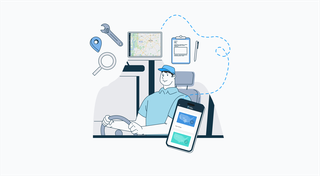
A well-constructed fleet management strategy is the backbone of profitability and efficiency of any fleet business. Adequate management not only reduces delays by reinforcing organization but also prevents downtime, cutting costs and increasing potential revenue as a result, and ensures your assets are always in top condition.

But your drivers may need to be on board with that decision. How do you do what’s best for your drivers and fleet without harming driver trust while juggling legal concerns?
Not to worry. Here are crucial points to keep in mind in your efforts to equip your fleet with dash cams while preserving driver privacy:
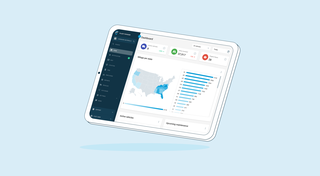
We’re thrilled to present new navigation in Fleet Chaser.
The new navigation not only streamlines your workflow, but also helps us roll out all the new features: notifications, dispatching, maintenance work orders, and more.
The new navigation is available in your user account, log in and check it out. 🌝
Hover over the toolbar or to the main workspace. Both sections will unfold, making it convenient to work in every one of them. The maps will also unfold, providing a larger view to see every little detail.
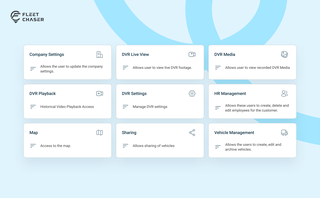
Permissions decide who on your team can see and do what. Admins can do everything; everyone else gets access through groups you build, so each role gets exactly what it needs and nothing more. Here is how to set it up in the Console under Employees.
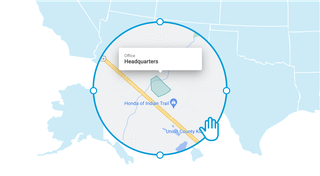
Geofencing leverages GPS or RFID technology to establish virtual perimeters around physical locations, granting fleet managers meticulous control and invaluable insights. It addresses concerns such as driver behavior monitoring, unauthorized asset use prevention, streamlined administrative tasks, load counting, and improved safety compliance. To gain a comprehensive understanding of the tangible benefits geofencing offers, let's delve deeper into its functionality.
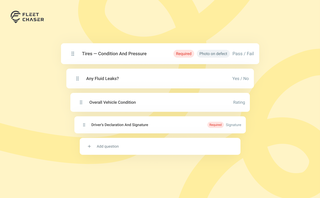
Forms is live in the Console, and the questions in it are yours. Write what your business needs to know, point it at the trucks it applies to, and publish.

Telematics went from military GPS tracking to a powerful fleet management tool that prevents problems before they arise. Now, it’s all about control, confidence, and peace of mind for fleet owners. Want to see how telematics can transform your fleet? This article breaks down how modern telematics solutions work, real-life success stories, and the answers you’ve been looking for, like where your vehicles are and how to cut fuel costs. Feel free to dive in!