



VINs / 2022 / Nissan / Rogue / 5N1BT3BB7NC708649
2022 Nissan Rogue
Vin:
5N1BT3BB7NC708649
Type:
Sport Utility Vehicle (SUV)/Multi-Purpose Vehicle (MPV)
Year:
2022
Make:
Nissan
Model:
Rogue
Trim:
Grade SV
GVWR:
?
Engine
Fuel
Gasoline
Displacement(Liters)
1.5
Drive Trian
Type
4WD/4-Wheel Drive/4x4
Manufacturer
Manufacturer
NISSAN NORTH AMERICA, INC.
Plant Company
Nissan North America Inc.
Plant City
SMYRNA
Plant State
TENNESSEE
Plant Country
UNITED STATES (USA)
Safety Features
Air Bag Location(Front)
1st Row (Driver and Passenger)
Air Bag Location(Sides)
1st and 2nd Rows
Seat Belts(All)
Manual
ABS (Antilock Braking System)
Standard
ESC (Electronic Stability Control)
Standard
Other Restraint System Info
1st Row 3-Point Manual Belts / 2nd Row outboard 3-Point Manual Belts / 2nd Row center 3-Point Manual Belts
Do you manage a fleet?
FleetChaser will help you track:
- Mileage and maintenance
- Filling and expenses
- Real-time technical condition
Learn More
You'll never want to go back to how your fleet operated before Fleet Chaser
Our construction fleet management software makes your fleet management better, safer, and easier.
Construction and Fleet Management Articles
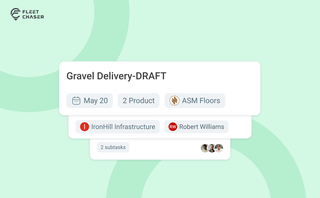
Setting up a real job takes a few minutes — a route, products, a crew, a schedule. Get interrupted halfway and that half-built task used to be gone. Drafts fix that: while you build a task, Fleet Chaser saves it automatically, so you can step away and pick up exactly where you left off. A draft stays private and silent — no task number, no notifications — until you press Create task.

Some jobs are too big for one driver. Multi-assignee tasks let you put the whole crew on a single task — each person with their own vehicle, status, and progress — while loads and deliveries are counted automatically into one shared total.
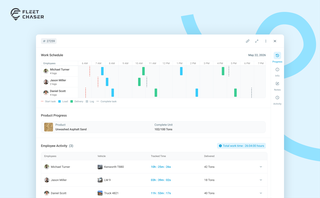
The Progress tab is the single place that shows how a task was actually worked — built from real entries drivers create as they go, not a summary someone reassembled later. A per-employee timeline, live per-product totals, and a filterable log of every load and delivery, with every edit kept on the activity log so corrections never erase the truth.

Imagine it’s a Monday morning, and your fleet of 100 construction vehicles is ready to hit the road. You’ve got a bunch of active job orders, and one of them is pretty critical: your concrete mixer truck needs to be at a construction site by 8 a.m. sharp.
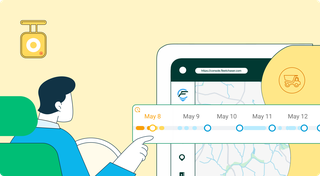
Discover our major updates to the Dash Camera section, designed to streamline your fleet management:
- Enhanced Camera Interface: Enjoy an updated design with a new timeline feature for easy video status tracking.
- Improved Live Section: Clearer status indicators for real-time camera monitoring.
- Upgraded Saved Media Section: Organized media tabs and date sorting for effortless access to your recordings.
Explore these new features for a more efficient fleet management experience.
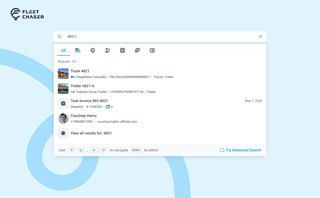
You shouldn't have to stop and figure out where to look for something in Fleet Chaser. You should be able to type its name and be on its page a second later. That's what we rebuilt Search around.
There are two searches now, and they're good at different things.
- Quick Search — the box in the top bar — is for getting somewhere fast.
- Advanced Search is for the times a name isn't enough: when you want to filter a list, search by something other than a name, or pull in archived records.
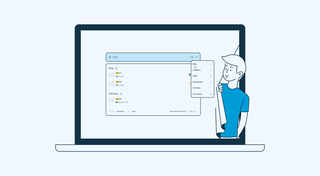
With simplified Global Search, every team member who will be interacting with the software will save valuable time — and, in the long run, all those shortcuts add up, enabling you to focus longer on making crucial decisions for business prosperity, rather than just managing operations.
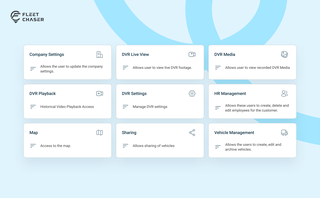
Permissions decide who on your team can see and do what. Admins can do everything; everyone else gets access through groups you build, so each role gets exactly what it needs and nothing more. Here is how to set it up in the Console under Employees.
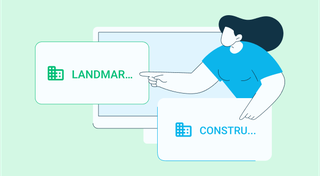
Managing multiple companies can be a challenge, especially when you constantly need to log in and out of different accounts. Previously, Fleet Chaser users were limited to managing just one company at a time. If you worked for more than one company, switching between them required logging out and logging in again, which was time-consuming and inconvenient.