



VINs / 1996 / GMC / C7 / 1GDM7H1J6TJ500340
1996 GMC C7
Vin:
1GDM7H1J6TJ500340
Year:
1996
Make:
GMC
Model:
C7
Trim:
Medium Conventional - 104 in. BBC
Series:
7000 Medium Duty
GVWR:
?
Engine
Manufacturer
CAT
Fuel
Diesel
Displacement(Liters)
6.6
Cylinders
6
Configuration
In-Line
Drive Trian
Type
4x2
Axles
2
Manufacturer
Manufacturer
GENERAL MOTORS LLC
Plant Company
Janesville Assembly Plant
Plant City
JANESVILLE
Plant State
WISCONSIN
Plant Country
UNITED STATES (USA)
Safety Features
Brake System Type
Air
Do you manage a fleet?
FleetChaser will help you track:
- Mileage and maintenance
- Filling and expenses
- Real-time technical condition
Learn More
You'll never want to go back to how your fleet operated before Fleet Chaser
Our construction fleet management software makes your fleet management better, safer, and easier.
Construction and Fleet Management Articles
QR Codes are live in Fleet Chaser. Drivers scan a sticker on any vehicle to jump straight into the right inspection — no searching, no typing — and managers link a code to a vehicle right from the Console in seconds.
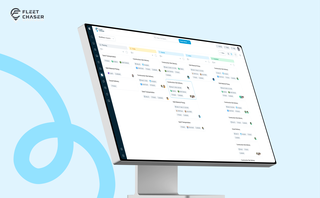
Most "fleet management software" was built for long-haul trucking or service vehicles — construction is the asset-mixed reality in between, and most vendors treat it as an afterthought. Here are the four capabilities that actually matter for a construction fleet, starting with dispatch, plus an honest vendor-by-vendor look at how Samsara, Motive, Fleetio, Verizon Connect, Tenna, and Fleet Chaser handle each.
Managing multiple companies can be a challenge, especially when you constantly need to log in and out of different accounts. Previously, Fleet Chaser users were limited to managing just one company at a time. If you worked for more than one company, switching between them required logging out and logging in again, which was time-consuming and inconvenient.
Managing a fleet isn’t just about tracking dots on a map. It’s about knowing exactly what’s happening — and reacting before small issues become big problems. That’s why we rebuilt and expanded the Fleet Chaser Events System. Now, with a cleaner interface and more flexible rules, Events is open to every Fleet Chaser customer.
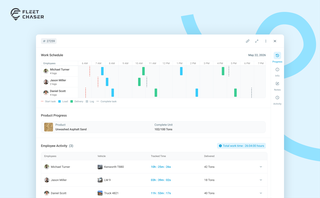
The Progress tab is the single place that shows how a task was actually worked — built from real entries drivers create as they go, not a summary someone reassembled later. A per-employee timeline, live per-product totals, and a filterable log of every load and delivery, with every edit kept on the activity log so corrections never erase the truth.
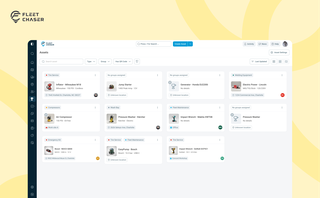
Assets is a new Console section for the things that are not vehicles. Give a tool a QR sticker, see where it was last scanned, and let your crew sign it out by filling a form on the phone.
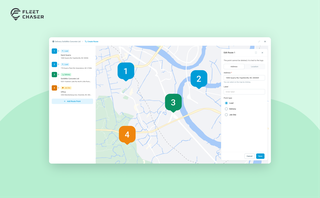
Route Planning turns a multi-stop job from "an address typed into the task description" into a real itinerary you draw on a map. Color-coded Load, Delivery, and Job Site checkpoints, drag to reorder, addresses or saved Locations, and an Employee App that walks the driver through the route in order — including the Job Site stops that hold the line until the work there is logged.
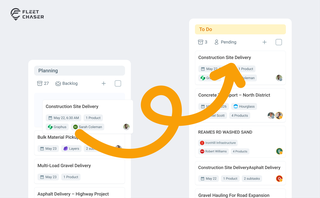
Most dispatchers still drag tomorrow's jobs onto the board every morning. Schedule Automation removes the ritual — set a rule on a workflow once, and planned tasks promote themselves onto the active board when their start time is near. It reacts when plans change, and you can still promote any job by hand in one click.
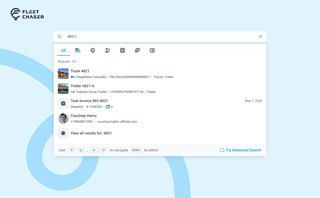
You shouldn't have to stop and figure out where to look for something in Fleet Chaser. You should be able to type its name and be on its page a second later. That's what we rebuilt Search around.
There are two searches now, and they're good at different things.
- Quick Search — the box in the top bar — is for getting somewhere fast.
- Advanced Search is for the times a name isn't enough: when you want to filter a list, search by something other than a name, or pull in archived records.