



VINs / 2007 / Freightliner / Cst120 / 1FUJBBCGX7PY95901
2007 Freightliner Cst120
Vin:
1FUJBBCGX7PY95901
Type:
Truck-Tractor
Year:
2007
Make:
Freightliner
Model:
Cst120
GVWR:
?
Engine
Model
Detroit Series 60
Fuel
Diesel
Displacement(Liters)
12.7
Cylinders
6
Configuration
In-Line
Drive Trian
Type
6x4
Manufacturer
Manufacturer
DAIMLER TRUCK NORTH AMERICA LLC
Plant City
PORTLAND
Plant State
OREGON
Plant Country
UNITED STATES (USA)
Safety Features
Brake System Type
Air
Do you manage a fleet?
FleetChaser will help you track:
- Mileage and maintenance
- Filling and expenses
- Real-time technical condition
Learn More
You'll never want to go back to how your fleet operated before Fleet Chaser
Our construction fleet management software makes your fleet management better, safer, and easier.
Construction and Fleet Management Articles
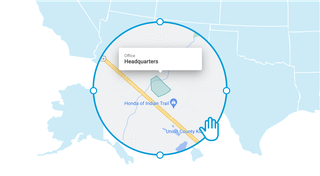
Geofencing leverages GPS or RFID technology to establish virtual perimeters around physical locations, granting fleet managers meticulous control and invaluable insights. It addresses concerns such as driver behavior monitoring, unauthorized asset use prevention, streamlined administrative tasks, load counting, and improved safety compliance. To gain a comprehensive understanding of the tangible benefits geofencing offers, let's delve deeper into its functionality.
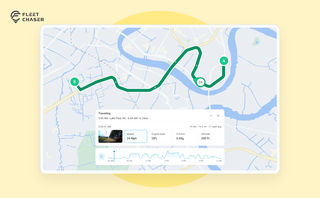
The map's History view is now a full replay of a vehicle's day. Pick a date to see the whole route, a timeline of every trip, stop, and idle, and replay it second by second with speed, engine, altitude, and camera data - plus power and battery health on the Details tab.

Managing a fleet is not just about tracking vehicles—it’s about staying informed, reacting instantly to critical events, and making better business decisions. That’s why we are launching the Fleet Chaser Event System, a powerful, customizable tool that lets you create rules tailored specifically to your company’s needs and receive real-time alerts when key events occur.

Managing fleets, tasks, and data just got a lot easier! The Fleet Chaser dashboard has been completely redesigned to improve usability and bring a game-changing feature: Customization.
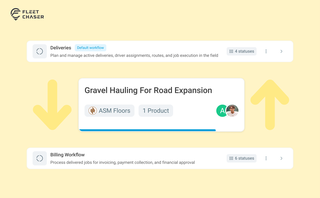
Work doesn’t stop at one team. Transfer in Fleet Chaser hands a task from one workflow to another in a single move, keeping every product, attachment, and activity-log entry attached. No re-typing, no lost history.
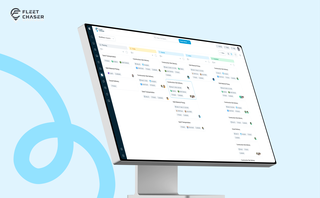
Most "fleet management software" was built for long-haul trucking or service vehicles — construction is the asset-mixed reality in between, and most vendors treat it as an afterthought. Here are the four capabilities that actually matter for a construction fleet, starting with dispatch, plus an honest vendor-by-vendor look at how Samsara, Motive, Fleetio, Verizon Connect, Tenna, and Fleet Chaser handle each.

We are excited to introduce Fleet Chaser Chat, a brand-new feature designed to enhance communication and collaboration within your company. Whether you're coordinating fleet operations, managing employees, or discussing important updates, our chat functionality is built to support your needs.
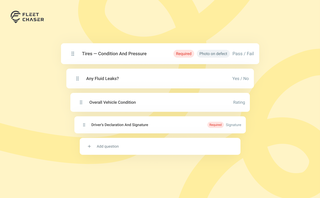
Forms is live in the Console, and the questions in it are yours. Write what your business needs to know, point it at the trucks it applies to, and publish.

Reventive maintenance is paramount to sustaining your fleet’s health and minimizing downtime. It’s crucial to have a solid preventive protocol to ensure your vehicles are in top shape for as long as possible; however, creating a preventive maintenance plan or schedule from scratch is impossible without the right tools.
We advise fleet managers/owners to get familiar with the best practices you can implement to optimize fleet downtime prevention.
We’ve listed down five most crucial tips: save them to make sure your business is on its way to growth!