



VINs / 2014 / Hino / Conventional Type Truck / 5PVNE8JT6E4S55587
2014 Hino Conventional Type Truck
Vin:
5PVNE8JT6E4S55587
Year:
2014
Make:
Hino
Model:
Conventional Type Truck
GVWR:
?

Engine
Model
J08E-VC / J08E-VB
Fuel
Diesel
Horse Power
220
Displacement(Liters)
7.6
Manufacturer
Manufacturer
HINO MOTORS MANUFACTURING U.S.A.
Plant Company
W. V. Plant
Plant State
WEST VIRGINIA
Plant Country
UNITED STATES (USA)
Safety Features
Brake System Type
Hydraulic
Do you manage a fleet?
FleetChaser will help you track:
- Mileage and maintenance
- Filling and expenses
- Real-time technical condition
Learn More
You'll never want to go back to how your fleet operated before Fleet Chaser
Our construction fleet management software makes your fleet management better, safer, and easier.
Construction and Fleet Management Articles

What does it take to develop a fleet management budget that will support you on the way to your business goals? In this short guide will cover the determining aspects you should keep in mind and strategies to employ when drawing up a fleet budget.
But first, let’s clarify — why is it imperative to have one? 🤔

Telematics went from military GPS tracking to a powerful fleet management tool that prevents problems before they arise. Now, it’s all about control, confidence, and peace of mind for fleet owners. Want to see how telematics can transform your fleet? This article breaks down how modern telematics solutions work, real-life success stories, and the answers you’ve been looking for, like where your vehicles are and how to cut fuel costs. Feel free to dive in!

In a fast-paced fleet management environment, staying on top of important updates is crucial. That’s why we are introducing Fleet Chaser Notifications—a centralized system designed to ensure you never miss critical alerts while avoiding unnecessary distractions.

You know where your vehicle is. But do you know what's happening around it?
That's why we introduced the Cameras Overview tab in Fleet Chaser. Now, dispatchers, safety managers, or operations leads can quickly see exactly what's going on - directly through the cameras installed in your vehicles.

We’re excited to announce that Fleet Chaser will be at the Charlotte Build Expo 2024 on December 11-12 at the Charlotte Convention Center. This is your chance to connect with us in person and learn how we’re helping SMBs in the construction industry take control of their fleet operations.
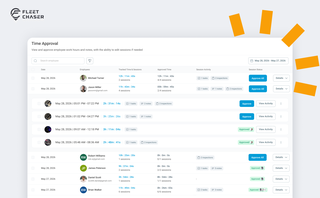
Time Approval now opens a full Session Details view of every shift before you sign off, and the new Pay Period screen turns approved hours into a click-to-pay workflow. Together they cover the whole stretch from clock-out to paycheck — without leaving Fleet Chaser.
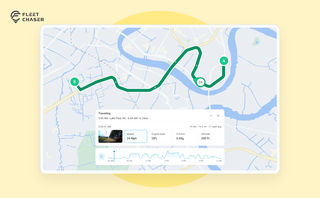
The map's History view is now a full replay of a vehicle's day. Pick a date to see the whole route, a timeline of every trip, stop, and idle, and replay it second by second with speed, engine, altitude, and camera data - plus power and battery health on the Details tab.
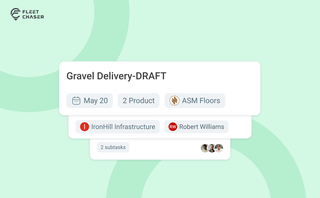
Setting up a real job takes a few minutes — a route, products, a crew, a schedule. Get interrupted halfway and that half-built task used to be gone. Drafts fix that: while you build a task, Fleet Chaser saves it automatically, so you can step away and pick up exactly where you left off. A draft stays private and silent — no task number, no notifications — until you press Create task.
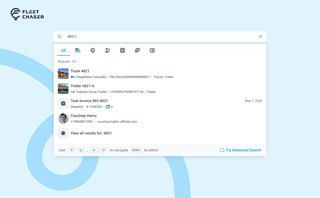
You shouldn't have to stop and figure out where to look for something in Fleet Chaser. You should be able to type its name and be on its page a second later. That's what we rebuilt Search around.
There are two searches now, and they're good at different things.
- Quick Search — the box in the top bar — is for getting somewhere fast.
- Advanced Search is for the times a name isn't enough: when you want to filter a list, search by something other than a name, or pull in archived records.