


VINs / 2015 / GMC / Sierra / 1GTV2TEH4FZ222061
2015 GMC Sierra
Vin:
1GTV2TEH4FZ222061
Type:
Pickup
Year:
2015
Make:
GMC
Model:
Sierra
Trim:
Fleet/Base
Series:
1500
GVWR:
?

Engine
Model
LV3 - VVT, Aluminum, E85 Max
Fuel
Gasoline
Fuel(Secondary)
Ethanol (E85)
Fuel Injection Type
Stoichiometric Gasoline Direct Injection (SGDI)
Displacement(Liters)
4.3
Cylinders
6
Configuration
V-Shaped
Drive Trian
Type
4WD/4-Wheel Drive/4x4
Manufacturer
Manufacturer
GENERAL MOTORS LLC
Plant Company
Fort Wayne Assembly
Plant City
ROANOKE
Plant State
INDIANA
Plant Country
UNITED STATES (USA)
Safety Features
Air Bag Location(Front)
1st Row (Driver and Passenger)
Air Bag Location(Sides)
1st Row (Driver and Passenger)
Seat Belts(All)
Manual
Brake System Type
Hydraulic
Do you manage a fleet?
FleetChaser will help you track:
- Mileage and maintenance
- Filling and expenses
- Real-time technical condition
Learn More
You'll never want to go back to how your fleet operated before Fleet Chaser
Our construction fleet management software makes your fleet management better, safer, and easier.
Construction and Fleet Management Articles
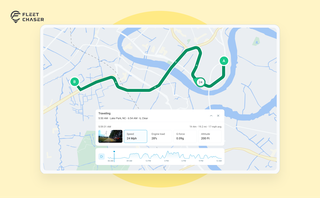
The map's History view is now a full replay of a vehicle's day. Pick a date to see the whole route, a timeline of every trip, stop, and idle, and replay it second by second with speed, engine, altitude, and camera data - plus power and battery health on the Details tab.
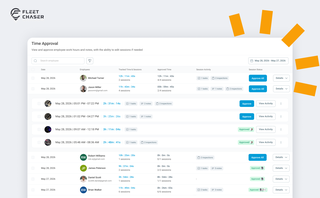
Time Approval now opens a full Session Details view of every shift before you sign off, and the new Pay Period screen turns approved hours into a click-to-pay workflow. Together they cover the whole stretch from clock-out to paycheck — without leaving Fleet Chaser.
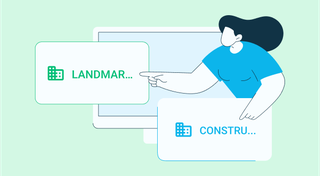
Managing multiple companies can be a challenge, especially when you constantly need to log in and out of different accounts. Previously, Fleet Chaser users were limited to managing just one company at a time. If you worked for more than one company, switching between them required logging out and logging in again, which was time-consuming and inconvenient.
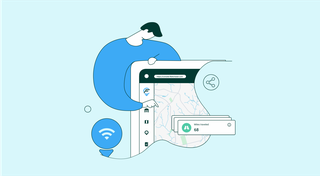
Finding useful data and utilizing it properly is a stepping stone towards running an efficient fleet. However, many fleet management systems are unoptimized, and crucial data either gets lost or underused. With fleet management software, working with fleet data is incredibly easier and more straightforward, eliminating manual work and boosting business efficiency.
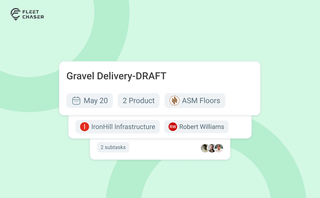
Setting up a real job takes a few minutes — a route, products, a crew, a schedule. Get interrupted halfway and that half-built task used to be gone. Drafts fix that: while you build a task, Fleet Chaser saves it automatically, so you can step away and pick up exactly where you left off. A draft stays private and silent — no task number, no notifications — until you press Create task.
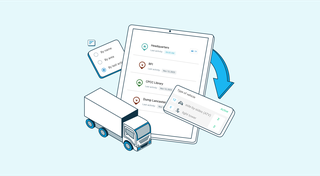
The last activity view is already in your account. This feature enables you to instantly view info on trucks’ activity in certain locations. No need to search info on the last activity manually: it will be displayed neatly right next to each location’s name. Stay updated and have a nice day ahead!
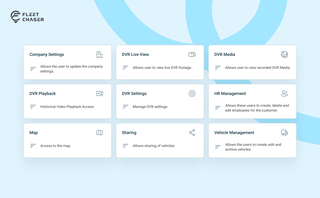
Permissions decide who on your team can see and do what. Admins can do everything; everyone else gets access through groups you build, so each role gets exactly what it needs and nothing more. Here is how to set it up in the Console under Employees.

Fleet Chaser chat keeps every conversation right next to the routes, tasks, and time clock your team already works in. Over the past few months we've made it clearer to use and steadier out in the field — reply to specific messages, share files with cleaner previews, and stay connected even when the signal drops.
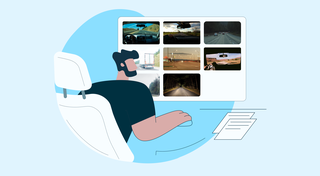
You know where your vehicle is. But do you know what's happening around it?
That's why we introduced the Cameras Overview tab in Fleet Chaser. Now, dispatchers, safety managers, or operations leads can quickly see exactly what's going on - directly through the cameras installed in your vehicles.