



VINs / 2017 / Nissan / Frontier / 1N6BD0CT7HN752227
2017 Nissan Frontier
Vin:
1N6BD0CT7HN752227
Type:
Pickup
Year:
2017
Make:
Nissan
Model:
Frontier
GVWR:
?
Engine
Fuel
Gasoline
Displacement(Liters)
2.5
Drive Trian
Type
4x2
Axles
2
Wheels
4
Manufacturer
Manufacturer
NISSAN NORTH AMERICA, INC.
Plant Company
Nissan North America Inc.
Plant City
CANTON
Plant State
MISSISSIPPI
Plant Country
UNITED STATES (USA)
Safety Features
Air Bag Location(Front)
1st Row (Driver and Passenger)
Air Bag Location(Sides)
1st Row (Driver and Passenger)
Seat Belts(All)
Manual
ABS (Antilock Braking System)
Standard
ESC (Electronic Stability Control)
Standard
Other Restraint System Info
2nd row outboard 3-point manual belts
Do you manage a fleet?
FleetChaser will help you track:
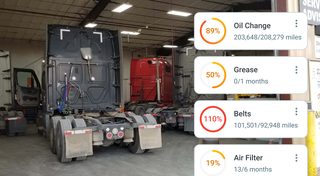
- Mileage and maintenance
- Filling and expenses
- Real-time technical condition
Learn More
You'll never want to go back to how your fleet operated before Fleet Chaser
Our construction fleet management software makes your fleet management better, safer, and easier.
Construction and Fleet Management Articles
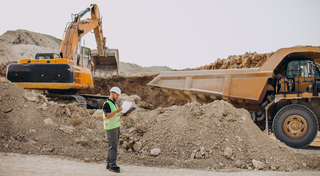
Compare 8 dispatch platforms for US construction fleets — features, pricing, and which fits a 10-vehicle vs 50+ fleet. Includes Samsara, Fleetio, Procore.
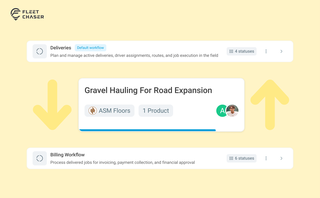
Work doesn’t stop at one team. Transfer in Fleet Chaser hands a task from one workflow to another in a single move, keeping every product, attachment, and activity-log entry attached. No re-typing, no lost history.

Idle fleet vehicles draining money, drivers taking hour-long detours to lunch, traffic jams derailing schedules, maintenance issues snowballing into bills with multiple zeros… If you’re nodding along to these fleet management issues, you’re not alone.
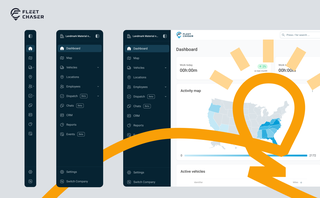
Fleet Chaser navigation just got an upgrade — dark theme, grouped sections, and a collapsible sidebar with 3 states. Here's what changed and where things moved.
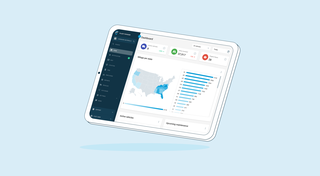
We’re thrilled to present new navigation in Fleet Chaser.
The new navigation not only streamlines your workflow, but also helps us roll out all the new features: notifications, dispatching, maintenance work orders, and more.
The new navigation is available in your user account, log in and check it out. 🌝
Hover over the toolbar or to the main workspace. Both sections will unfold, making it convenient to work in every one of them. The maps will also unfold, providing a larger view to see every little detail.

But your drivers may need to be on board with that decision. How do you do what’s best for your drivers and fleet without harming driver trust while juggling legal concerns?
Not to worry. Here are crucial points to keep in mind in your efforts to equip your fleet with dash cams while preserving driver privacy:
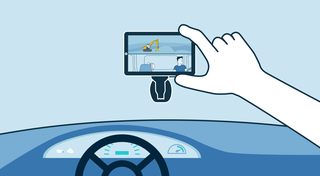
The most critical components of a fleet are the drivers and the vehicles. It is important that good driving behavior is monitored and encouraged, and fleets are kept safe.. Dash cameras make it possible to catch irresponsible driving early, provide concrete evidence in the event of an accident, and, most importantly, avoid them.

Fleet Chaser: Liquid Metal Design Philosophy
At Fleet Chaser, our design philosophy embodies clarity, resilience, and adaptability, much like liquid metal—a substance strong enough for rigorous demands yet fluid sufficient to mold effortlessly around your unique business needs. Here's how this philosophy translates into our interface and functionalities.