



VINs / 2020 / Ford / Explorer / 1FMSK8FH6LGA43635
2020 Ford Explorer
Vin:
1FMSK8FH6LGA43635
Type:
Sport Utility Vehicle (SUV)/Multi-Purpose Vehicle (MPV)
Year:
2020
Make:
Ford
Model:
Explorer
Trim:
Limited
GVWR:
?
Engine
Manufacturer
Ford
Fuel
Gasoline
Horse Power
270
Displacement(Liters)
2.3
Cylinders
4
Configuration
In-Line
Drive Trian
Type
4WD/4-Wheel Drive/4x4
Axles
2
Wheels
4
Manufacturer
Manufacturer
FORD MOTOR COMPANY
Plant Company
Chicago Assembly
Plant City
CHICAGO
Plant State
ILLINOIS
Plant Country
UNITED STATES (USA)
Safety Features
Air Bag Location(Front)
1st Row (Driver and Passenger)
Air Bag Location(Sides)
1st and 2nd and 3rd Rows
Seat Belts(All)
Manual
Brake System Type
Hydraulic
ABS (Antilock Braking System)
Standard
ESC (Electronic Stability Control)
Standard
Do you manage a fleet?
FleetChaser will help you track:
- Mileage and maintenance
- Filling and expenses
- Real-time technical condition
Learn More
You'll never want to go back to how your fleet operated before Fleet Chaser
Our construction fleet management software makes your fleet management better, safer, and easier.
Construction and Fleet Management Articles
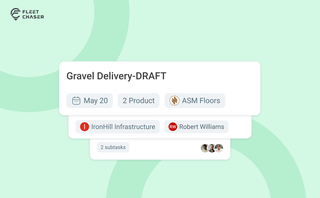
Setting up a real job takes a few minutes — a route, products, a crew, a schedule. Get interrupted halfway and that half-built task used to be gone. Drafts fix that: while you build a task, Fleet Chaser saves it automatically, so you can step away and pick up exactly where you left off. A draft stays private and silent — no task number, no notifications — until you press Create task.
Fleet management can feel like a truckload of troubles no one wants to deal with. As the team behind Fleet Chaser, we talk to fleet managers daily, dive into the latest reports, and help fleet businesses tackle their common challenges. In this article, we break down the biggest pain points fleet operators face and how the experts solve them. Read on!
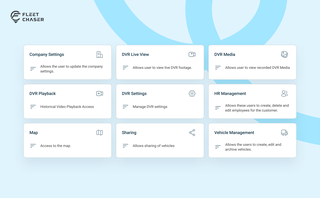
Permissions decide who on your team can see and do what. Admins can do everything; everyone else gets access through groups you build, so each role gets exactly what it needs and nothing more. Here is how to set it up in the Console under Employees.
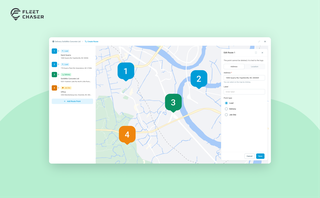
Route Planning turns a multi-stop job from "an address typed into the task description" into a real itinerary you draw on a map. Color-coded Load, Delivery, and Job Site checkpoints, drag to reorder, addresses or saved Locations, and an Employee App that walks the driver through the route in order — including the Job Site stops that hold the line until the work there is logged.

In a fast-paced fleet management environment, staying on top of important updates is crucial. That’s why we are introducing Fleet Chaser Notifications—a centralized system designed to ensure you never miss critical alerts while avoiding unnecessary distractions.
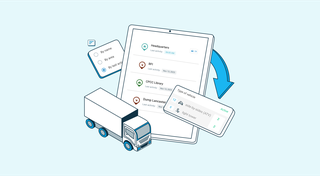
The last activity view is already in your account. This feature enables you to instantly view info on trucks’ activity in certain locations. No need to search info on the last activity manually: it will be displayed neatly right next to each location’s name. Stay updated and have a nice day ahead!
QR Codes are live in Fleet Chaser. Drivers scan a sticker on any vehicle to jump straight into the right inspection — no searching, no typing — and managers link a code to a vehicle right from the Console in seconds.
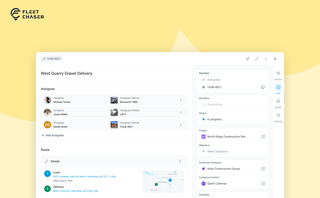
In most operations, the plan and the work live in different places. The plan's on a board, or in a dispatcher's head. The work's out on a site, in a truck, spread across locations. And whatever actually happened comes back later in pieces — a phone call, a half-remembered note, a photo that never got sent.
Tasks v2 closes that gap. You set up the work the way your business runs it, your crew does it from their phone, and when it's done you open the task and see exactly how it went — who did what, when, how much — without calling anyone to ask.
It doesn't much matter whether you dispatch field crews, haul materials between sites, run service calls, or coordinate office work across locations. The point of Tasks v2 is that it bends to your process instead of forcing you into someone else's.
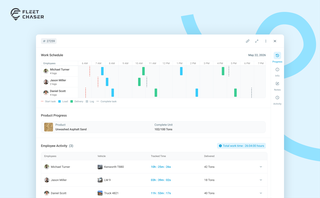
The Progress tab is the single place that shows how a task was actually worked — built from real entries drivers create as they go, not a summary someone reassembled later. A per-employee timeline, live per-product totals, and a filterable log of every load and delivery, with every edit kept on the activity log so corrections never erase the truth.