



VINs / 2023 / Chevrolet / Malibu / 1G1ZD5STXPF227793
2023 Chevrolet Malibu
Vin:
1G1ZD5STXPF227793
Type:
Sedan/Saloon
Year:
2023
Make:
Chevrolet
Model:
Malibu
Trim:
LT (1LT)
GVWR:
?
Engine
Model
LFV
Fuel
Gasoline
Displacement(Liters)
1.5
Cylinders
4
Configuration
In-Line
Turbocharged
Yes
Manufacturer
Manufacturer
GENERAL MOTORS LLC
Plant Company
Fairfax Assembly
Plant City
KANSAS CITY
Plant State
KANSAS
Plant Country
UNITED STATES (USA)
Safety Features
Air Bag Location(Front)
1st Row (Driver and Passenger)
Air Bag Location(Sides)
1st and 2nd Rows
Seat Belts(All)
Manual
ABS (Antilock Braking System)
Standard
ESC (Electronic Stability Control)
Standard
Other Restraint System Info
AYF - Active Manual Belts
Do you manage a fleet?
FleetChaser will help you track:
- Mileage and maintenance
- Filling and expenses
- Real-time technical condition
Learn More
You'll never want to go back to how your fleet operated before Fleet Chaser
Our construction fleet management software makes your fleet management better, safer, and easier.
Construction and Fleet Management Articles

Fleet Chaser: Liquid Metal Design Philosophy
At Fleet Chaser, our design philosophy embodies clarity, resilience, and adaptability, much like liquid metal—a substance strong enough for rigorous demands yet fluid sufficient to mold effortlessly around your unique business needs. Here's how this philosophy translates into our interface and functionalities.
![[Fleet Chaser] Fleet Management Software Features - Preview](https://cms-media.fleetchaser.com/images/Fleet_Chaser_Fleet_Management_Software_Featu.max-320x320.png)
As of December 2024, there are 968 fleet management software (FMS) options listed on Capterra alone. Think of going through dozens of them, hoping to find the perfect fit for your fleet. You spend days, maybe weeks, swamped by endless features and specs, sitting through overhyped demos, and feeling your brain turn to mush.

We’re excited to announce that Fleet Chaser will be at the Charlotte Build Expo 2024 on December 11-12 at the Charlotte Convention Center. This is your chance to connect with us in person and learn how we’re helping SMBs in the construction industry take control of their fleet operations.
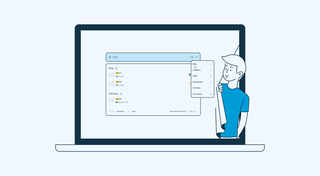
With simplified Global Search, every team member who will be interacting with the software will save valuable time — and, in the long run, all those shortcuts add up, enabling you to focus longer on making crucial decisions for business prosperity, rather than just managing operations.
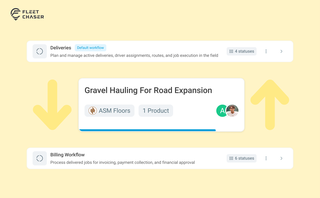
Work doesn’t stop at one team. Transfer in Fleet Chaser hands a task from one workflow to another in a single move, keeping every product, attachment, and activity-log entry attached. No re-typing, no lost history.
Compare 8 dispatch platforms for US construction fleets — features, pricing, and which fits a 10-vehicle vs 50+ fleet. Includes Samsara, Fleetio, Procore.
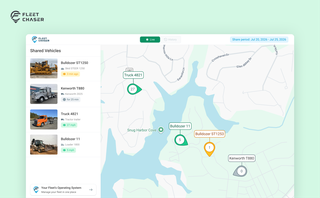
Live Share update: share a vehicle by link and let your customer see not just the live map, but the route history for the exact days you worked their site.

The most critical components of a fleet are the drivers and the vehicles. It is important that good driving behavior is monitored and encouraged, and fleets are kept safe.. Dash cameras make it possible to catch irresponsible driving early, provide concrete evidence in the event of an accident, and, most importantly, avoid them.

Fleet Management Software: A Compelling Investment for 2024
Nowadays, fleet management has the potential to be ramped up to unprecedented speeds and simplified, yet it can carry much more complex data and realize sophisticated tasks.
Pen-and-paper fleet management methods have become competitively disadvantaged, if not obsolete.
Innovative fleet solutions are a prerequisite for running a successful fleet — their long list of powerful features and benefits attests to this.
If you were contemplating making the jump to fleet software, let this be a solidifying, factual overview of the solution’s advantages to dispel your doubts.