


VINs / 2000 / GMC / C7 / 1GDL7H1C1YJ504221
2000 GMC C7
Vin:
1GDL7H1C1YJ504221
Year:
2000
Make:
GMC
Model:
C7
Trim:
Conv. Cab 106.75 BBC
Series:
7000 Medium Duty
GVWR:
?

Engine
Manufacturer
CAT
Model
LG5
Fuel
Diesel
Displacement(Liters)
7.2
Cylinders
6
Configuration
In-Line
Turbocharged
Yes
Drive Trian
Type
4x2
Axles
2
Manufacturer
Manufacturer
GENERAL MOTORS LLC
Plant Company
GM Truck Group
Plant City
JANESVILLE
Plant State
WISCONSIN
Plant Country
UNITED STATES (USA)
Safety Features
Brake System Type
Hydraulic
Do you manage a fleet?
FleetChaser will help you track:
- Mileage and maintenance
- Filling and expenses
- Real-time technical condition
Learn More
You'll never want to go back to how your fleet operated before Fleet Chaser
Our construction fleet management software makes your fleet management better, safer, and easier.
Construction and Fleet Management Articles
Telematics went from military GPS tracking to a powerful fleet management tool that prevents problems before they arise. Now, it’s all about control, confidence, and peace of mind for fleet owners. Want to see how telematics can transform your fleet? This article breaks down how modern telematics solutions work, real-life success stories, and the answers you’ve been looking for, like where your vehicles are and how to cut fuel costs. Feel free to dive in!
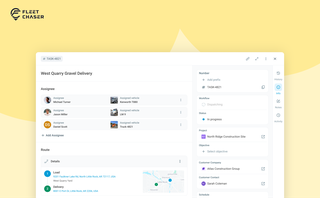
In most operations, the plan and the work live in different places. The plan's on a board, or in a dispatcher's head. The work's out on a site, in a truck, spread across locations. And whatever actually happened comes back later in pieces — a phone call, a half-remembered note, a photo that never got sent.
Tasks v2 closes that gap. You set up the work the way your business runs it, your crew does it from their phone, and when it's done you open the task and see exactly how it went — who did what, when, how much — without calling anyone to ask.
It doesn't much matter whether you dispatch field crews, haul materials between sites, run service calls, or coordinate office work across locations. The point of Tasks v2 is that it bends to your process instead of forcing you into someone else's.
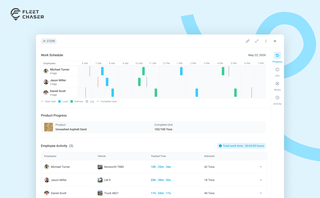
The Progress tab is the single place that shows how a task was actually worked — built from real entries drivers create as they go, not a summary someone reassembled later. A per-employee timeline, live per-product totals, and a filterable log of every load and delivery, with every edit kept on the activity log so corrections never erase the truth.
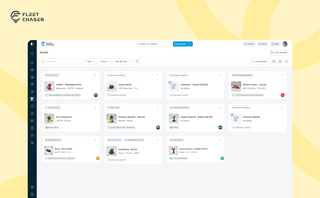
Assets is a new Console section for the things that are not vehicles. Give a tool a QR sticker, see where it was last scanned, and let your crew sign it out by filling a form on the phone.
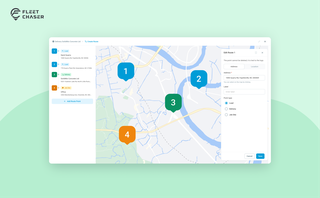
Route Planning turns a multi-stop job from "an address typed into the task description" into a real itinerary you draw on a map. Color-coded Load, Delivery, and Job Site checkpoints, drag to reorder, addresses or saved Locations, and an Employee App that walks the driver through the route in order — including the Job Site stops that hold the line until the work there is logged.
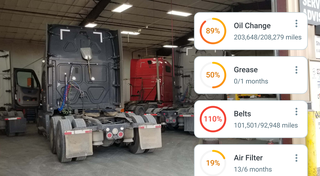

We are excited to introduce Fleet Chaser Chat, a brand-new feature designed to enhance communication and collaboration within your company. Whether you're coordinating fleet operations, managing employees, or discussing important updates, our chat functionality is built to support your needs.
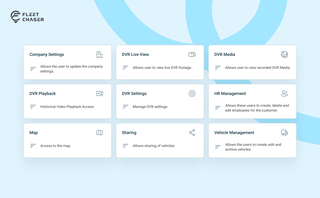
Permissions decide who on your team can see and do what. Admins can do everything; everyone else gets access through groups you build, so each role gets exactly what it needs and nothing more. Here is how to set it up in the Console under Employees.
QR Codes are live in Fleet Chaser. Drivers scan a sticker on any vehicle to jump straight into the right inspection — no searching, no typing — and managers link a code to a vehicle right from the Console in seconds.