



VINs / 2008 / Chevrolet / C6 / 1GBJ6C1B38F411569
2008 Chevrolet C6
Vin:
1GBJ6C1B38F411569
Year:
2008
Make:
Chevrolet
Model:
C6
Series:
6000 Medium Duty
GVWR:
?
Engine
Manufacturer
Isuzu
Model
LF8
Displacement(Liters)
7.8
Cylinders
6
Configuration
In-Line
Turbocharged
Yes
Drive Trian
Type
4x2
Axles
2
Manufacturer
Manufacturer
GENERAL MOTORS LLC
Plant Company
GMNA
Plant City
FLINT
Plant State
MICHIGAN
Plant Country
UNITED STATES (USA)
Safety Features
Brake System Type
Hydraulic
Do you manage a fleet?
FleetChaser will help you track:
- Mileage and maintenance
- Filling and expenses
- Real-time technical condition
Learn More
You'll never want to go back to how your fleet operated before Fleet Chaser
Our construction fleet management software makes your fleet management better, safer, and easier.
Construction and Fleet Management Articles

A construction dispatcher fields the same four calls all day — where are you, did you finish, when's the truck coming, which site. None are emergencies, but together they burn about two hours. Here's where the time goes — and the first call to move off the phone.
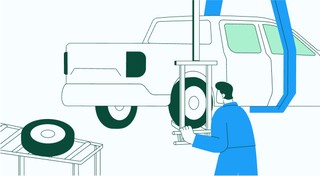
Keeping your trucks on the road means keeping your business running. A single defect can pose a major setback to your fleet, sacrificing time, money, and customer satisfaction. “Prevention is better than cure” applies here pretty much.
That’s why extending the lifetime of your trucks boils down to preventive maintenance: knowing what type of issues are likely to arise and addressing them early on.
Take a proactive approach to your truck’s upkeep and find out how to avoid the five most common breakdown causes.
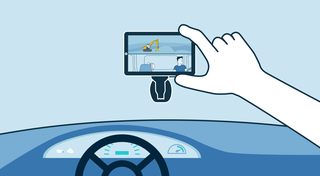
The most critical components of a fleet are the drivers and the vehicles. It is important that good driving behavior is monitored and encouraged, and fleets are kept safe.. Dash cameras make it possible to catch irresponsible driving early, provide concrete evidence in the event of an accident, and, most importantly, avoid them.
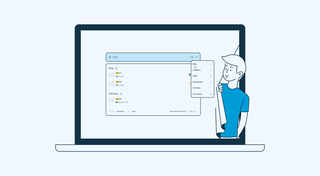
With simplified Global Search, every team member who will be interacting with the software will save valuable time — and, in the long run, all those shortcuts add up, enabling you to focus longer on making crucial decisions for business prosperity, rather than just managing operations.

Ever needed to record specific vehicle information that you can’t quite assign to your existing data categories? With notes, important vehicle details are safe in one place, always at your disposal. This can be repair shop inspections, vehicle documents, legal information, etc.
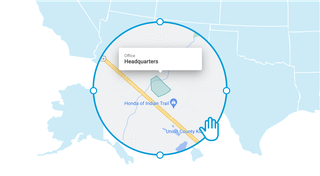
Geofencing leverages GPS or RFID technology to establish virtual perimeters around physical locations, granting fleet managers meticulous control and invaluable insights. It addresses concerns such as driver behavior monitoring, unauthorized asset use prevention, streamlined administrative tasks, load counting, and improved safety compliance. To gain a comprehensive understanding of the tangible benefits geofencing offers, let's delve deeper into its functionality.
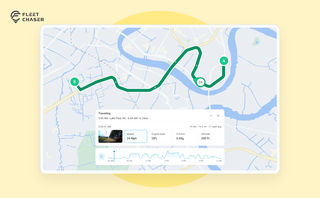
The map's History view is now a full replay of a vehicle's day. Pick a date to see the whole route, a timeline of every trip, stop, and idle, and replay it second by second with speed, engine, altitude, and camera data - plus power and battery health on the Details tab.
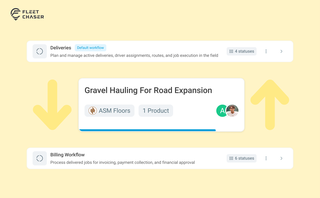
Work doesn’t stop at one team. Transfer in Fleet Chaser hands a task from one workflow to another in a single move, keeping every product, attachment, and activity-log entry attached. No re-typing, no lost history.
Fleet management requires the handling and analysis of numerous metrics and variables, which can quickly get out of hand and clutter your desk with piles of hard-to-access information. Compiling reports, communicating with employees, contractors, and drivers, etc., should be intuitive, all laid out in a simple, visual way.
This is where fleet management software comes in.