



VINs / 2013 / Ford / F-150 / 1FTFW1EF2DFC20657
2013 Ford F-150
Vin:
1FTFW1EF2DFC20657
Type:
Pickup
Year:
2013
Make:
Ford
Model:
F-150
GVWR:
?

Engine
Manufacturer
Ford
Fuel
Gasoline
Horse Power
360
Displacement(Liters)
5.0
Cylinders
8
Configuration
V-Shaped
Drive Trian
Type
4WD/4-Wheel Drive/4x4
Manufacturer
Manufacturer
FORD MOTOR COMPANY
Plant City
DEARBORN
Plant State
MICHIGAN
Plant Country
UNITED STATES (USA)
Safety Features
Air Bag Location(Front)
1st Row (Driver and Passenger)
Air Bag Location(Sides)
1st and 2nd Rows
Seat Belts(All)
Manual
Brake System Type
Hydraulic
Do you manage a fleet?
FleetChaser will help you track:
- Mileage and maintenance
- Filling and expenses
- Real-time technical condition
Learn More
You'll never want to go back to how your fleet operated before Fleet Chaser
Our construction fleet management software makes your fleet management better, safer, and easier.
Construction and Fleet Management Articles
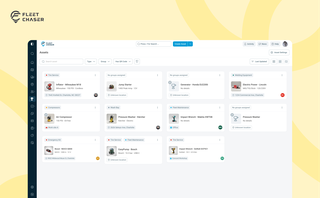
Assets is a new Console section for the things that are not vehicles. Give a tool a QR sticker, see where it was last scanned, and let your crew sign it out by filling a form on the phone.

But your drivers may need to be on board with that decision. How do you do what’s best for your drivers and fleet without harming driver trust while juggling legal concerns?
Not to worry. Here are crucial points to keep in mind in your efforts to equip your fleet with dash cams while preserving driver privacy:

Ever needed to record specific vehicle information that you can’t quite assign to your existing data categories? With notes, important vehicle details are safe in one place, always at your disposal. This can be repair shop inspections, vehicle documents, legal information, etc.
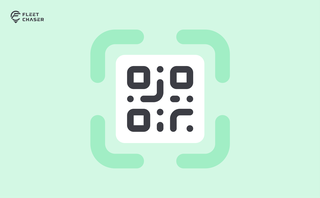
QR Codes are live in Fleet Chaser. Drivers scan a sticker on any vehicle to jump straight into the right inspection — no searching, no typing — and managers link a code to a vehicle right from the Console in seconds.
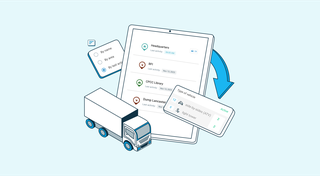
The last activity view is already in your account. This feature enables you to instantly view info on trucks’ activity in certain locations. No need to search info on the last activity manually: it will be displayed neatly right next to each location’s name. Stay updated and have a nice day ahead!

In a fast-paced fleet management environment, staying on top of important updates is crucial. That’s why we are introducing Fleet Chaser Notifications—a centralized system designed to ensure you never miss critical alerts while avoiding unnecessary distractions.
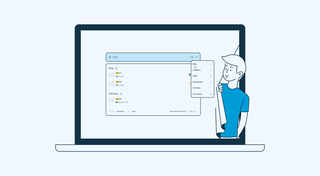
With simplified Global Search, every team member who will be interacting with the software will save valuable time — and, in the long run, all those shortcuts add up, enabling you to focus longer on making crucial decisions for business prosperity, rather than just managing operations.
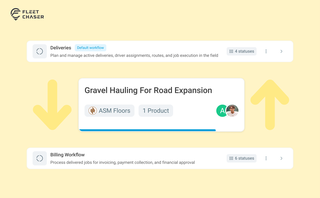
Work doesn’t stop at one team. Transfer in Fleet Chaser hands a task from one workflow to another in a single move, keeping every product, attachment, and activity-log entry attached. No re-typing, no lost history.
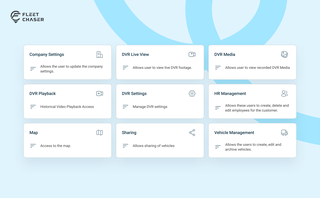
Permissions decide who on your team can see and do what. Admins can do everything; everyone else gets access through groups you build, so each role gets exactly what it needs and nothing more. Here is how to set it up in the Console under Employees.